Selecting and Moving Multiple Dependent Appointments
Select multiple dependent appointments in one action and move them together when they belong to the same dependency group.
Use this task when you need to move several related appointments together instead of changing each appointment one at a time. This workflow supports appointments across multiple resources. You can either reschedule (change date and time) or reassign (change the resource) the multiple appointments. If you select appointments that span multiple resources, you can only reschedule them.
To select and move multiple dependent appointments:
1. On the Calendar, select one or more appointments to reschedule.
2. Alternatively, you can hold the CTRL key (Windows) or Command key (Mac) and drag a rectangle around the group of appointment blocks you want to select.
 |
• Select appointments that belong to the same dependency group or the same work order.
• You can select appointments with a Closed or Cancelled status, but you cannot move them.
• If you select more appointments than the configured value, all appointments are deselected. For more information, see Configuring Maximum Appointment Selection Count.
|
3. Drag and release the selected appointment blocks to the target location on the Calendar. Service Board opens dependency management mode or task planning mode when you move a selection.
Review the appointments in the Dependent Jobs Calendar. If the move breaks a dependency, the dependency line is displayed in red.
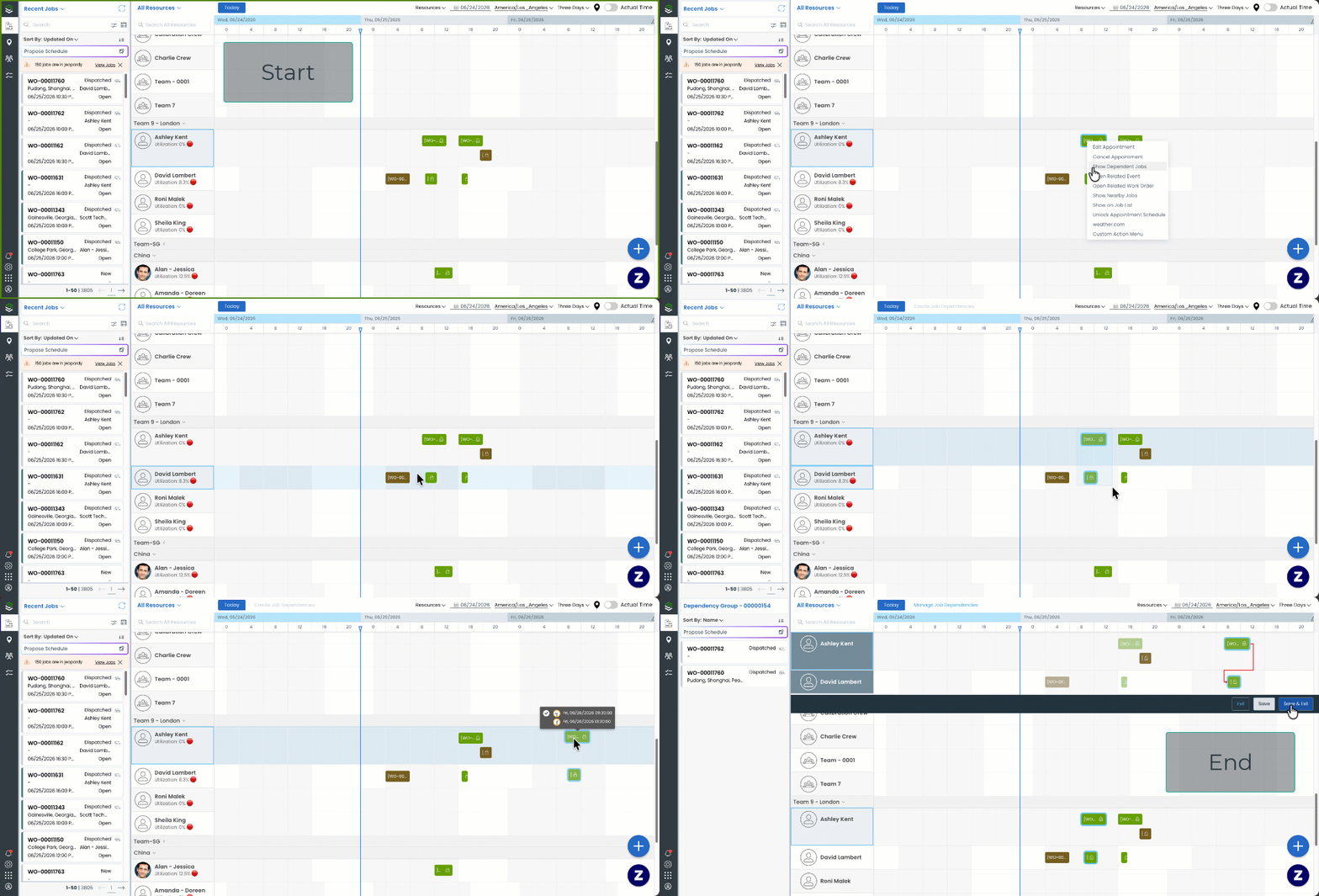
4. Click Save & Exit. The regular calendar refreshes to reflect the change.
|
|
If you Exit without saving, the pending changes are discarded and the appointments revert to their original position.
|
Dependency Validation After a Bulk Move
Bulk move keeps the existing dependency validation. If moving the selected appointments causes one to violate its dependency (for example, a secondary appointment ends up before the primary it depends on), the dependency line is shown in red. You should resolve the invalid dependency; otherwise a warning is shown when the changes are committed.
Related Topics