Viewing a General Task from a Work Order
To view general tasks added directly to a Work Order:
1. Open the Work Order for which you want to view service tasks.
2. Click the Service Products & Tasks tab.
Associated service products, service tasks, or work plans, if any are displayed.
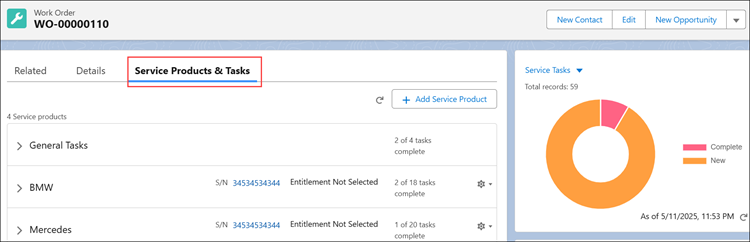
3. Expand General Tasks section to view service tasks added directly to the Work Order.
By default, the Service Task that is assigned to you and not yet completed is displayed in the expanded state.
The Service Task header displays the basic details such as Task Name, Assigned To, Files Attached icon, Comments icon, and Status Indicators in the collapsed state:
 |
The Files Attached and Comments icons are displayed only if you have attached files and added a comment for the task at runtime.
|
4. Expand a Service Task you want to view.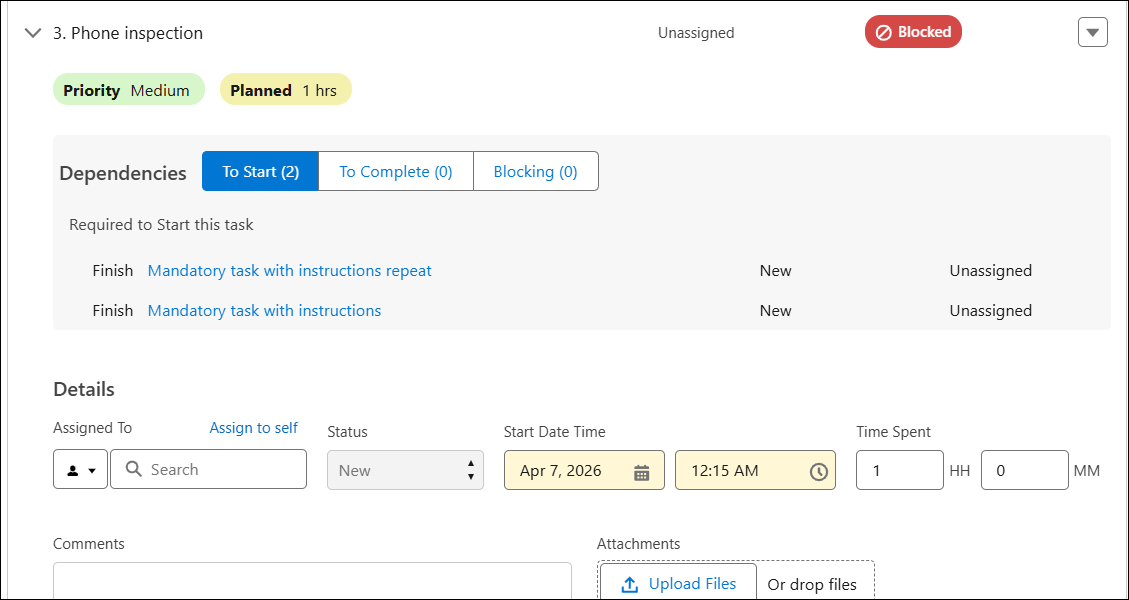
The Service Task displays the following fields:
|
Field
|
Description
|
||
|---|---|---|---|
|
Priority
|
Indicates the Priority of the service task. The Priority can be High, Medium, or Low. This helps technicians prioritize tasks and ensures that critical work is addressed first.
|
||
|
Dependencies
|
Displays whether a task is blocked by other tasks required to start or complete it, or whether it is blocking other tasks. For more information, see Executing Tasks with Dependencies.
|
||
|
Assigned To
|
Indicates the technician to whom the task is assigned.
|
||
|
Status
|
Indicates the current status of the task. The Status can be New, In Progress, and Completed. This helps track progress and provides visibility into task completion.
|
||
|
Start Date Time
|
Specifies when the technician started working on the task. This helps track actual start time and supports accurate time and labor reporting.
|
||
|
Time Spent
|
Indicates the total time spent on the task. This is used for labor tracking, reporting, and billing purposes.
|
||
|
Comments
|
Allows technicians to enter additional notes or observations related to the task. This helps provide context, document work performed, and support future reference.
|
||
|
Attachments
|
Allows uploading supporting files such as images or documents to be added to the task. This helps capture additional details.
|
5. Modify required fields and click Save.
Key Points
• The current task and modified fields are highlighted if you move to the next task without saving, indicating unsaved changes and helping you review them before proceeding.
• The task header displays the following visual indicators for task status:
◦ Completed
◦ In Progress
◦ New
◦ Waiting
• You can mark a task as complete with a single click. For more information, see Marking a Task as Complete.
• You can launch a task that has linked activity with a single click. For more information, see Launching a Task.
Related Topics