Marking Your Service Tasks as Complete in Bulk from a Service Product
From a Service Product, you can bulk complete your assigned tasks that are part of multiple Work Plans of the Service Product. This allows technicians and service engineers to efficiently complete multiple assigned tasks at once. The bulk completion is not supported on tasks that has linked activity such as SFM, Output Document, Data Guide Form, Document Template, and Technical Attribute Templates.
To mark your assigned tasks as complete in bulk from a Service Product:
1. From the Home page, go to the Work Order.
The list of work orders is displayed.
2. Open a Work Order record.
3. Go to the Service Products & Tasks tab.
4. In a Service Product, click the Settings icon and select the Mark My Tasks Complete option.
 |
During upgrade, you might not see the Mark My Tasks Complete option. To view this option, you must perform a hard reload and refresh your browser.
|
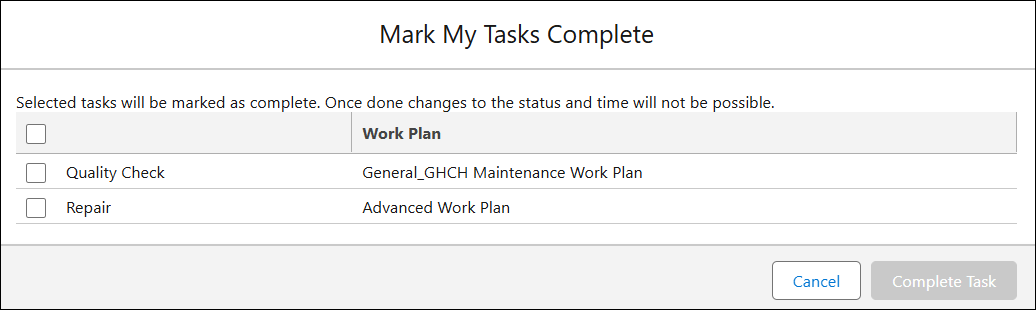
The Mark My Tasks Complete pop-up window is displayed with the list of your tasks.
5. Select the required tasks you want to mark as complete and click Complete Task.
In the task view, you can verify that the status is set to Complete. After you mark tasks as complete, you cannot modify their status or time.