Marking a Task as Complete from a Work Order
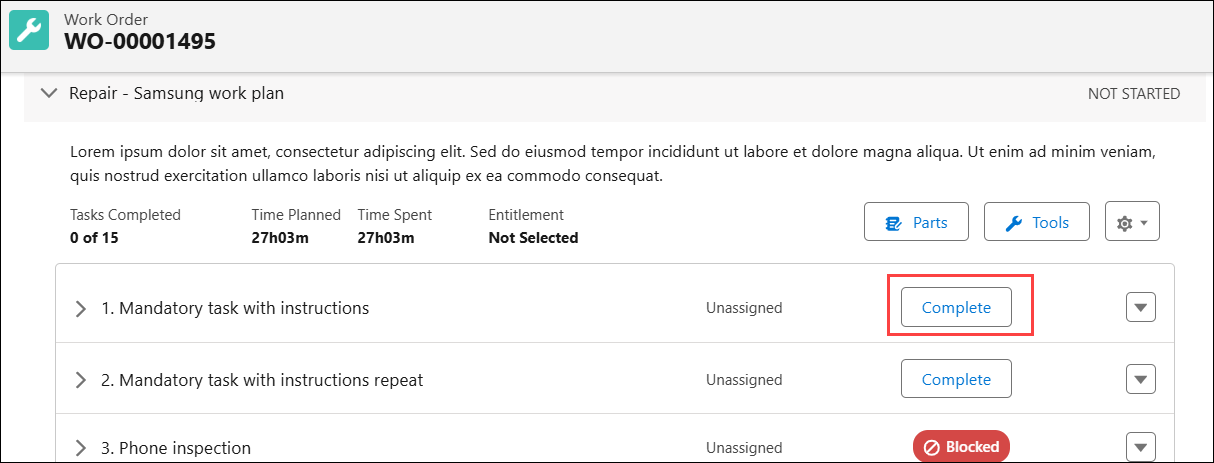
From a Work Order, you can complete a task with a single click by using the Complete button. This allows you to quickly complete the tasks that do not require additional actions or data entry, improving efficiency.
 |
You cannot mark a task as complete directly if it has linked activities such as SFM, Output Document, DataGuide Document Template and so on. Instead, you can click Launch button to open the task and complete the required activity.
|
1. From the Home page, go to the Work Order.
The list of work orders is displayed.
2. Open a Work Order record.
3. Go to the Service Products & Tasks tab.
4. Go to the required task and click Complete.
|
|
• If the Create labor line on Work Order when status is changed to complete is enabled for the task, you must enter the Start Date Time and Time Spent fields before marking the task as complete.
• When you click Complete, the task details are expanded and an error message is displayed if mandatory fields are missing or field values are invalid. You must provide valid values for all required fields before marking the task as complete.
|
After the task is marked as complete, a visual indicator is displayed to indicate that the task is complete, and the next task assigned to you opens.

|
|
• You cannot edit the Assigned To and Status fields after the task is completed.
• You cannot delete the task after it is completed.
|
Related Topics