Executing Tasks with Dependencies
From a Work Order, the Dependencies section in task details help you determine whether a task is blocked by other tasks required to start or complete it, or whether it is blocking other tasks. The task status is displayed as Blocked if there are any dependencies for the task.
To start or complete a task that has dependencies, you must satisfy the specific dependencies based on the dependency type configured for the task. For more information, see Task Dependency Management.
The Complete or Launch buttons are not available for a task that has dependencies until the dependencies are met.
The Dependencies section is not displayed in task details if the task has no dependencies.
The following table describes the dependencies displayed for a task based on the configured dependency type:
|
Dependencies
|
Description
|
Applies to Dependency Type
|
Action Taken
|
|---|---|---|---|
|
To Start
|
Displays the primary tasks that must be started before the current task can begin.
|
Start-to-Start
|
Ensure the primary task status is not New. The current task status cannot be updated until the primary task is started.
|
|
To Start
|
Displays the primary tasks that must be completed before the current task can begin.
|
Finish-to-Start
|
Ensure the primary task status is Complete or Cancelled. The current task status cannot be updated until the primary task is completed.
|
|
To Complete
|
Displays the primary tasks that must be started before the current task can be complete.
|
Start-to-Finish
|
Ensure the primary task status is not New. The current task cannot be marked as complete until the primary task is started.
|
|
To Complete
|
Displays the primary tasks that must be completed before the current task can be completed.
|
Finish-to-Finish
|
Ensure the primary task status is Complete or Cancelled. The current task cannot be marked as complete until the primary task is completed.
|
|
Blocking
|
Displays the tasks that depend on the current task and cannot proceed until it progresses or is completed.
|
All dependency types
|
Update the current task status to meet the dependency condition (for example, move the task out of New or mark it as Complete). Dependent tasks remain blocked until the required status is achieved.
|
To view tasks with dependencies:
1. From the Home page, go to the Work Order tab.
2. Open a Work Order record.
3. Click the Service Products & Tasks tab.
Associated service products, tasks, or work plans are displayed.
4. Expand either General Tasks section or any Work Plan under the Service Products section to view tasks.
The Blocked status is displayed for tasks that have dependencies.
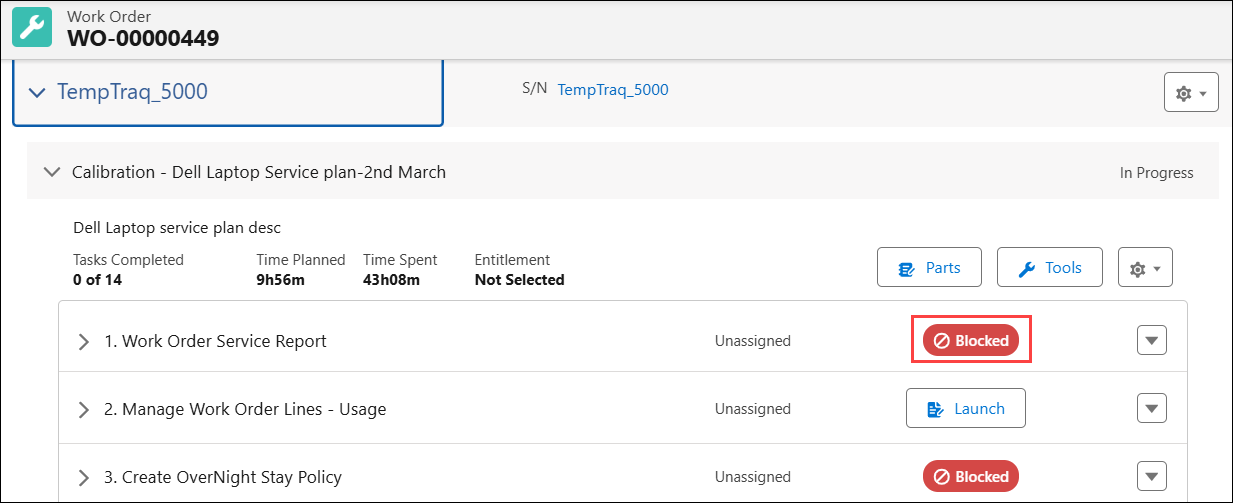
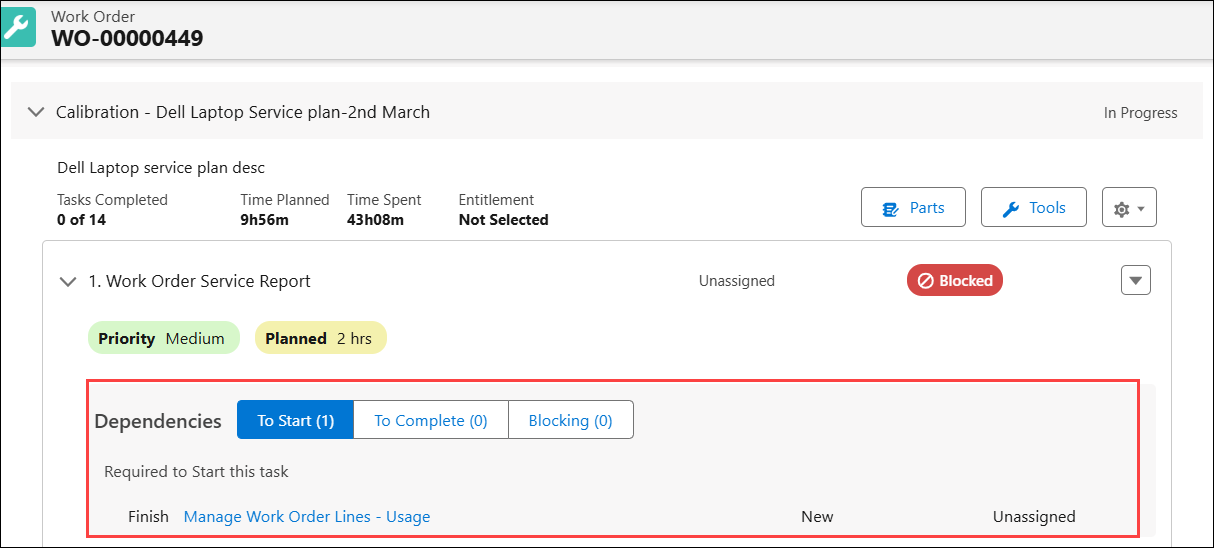
5. Expand a task to view dependencies.
6. In the Dependencies section, click any of the following sections based on your requirements to view dependencies:
◦ To Start
◦ Blocking
Use Case
Controlling task timing with scheduling constraints
Role: Service Planner, Technician
A service planner at Iniscope International configures a Soniscape SSI 1000 Repair Plan with a Finish-to-Start dependency between the Repair task and the Inspection task, applying a Start After constraint of two hours. This ensures that after the technician completes the Inspection task, the system blocks Repair task from starting until two hours have elapsed, allowing repaired components to stabilize and reach thermal equilibrium. The technician follows this schedule, reducing the risk of premature testing that could produce false negative results and improving the accuracy of post-repair validation for equipment. For more information, see Executing Service Task Dependencies.