Service Task Dependencies
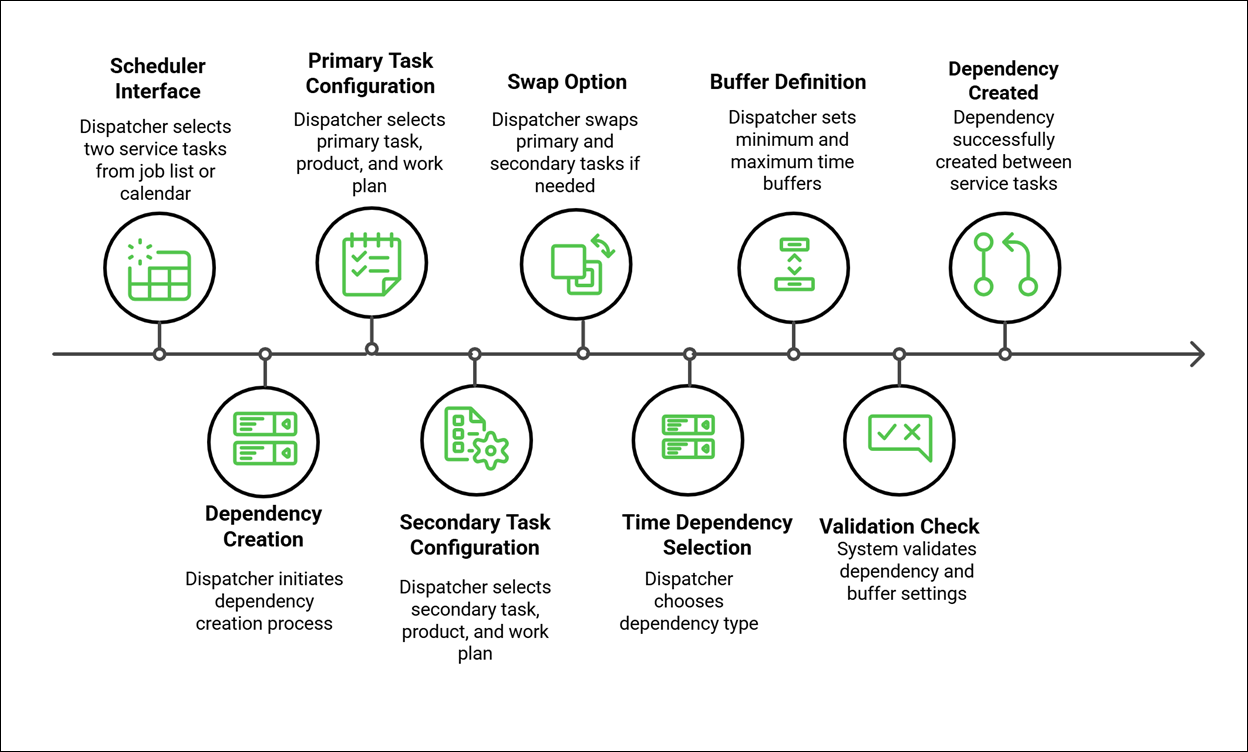
If Job Dependencies and Work Plan as well as Service Task scheduling are enabled for your Service Board tenant, you can use Service Task Dependencies in the Service Task Planning Calendar. The Service Task Dependency user interface and scheduling features are very similar to the existing Job Dependency functionality in Service Board.
How Service Task Dependencies Work
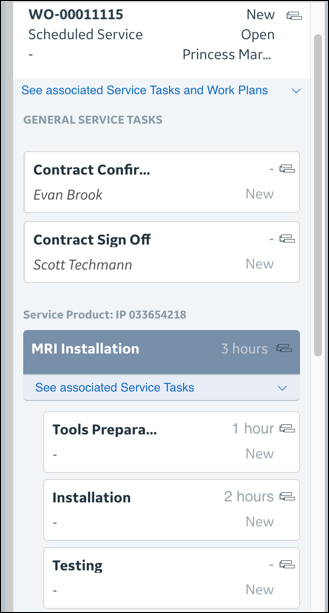
When Service Task-to-Service Task dependencies are configured in Salesforce Work Order records and synced to Service Board, dependency icons appear on the related dependent Service Task Cards on the Job List. Dependency icons also appear on the associated Job Cards and Work Plan Cards.
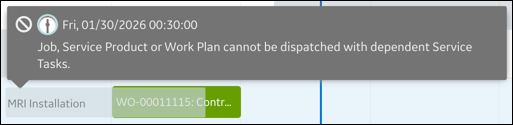
If you drag and drop Jobs, Work Plans, Service Products, or General Service Tasks associated with dependent Service Tasks into the Scheduler Calendar, a tooltip appears with an error message and dispatch fails.
If you drag and drop a dependent Service Task into the Scheduler Calendar, the Service Task Planning Calendar opens and shows a temporary Service Task Appointment with purple borders. If any related dependent Service Task Appointments are already scheduled, dependency lines appear between the newly created and existing Appointments.When you hover your mouse pointer over a dependency line, a tooltip appears and shows the dependency details.
When you schedule, reschedule, or reassign a dependent Service Task in the Service Task Planning Calendar, shaded areas indicate invalid time ranges into which you cannot drag and drop Service Tasks. This area aligns with the start time of the dependent Service Task Appointment. When you resize Service Task Appointments, the shaded area adjusts to align with the updated start or end time of the resized Appointment block.
Reopening the Service Task Planning Calendar
After you save your changes, when you resize, reschedule, or reassign Appointments related to dependent Service Tasks in the Scheduler Calendar, the Service Task Planning Calendar reopens and shows the updated dependent Service Task Appointment with dependency lines to other related Appointments. The updated dependent Service Task Appointment appears as a temporary change with a purple border, and invalid scheduling changes appear as red dependency lines.
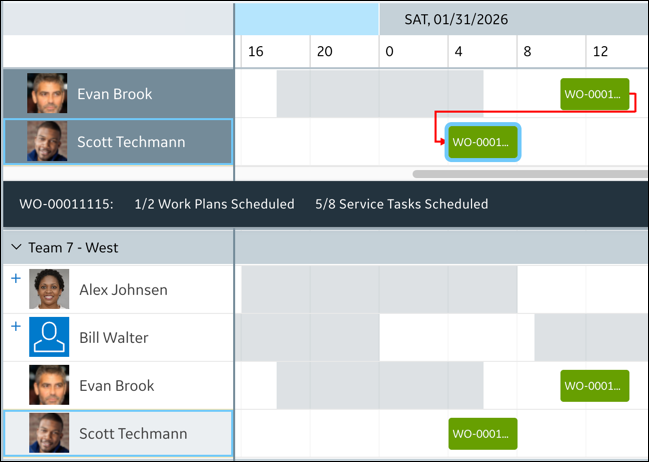
If the invalid dependency is not resolved, although the changes can be successfully saved, a warning message appears.
Time Dependencies and Time Buffers
The following Time Dependency values can be specified in Work Order dependencies:
• Finish to Start: The primary Service Task must finish before the secondary Service Task can start.
• Start to Start: The primary Service Task must start before the secondary Service Task can start.
• Finish to Finish: The primary Service Task must finish before the secondary Service Task can finish.
• Start to Finish: The primary Service Task must start before the secondary Service Task can fiish.
Minimum Time Buffer and Maximum Time Buffer values are used to specify the minimum and maximum amounts of time before or after the times that primary Service Tasks start or finish that secondary Service Tasks must start or finish.
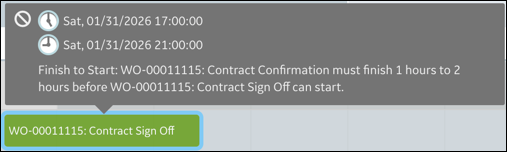
These values are also used during dependency validation and for valid scheduling time range detection. The Maximum Time Buffer value must be greater than the Minimum Time Buffer value, otherwise, it is ignored and treated as unlimited.
 |
• Resource Dependencies are not supported.
• If no Minimum Time Buffer and Maximum Time Buffer values are configured in Work Order dependencies, the minimum is treated as 0 and the maximum as unlimited.
|
Related Topics