Service Task Planning
In Service Task Planning mode, you can schedule single or multiple Service Tasks. You can also reschedule, update, cancel or delete Appointments on the Service Task Planning Calendar.
When you drag and drop any of the following onto an unscheduled time block in a Resource row on the Scheduler Calendar, after available time slots for unscheduled Service Tasks are identified based on the configured shifts for the Resource, the Service Task Planning Calendar appears and shows one or more temporary Appointments.
• Service Tasks
• Service Products
• Work Plans
• Jobs with Service Tasks, Service Products or Work Plans
• General Tasks
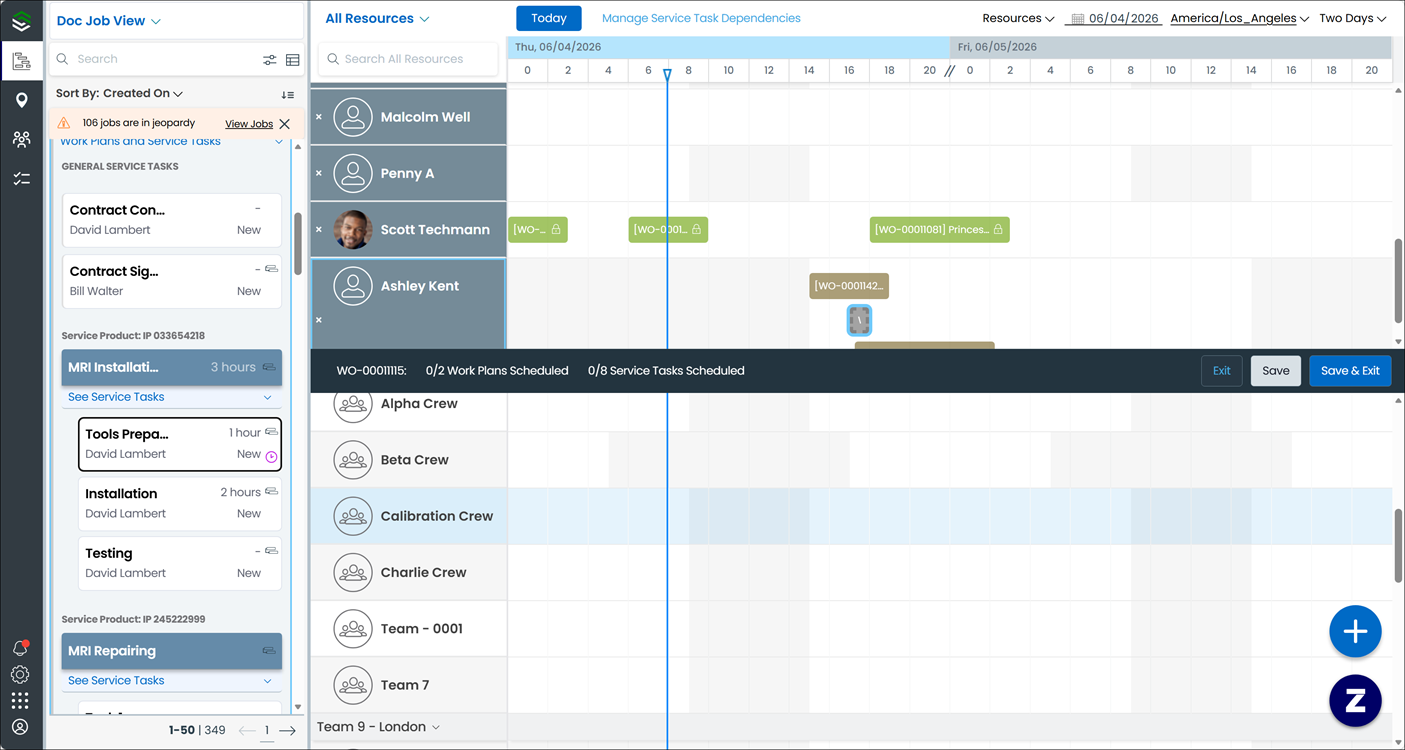
When you enter Service Task Planning Mode and click an Appointment on the Service Task Planning Calendar, the following schedule information for the associated Job appears at the bottom of the Service Task Planning Calendar:
• The Job name
• The scheduled and total numbers of associated Work Plans
• The scheduled and total numbers of associated Service Tasks
 |
Work Plans are considered to be scheduled only when all associated Service Tasks are scheduled.
|
You can also add Resources to the Service Task Planning Calendar.
After you save your changes and exit Service Task Planning mode, Appointments are generated and labeled with the combined truncated names of the associated Job, Service Product, Work Plan, and Service Task. Continuously scheduled Appointments associated with the same Job that have the same status and color-coding value are merged into a single Appointment labeled with the associated Job name and a (Service Tasks) suffix on the Scheduler Calendar. You can hover your mouse pointer over a merged Appointment to view the associated Service Tasks in its tooltip.
The Travel Time to Location value for the first continuously scheduled Appointment and the Travel Time Back From Location value for the last continuously scheduled Appointment plus the Start time value for the first continuously scheduled Appointment and the End time value for the last continuously scheduled Appointment are used as the same values for the merged Appointment.
|
|
• You cannot reschedule, reassign, update, delete, or cancel merged Service Task Appointments.
• Only Service Task Appointments scheduled within the currently selected or preset time range are merged.
• Service Task Appointments are labeled with the combined truncated names of the associated Job, Service Product, Work Plan, and Service Task.
• Service Task Appointments use the same Estimated Duration value as the associated Service Task if specified. Otherwise, the configured Default Appointment Duration value is used.
• Service Tasks associated with Jobs that are in an end state cannot be scheduled.
• Each Service Task can be scheduled for only one Resource and one Appointment.
• When Service Tasks are scheduled, no Job data, including the Status value, is modified.
• If a Job is canceled, all of its associated Service Task Appointments are also canceled.
|
Service Task Planning in Classic Mode
| | The Classic user interface retires on November 8, 2026. All features are available in the Service Board Modern interface. We recommend switching to Service Board Modern at your earliest convenience to access the latest features. |
In Service Task Planning mode, you can schedule single or multiple Service Tasks. You can also reschedule, update, cancel or delete Appointments on the Service Task Planning Calendar.
When you drag and drop any of the following onto an unscheduled time block in a Resource row on the Scheduler Calendar, after available time slots for unscheduled Service Tasks are identified based on the configured shifts for the Resource, the Service Task Planning Calendar appears and shows one or more temporary Appointments.
• Service Tasks
• Service Products
• Work Plans
• Jobs with Service Tasks, Service Products or Work Plans
• General Tasks
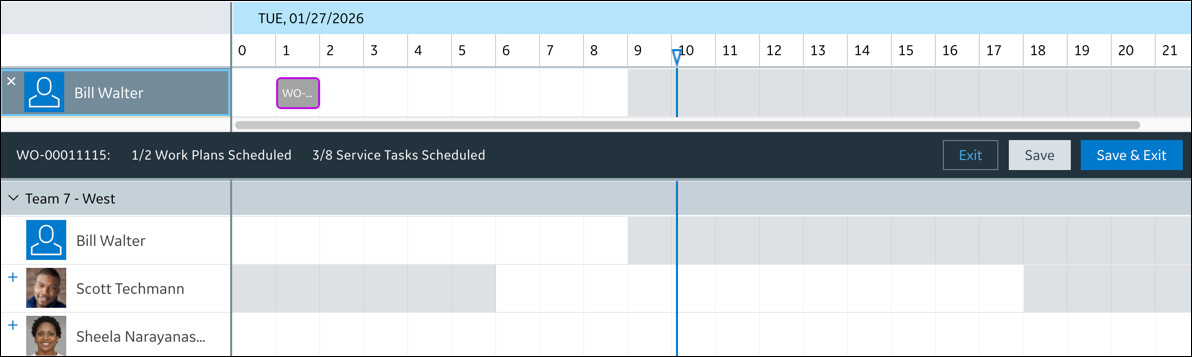
When you enter Service Task Planning Mode and click an Appointment on the Service Task Planning Calendar, the following schedule information for the associated Job appears at the bottom of the Service Task Planning Calendar:
• The Job name
• The scheduled and total numbers of associated Work Plans
• The scheduled and total numbers of associated Service Tasks
| | Work Plans are considered to be scheduled only when all associated Service Tasks are scheduled. |
You can also add Resources to the Service Task Planning Calendar.
After you save your changes and exit Service Task Planning mode, Appointments are generated and labeled with the combined truncated names of the associated Job, Service Product, Work Plan, and Service Task. Continuously scheduled Appointments associated with the same Job that have the same status and color-coding value are merged into a single Appointment labeled with the associated Job name and a (Service Tasks) suffix on the Scheduler Calendar. You can hover your mouse pointer over a merged Appointment to view the associated Service Tasks in its tooltip.
The Travel Time to Location value for the first continuously scheduled Appointment and the Travel Time Back From Location value for the last continuously scheduled Appointment plus the Start time value for the first continuously scheduled Appointment and the End time value for the last continuously scheduled Appointment are used as the same values for the merged Appointment.
| | • You cannot reschedule, reassign, update, delete, or cancel merged Service Task Appointments. • Only Service Task Appointments scheduled within the currently selected or preset time range are merged. • Service Task Appointments are labeled with the combined truncated names of the associated Job, Service Product, Work Plan, and Service Task. • Service Task Appointments use the same Estimated Duration value as the associated Service Task if specified. Otherwise, the configured Default Appointment Duration value is used. • Service Tasks associated with Jobs that are in an end state cannot be scheduled. • Each Service Task can be scheduled for only one Resource and one Appointment. • When Service Tasks are scheduled, no Job data, including the Status value, is modified. • If a Job is canceled, all of its associated Service Task Appointments are also canceled. |
Related Topics