Working on an Assigned Task towards Completion
You can work on an assigned task and change its status through different configured stages. You can also upload related attachments to a task.
Perform the following steps to work on various actions on a task.
Android and iOS
1. Open the list of tasks for a Service Product.
2. Tap the toggle button to select My Tasks to display the tasks assigned to you. The assigned tasks are displayed in the configured sequence with the title and the assigned user.
3. Tap the task you want to work on. The task details screen is displayed with the title, assigned user, and the current status. The task details screen also has the following sections:
|
Field
|
Description
|
|---|---|
|
Status
|
To change the status of the task to an available status option. This section is not available if the status of the task is Completed.
|
|
Actions
|
To add attachments and comments to the task.
|
|
Description
|
Displays the estimated duration for the task completion and the configured description about the task.
|
|
Planned Time
|
Displays the estimated time entered by the administrator, if configured.
|
|
Due Date
|
Displays the due date to complete the task, if configured.
|
4. Tap the status to the next available option. For example, if the current status of the task in To Do, then tap In Progress. The status of the task is updated to the selected status.
 |
If there are more status option available for the task, then More, an overflow option is displayed after the last status option. Tap it to see other available status options.
|
5. Tap the configured SFM to update the linked Work Order or Installed Product record or generate the Output Document.
6. Tap Files to upload related files to the task.
7. Tap Time Spent to add the actual time spent on the task.
8. Tap Notes to add a note to the task.
9. Tap Complete in the Status section after you finish your actions on the task. A confirmation pop-up is displayed.
10. Tap Mark Complete. The Time Spent screen is displayed if it is marked as mandatory to complete a task.
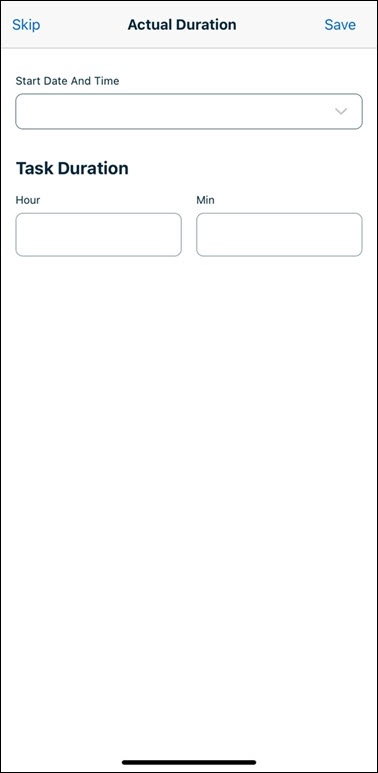
11. Enter the task duration in hour and minute format, and then tap Save.The status of the task is updated to Completed and the other status options are greyed out.
|
|
A Work Detail record is created for the task when the task is complete if the Work Plan is configured with the On Service Task Completion field value as Create Labor Line. You must fill the time spent on the task to enable the labor line creation. The created labor line is linked to the task automatically. You can review and debrief the work order when you complete the task.
|
Windows
1. Open the list of tasks for a Service Product.
2. Click the Show only my task toggle button to display the tasks assigned to you. The assigned tasks are displayed in the configured sequence with the title and the assigned user.
3. Click the task you want to work on. The task details screen is displayed with the title, assigned user, and the current status. The task details screen also has the following sections:
|
Field
|
Description
|
|---|---|
|
Status
|
To change the status of the task to an available status option. This section is not available if the status of the task is Completed.
|
|
Actions
|
To add attachments and comments to the task.
|
|
Description
|
Displays the estimated duration for the task completion and the configured description about the task.
|
4. Click the status to the next available option. For example, if the current status of the task in To Do, then click In Progress. The status of the task is updated to the selected status.
|
|
If there are more status option available for the task, then More, an overflow option is displayed after the last status option. Click it to see other available status options.
|
5. Click the configured SFM to update the linked Work Order or Installed Product record or generate the Output Document.
6. Click Attachments to upload related files to the task.
7. Click Comments to add a note to the task.
8. Click Complete in the Status section after you finish your actions on the task. A confirmation pop-up is displayed.
9. Click Mark Complete. The Actual Duration screen is displayed.
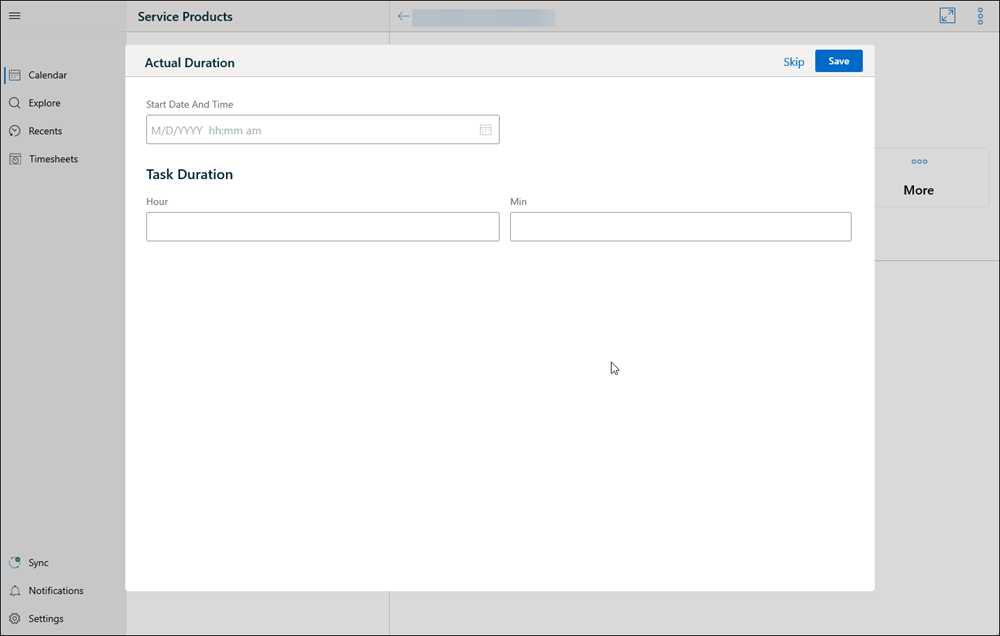
10. Enter the task duration in hour and minute format, and then click Save.The status of the task is updated to Completed and the other status options are greyed out.
|
|
A Work Detail record is created for the task when the task is complete if the Work Plan is configured with the On Service Task Completion field value as Create Labor Line. You must fill the time spent on the task to enable the labor line creation. The created labor line is linked to the task automatically. You can review and debrief the work order when you complete the task.
|
Related Topics