Deleting an Attachment Uploaded to a Task
As a technician, you can remove an attachment from an assigned task from the Your Attachments section on the Attachments screen.
Perform the following steps to delete an attachment from an assigned task.
Android and iOS
1. Open an assigned task to launch the Task Details screen.
2. Tap Attachments. The Attachments screen is displayed with the list of uploaded attachments.
3. Long-tap any file in the list. The File Selection screen is displayed.
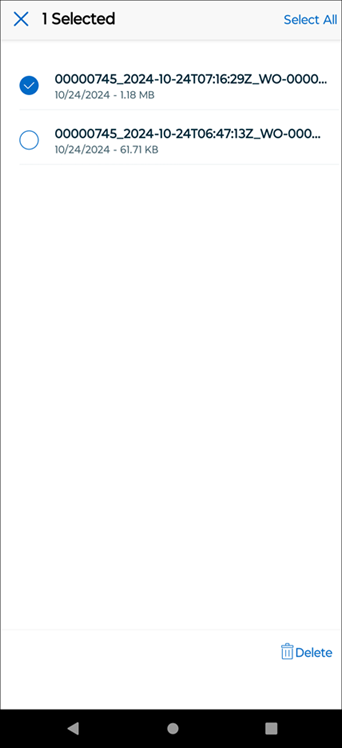
4. Select one or more files, and then tap Delete. A confirmation pop-up is displayed.
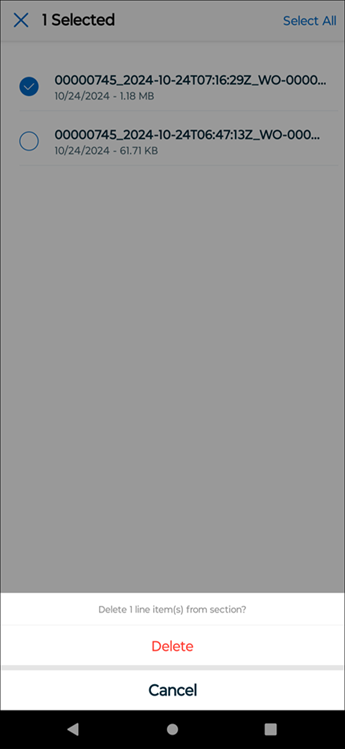
5. Tap Delete. The file is deleted from the attachment list and you are redirected to the Attachments screen.
6. Tap Save.
Windows
1. Open an assigned task to launch the Task Details screen.
2. Click Attachments. The Attachments screen is displayed with the list of uploaded attachments.

3. Select one or more files, and then click Delete. A confirmation pop-up is displayed.
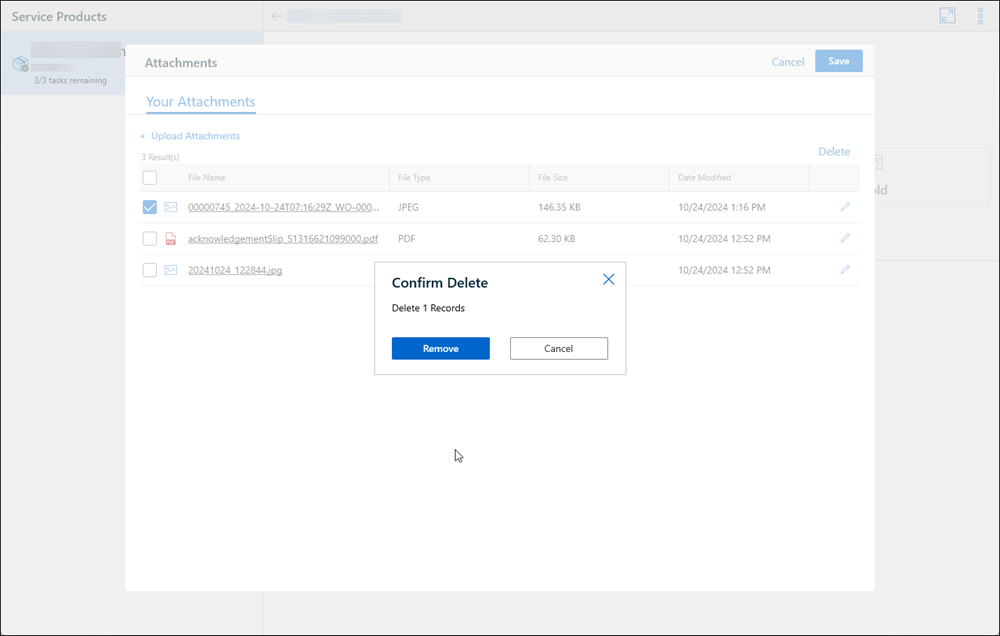
4. Click Remove. The file is deleted from the attachment list.
5. Click Save.