Viewing Template Match Rules
|
Prerequisite
|
|---|
|
• The Template Match Rules button is not available Out-of-the-Box. You must add this custom button in the Attributes Template object. For more information, see Adding the Template Match Rules Button to the Attribute Templates Page. Alternatively, you can access the Template Match Rules list view from the App Launcher.
• To access Template Match Rules and Product Attributes, users must have Read, Create, Edit, and Delete permissions for the following objects:
◦ Attribute Template Match Rules
◦ Product Attributes
|
From the Attributes Template page, you can view and manage template match rules using the Template Match Rules button.
To view Template Match Rules:
1. From the Home page, go to the Attribute Templates tab.
2. Click Template Match Rules.
The Template Match Rules page is displayed with the list of rules.
 |
Out-of-the-box, Match By Product, Match By Product Line, and Match By Product Family are available. You can modify and delete them based on your requirements.
|
By default, Match By Product, Match By Product Line, and Match By Product Family rules are displayed.
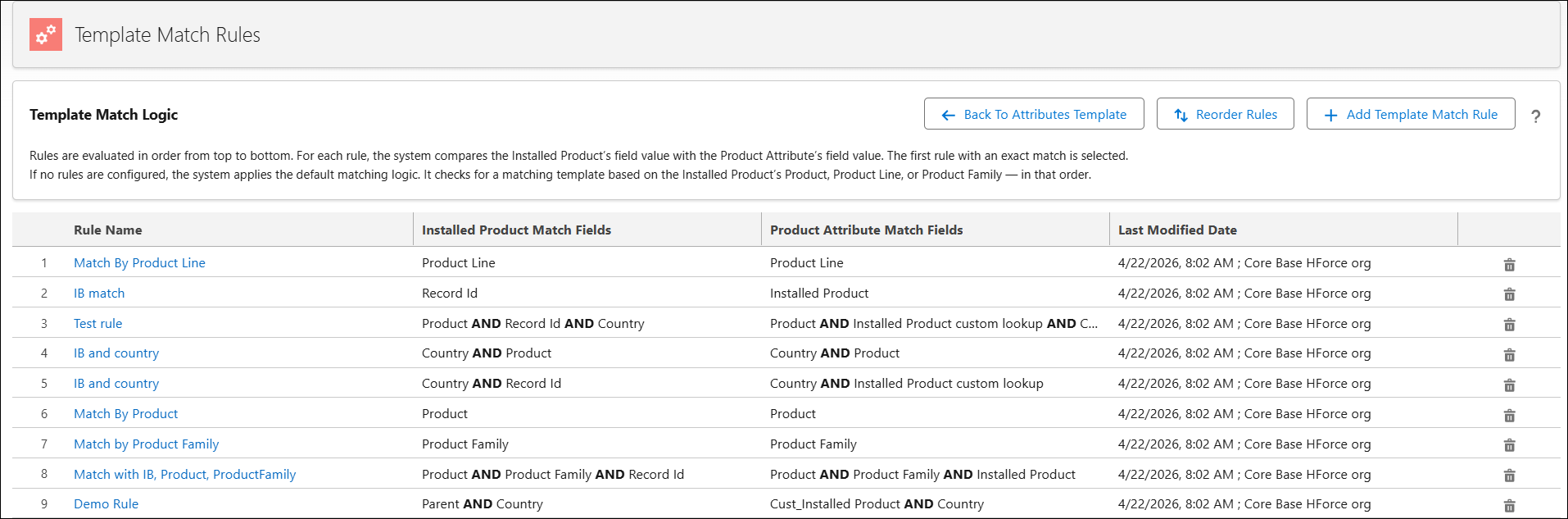
The Template Match Logic section provides details on how rules are evaluated and executed to match an appropriate template.
The following table describes the columns available on the Template Match Rules page:
|
Column Name
|
Description
|
|---|---|
|
Rule Name
|
Displays the name of the template match rule.
|
|
Installed Product Match Fields
|
Displays the Installed Product fields used to evaluate and apply the rule.
|
|
Product Attribute Match Fields
|
Displays the Product attribute fields mapped to the corresponding Installed Product fields.
|
|
Last Modified Date
|
Displays the date and time when the rule was last updated.
|
Available Actions in Template Match Rules Page
In the Template Match Rules page, you can perform the following actions: