Adding Template Match Rules
|
Prerequisite
|
|---|
|
• The Template Match Rules button is not available Out-of-the-Box. You must add this custom button in the Attributes Template object. For more information, see Adding the Template Match Rules Button to the Attribute Templates Page. Alternatively, you can access the Template Match Rules list view from the App Launcher.
• To access Template Match Rules and Product Attributes, users must have Read, Create, Edit, and Delete permissions for the following objects:
◦ Attribute Template Match Rules
◦ Product Attributes
|
From the Template Match Rules page, you can add rules that determine which Technical Attribute Template is applied at runtime.
When adding a rule, you can map Installed Product fields to Product Attribute fields and define a match combination using up to three fields.
 |
To match templates base on Installed Product fields, you must add similar custom fields of data type look up or picklist to the Product Attributes object. These fields are available for selection when defining template match rules and can be mapped to corresponding Installed Product fields.
|
To view Template Match Rules:
1. From the Home page, go to the Attribute Templates tab.
2. Click Template Match Rules.
The Template Match Rules page is displayed with the list of existing rules.
3. Click Add Template Match Rule.
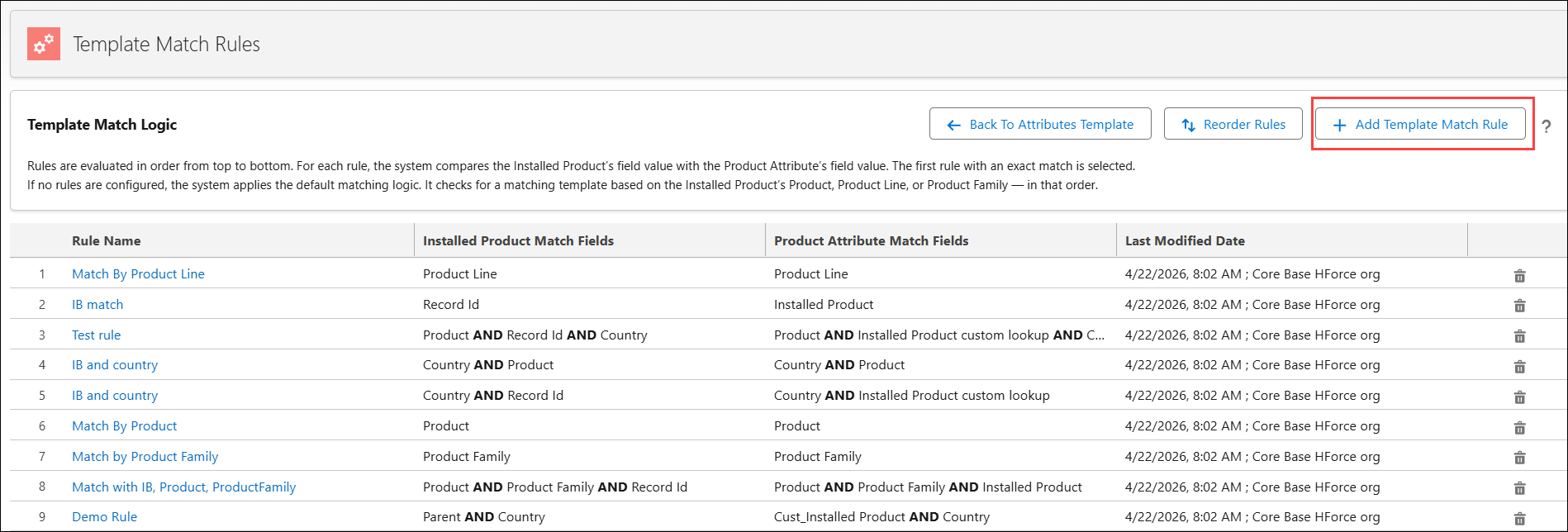
The Add Template Match Rule window is displayed.
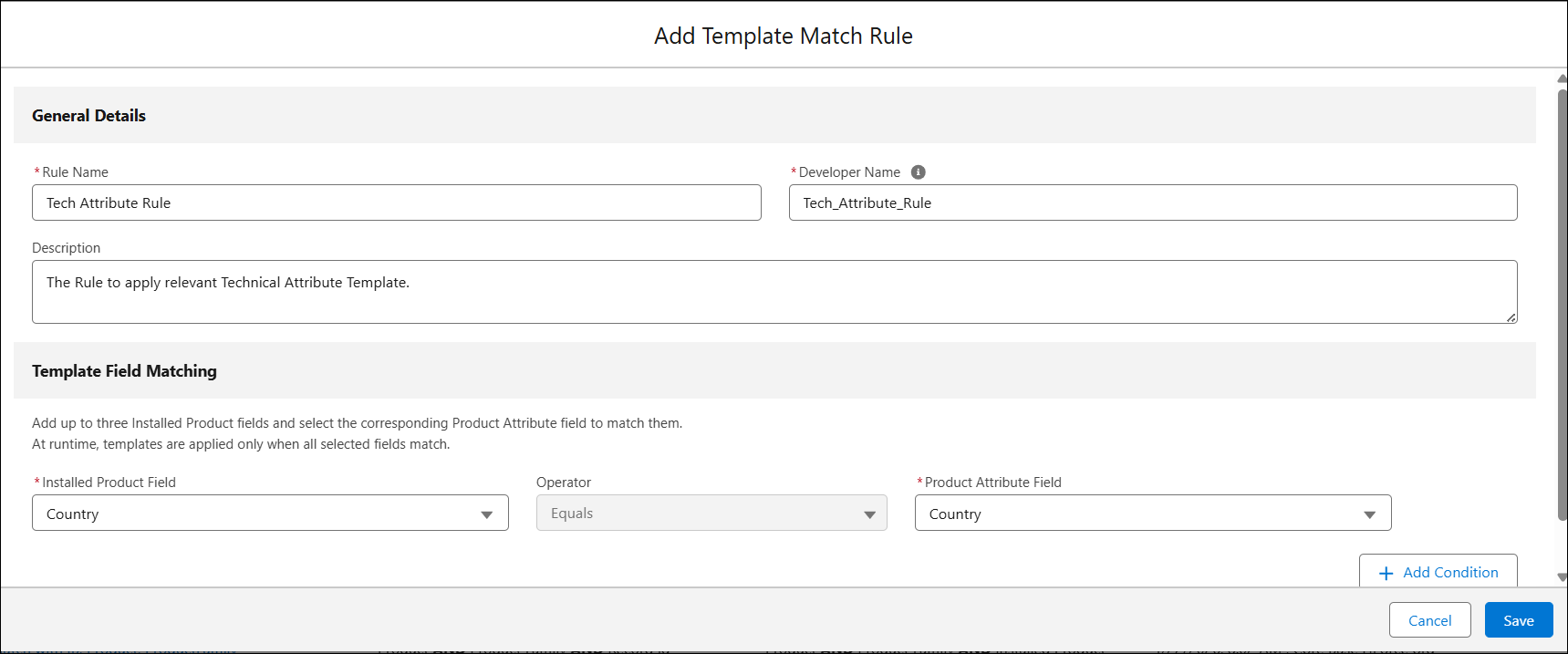
4. Provide the fields as described in the following table:
|
Field Name
|
Description
|
|---|---|
|
Rule Name
|
Enter a name for the template match rule.
|
|
Developer Name
|
A unique system identifier for the rule. It is automatically derived from the rule name and is used internally when rules are evaluated in sequence to determine the first matching rule.
|
|
Description
|
Provide additional details about the purpose of the rule to help administrators understand how and when the rule is applied.
|
|
Installed Product Field
|
Select a field from the Installed Product that is used as part of the rule’s matching criteria. At runtime, the system compares this field with the mapped Product Attribute field when evaluating rules.
Only Lookup and Picklist type of fields are listed.
For example, select Record ID field to match based on Installed Product’s Name.
|
|
Operator
|
Displays the comparison operator used for matching Installed Product fields with Product Attribute fields. The operator is always set to Equals.
|
|
Product Attribute Field
|
Select the Product Attribute field configured in the Application Criteria of the Technical Attribute Templates. This field is compared with the corresponding Installed Product field during rule evaluation.
This field is enabled only when there are fields that match the data type of the selected Installed Product field.
For example, to match based on Installed Product’s Name, select Record ID as the Installed Product field. Only fields in the Product Attributes object that have a lookup to Installed Product are listed. If no such fields exist, this field is disabled.
|
5. Click Add Condition to add additional matching conditions. You can configure up to three conditions, and all conditions must match for the rule to be considered a match.
6. Click Save.