Showing Similar Jobs
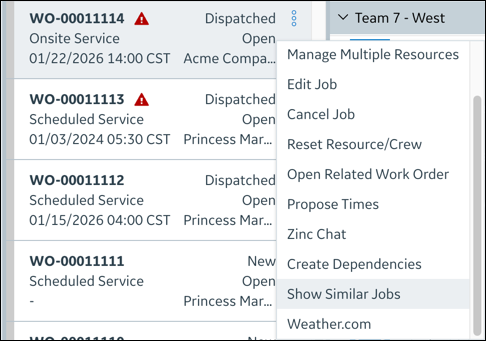
IF enabled for your Service Board tenant, you can use the Show Similar Jobs option on the Job Action Menu to easily identify Jobs that have similar Address, Installed Product, and Service Team values to that of the currently selected Job. When you invoke this option, a global search is triggered, and the results appear on the Similar Jobs List, listed in ascending distance order. You can then manually assign additional Jobs to Resources based on distances.
 |
If your Service Board tenant is configured to use the default map provider to calculate travel times for Similar Jobs, travel time information for nearby Jobs also appears on the Similar Jobs List, and you can sort the list by travel times as well.
|
To show Similar Jobs:
1. In the Scheduler tab, on the Jobs List, click a Job Card, and then click Job Action Menu ( ) > .
) > .
) > .
2. Review the Similar Jobs List and assign Resources to additional Jobs as appropriate.
|
|
• If travel time calculation is enabled, in cases where travel time data for Similar Jobs is missing, you can click Retry Travel Time Calculation at the top of the Similar Jobs List or Retry on individual Job Cards to recalculate travel times.
• Travel times are cached in a single Similar Jobs search. After travel times for a specific Job are calculated, the data are not retrieved again until the next time you invoke the Similar Jobs option.
|
3. To return to the previously selected Job List, in the Calendar, in the top left corner, click Reset Job List.
4. To change the unit of measurement, click > > > , and then click the unit of measurement in which you want to view distance values.
For more information: