Task Dependencies
This topic explains the type of dependencies and the workflow
Service tasks within a work order often follow a fixed sequence: one task cannot begin until another finishes, or two tasks must start in parallel. Task dependencies enforce these rules directly on the technician's mobile device. When an administrator configures dependencies on a work plan, ServiceMax Go downloads the dependency records through the standard Event, DOD, or SFA data sync and evaluates them locally.
A technician viewing the task list sees a dependency icon next to every blocked task. Tapping a blocked task opens the Task Detail screen, where the Blocked By and Blocking tabs display the specific predecessor and successor relationships that control task progression.
The Task Detail screen displays a dynamic summary that updates as predecessor tasks change status. Four conditions drive the summary text:
• Start and complete dependencies exist: X tasks blocking to start and Y tasks blocking to complete this task.
• Start dependencies cleared, complete dependencies remain: Ready to start and Y tasks blocking to complete this task.
• Task in progress, complete dependencies remain: Task is in progress and Y tasks blocking to complete this task.
• All dependencies cleared: Task is ready to be marked as complete.
When all dependencies on a task clear, ServiceMax Go re-enables status pills, time entry, and CTA buttons. Completing or canceling a task removes the Blocked By and Blocking tabs from that task's detail screen.
Reference Workflow
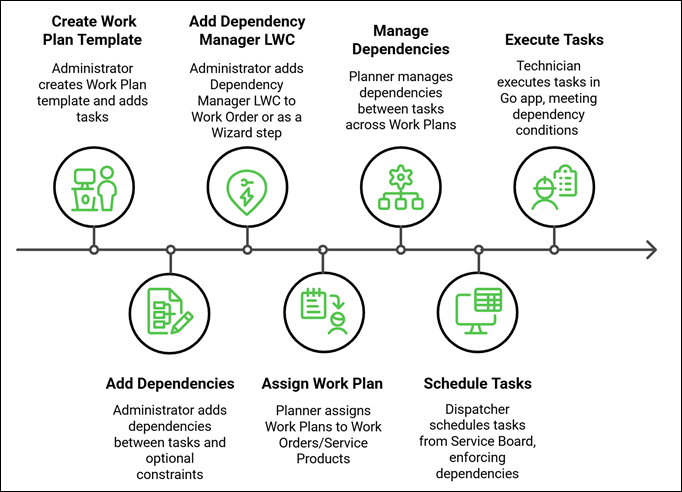
The following workflow diagram explains the Task Dependency process flow across Foundation, Service Board, and Go. For more information, see Task Dependency Management.
Use Cases
Following a mandatory task sequence on a multi-task work order
A technician at Iniscope International receives a work order to service an SSI 1000 ultrasound machine at a hospital, and the work order includes a power isolation task that must complete before the transducer array replacement can begin. Tasks that are blocked display a dependency icon on the task list, and opening a blocked task shows which tasks still need to complete before work can proceed. The technician tracks the status of the earlier task without calling dispatch and starts each step only when the dependency conditions clear, reducing the risk of out-of-sequence work that could damage components or fail a safety inspection.
Managing concurrent tasks before a final phase
An Iniscope International technician works alongside a colleague on a work order for a Soniscape laser system at a research facility, where a safety verification task and a component calibration task must both complete before the final system sign-off task can begin. The final task remains blocked until both earlier tasks reach the required status, and the technician monitors the blocking status on the task detail screen. Both conditions must satisfy before either technician proceeds to the sign-off, giving the team confidence that no safety or calibration step was skipped before returning the Soniscape laser system to active use.
For a full list of use cases of Go App for technician, see Use Cases of Go App.
Key Capabilities
• Dependency icon on the My Tasks and All Tasks screens identifies blocked tasks at a glance.
• Blocked By tab with To Start and To Complete sub-tabs groups predecessor tasks by the condition they impose.
• Blocking tab lists all tasks that the current task is preventing from progressing.
• Green status indicators confirm when all tasks within a dependency section meet the required condition.
• Show Only My Tasks filter on the Blocked By tab narrows the list to dependencies assigned to the logged-in technician.
• Has Dependency filter on the task filter screen displays tasks that have active dependencies (iOS and Android phones only).
Related Topics