Viewing Task Dependencies on the Blocking Tab
The Blocking tab lists all the tasks that the current task is blocking. This tab only appears on tasks that are blocking other tasks and are still active.
Android and iOS
To view the tasks that the current task is blocking:
1. Open a work order and tap a task on the My Tasks or All Tasks screen.
The Task Detail screen displays. If the task is blocking any other active tasks, the Blocking tab appears next to the Task Detail tab.
2. Tap the Blocking tab.
A list of tasks within the same work order that depend on the current task displays. Each entry displays the task name, status, assignment information, and a high-priority indicator when applicable.
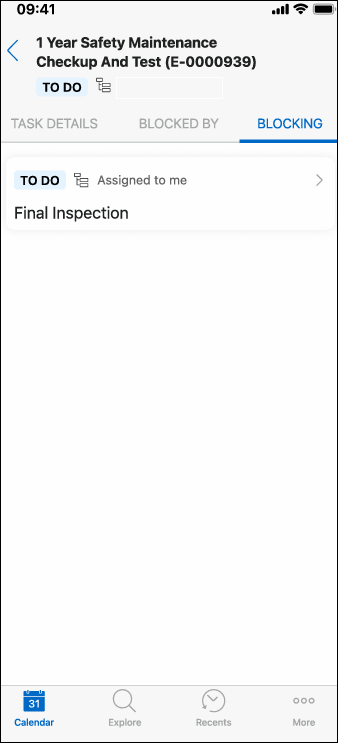
3. Review the task order to understand which blocked tasks are assigned to you and which are assigned to other technicians.
 |
• Tasks are ordered by assignment group: Assigned to me first, then Assigned to Others, then Unassigned tasks. Within each group, tasks are sorted by status: To Do, In Progress, Completed, Canceled.
• In case of multiple tasks sharing the same assignment and status, they are sorted by task name in ascending order.
|
4. Tap a task in the list to navigate to that task's detail screen.
The selected task's Task Detail screen opens, where you can view its dependency status.
When the current task is completed or canceled, it is no longer a blocker. The Blocking tab is removed from the Task Detail screen, and the blocked tasks update their dependency status on the next data sync.
Windows
To view the tasks that the current task is blocking:
1. Open a work order and click a task on the My Tasks or All Tasks screen.
The Task Detail screen displays. If the task is blocking any other active tasks, the Blocking tab appears next to the Task Detail tab.
2. Click the Blocking tab.
A list of tasks within the same work order that depend on the current task displays. Each entry displays the task name, status, assignment information, and a high-priority indicator when applicable.
3. Review the task order to understand which blocked tasks are assigned to you and which are assigned to other technicians.
|
|
• Tasks are ordered by assignment group: Assigned to me first, then Assigned to Others, then Unassigned tasks. Within each group, tasks are sorted by status: To Do, In Progress, Completed, Canceled.
• In case of multiple tasks sharing the same assignment and status, they are sorted by task name in ascending order.
|
4. Click a task in the list to navigate to that task's detail screen.
The selected task's Task Detail screen opens, where you can view its dependency status.
Once the current task is completed or canceled, it is no longer a blocker. The Blocking tab is removed from the Task Detail screen, and the blocked tasks update their dependency status on the next data sync.
Related Topics