Viewing Entitlement Coverage for a Work Plan
Expand a Work Plan in the Assign Entitlement interface to view its warranties, service contracts, entitlement notes, user notes, and pricing details.
You can view entitlement coverage for a Work Plan to see all applicable warranties, service contracts, entitlement notes, and user notes that apply during entitlement review. Expanding a Work Plan in the Assign Entitlement interface displays a badge indicating whether it is covered by a warranty or a service contract, and shows the full list of applicable warranties and service contracts, along with expiration indicators, entitlement notes, and user notes.
To view entitlement coverage for a Work Plan:
1. From the Home page, go to the Work Order object.
2. Open the Work Order record for which you want to evaluate entitlement coverage for the associated Work Plans.
The selected work order is displayed.
3. In the Service Flow Wizard, select Assign Entitlement.
The Assign Entitlement interface displays a list of Service Products, with Work Plans shown beneath each product if configured to display.
4. Expand a Work Plan to view its available coverage.
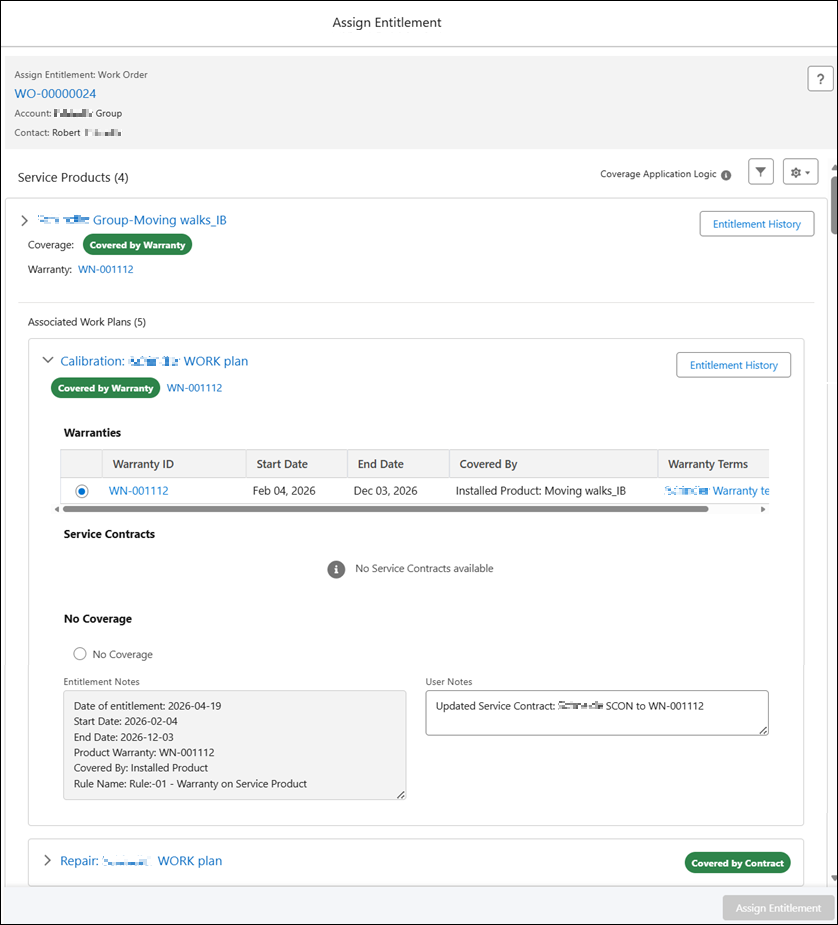
The following table describes the coverage information displayed when you expand a Work Plan.
|
Section
|
Description
|
||
|---|---|---|---|
|
Coverage Source
|
Indicates whether coverage is applied from a warranty or service contract. Work Plan-level coverage takes priority over Service Product-level coverage.
|
||
|
Warranties
|
Displays a table listing all applicable warranties at the Work Plan level, if applicable. If no warranties are available, the message No Warranties Available is displayed. The table includes the default fields:
• Warranty ID: Displays unique identifier for the warranty. Click the link to open the record in a new browser tab.
• Start Date: Displays the date when the warranty coverage begins.
• End Date: Displays the date when the warranty coverage ends.
• Covered By: Displays which installed product the entitlement applies to.
• Warranty Terms: Displays the name of the warranty term. Click the link to open the record in a new browser tab.
• Coverage Details: Displays the percentages for Parts, Labor, and Expenses as retrieved from the associated Covered Work Plan.
|
||
|
Service Contracts
|
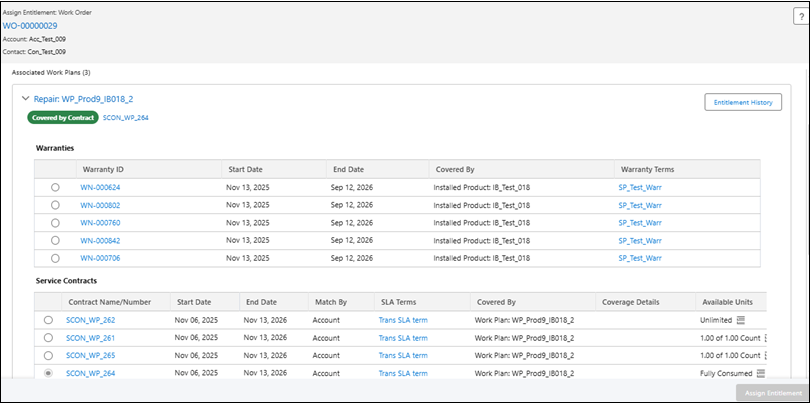
Displays a table listing all applicable service contracts at the Work Plan level, if applicable. If no service contracts are available, the message No Service Contracts Available is displayed. The table includes the default fields:
• Contract Name/Number: Displays the Service Contract name or number. Click the link to open the record in a new browser tab.
• Start Date: Displays the date when the Service Contract coverage begins.
• End Date: Displays the date when the Service Contract coverage ends.
• SLA Terms: Displays the SLA Term. Click the link to open the record in a new browser tab.
• Covered By: Displays which work plan or installed product the entitlement applies to.
• Coverage Details: Displays the percentages for Parts, Labor, and Expenses as retrieved from the associated Covered Work Plan.
• Available Units: When usage tracking applies, Available Units (for example, 10 of 40 units) are displayed with a Usage Summary icon for detailed breakdown. Selecting the icon opens a detailed usage breakdown. For more information, see Viewing Usage Summary for Work Plan.
Expired/expiring Service Contracts are identified with an Expiration indicator.
|
||
|
No Coverage
|
Displays when no entitlement applies. Users can select this option to confirm that the service is not covered.
|
||
|
Entitlement Notes
|
Displays system-generated notes related to the Work Plan entitlement evaluation. This field is read-only and updates automatically each time entitlement is assigned. Notes can be expanded to view full details.
|
||
|
User Notes
|
A text field where you can enter comments or observations for each work plan during entitlement assignment. User notes are stored separately from Entitlement Notes and are preserved across assignments.
For more information, see Adding User Notes During Interactive Entitlement.
|
||
|
Work Plan Price
|
Displays a Work Plan Price icon on each Work Plan entitlement row. Clicking the icon opens the Work Plan Labor Price window, which shows the applicable price book when the service contract is selected for assignment, and its price book entries.
For more information, see Work Plan Pricing Visibility in Entitlements.
|

The Service Contracts table supports additional configurable columns:
When the Match By column is added to the Service Contracts table, it displays how each contract matched the entitlement criteria; for example, Account, Contact, Location, or a combination. This column is not applicable for Warranties. For information on adding this column, see Managing Display Fields for Service Contracts and Warranties.
Related Topics