Managing Display Fields for Service Contracts and Warranties
Configure which columns display in the Service Contract and Warranty tables within the Assign Entitlement interface.
You can manage the fields that appear for Service Contracts and Warranties in the Assign Entitlement interface, including which fields are displayed during entitlement review and the order in which they appear.
To configure entitlement display columns:
1. From the Home page, go to the Work Order object.
2. Open the Work Order record for which you want to evaluate entitlement coverage for the associated Service Product and Work Plans.
The selected work order is displayed.
3. In the Service Flow Wizard, select Assign Entitlement.
The Assign Entitlement interface displays a list of Service Products, with Work Plans shown beneath each product if configured to display.
4. Click the Gear icon.
A menu appears with two options: Configure Service Contract Columns and Configure Warranty Columns.
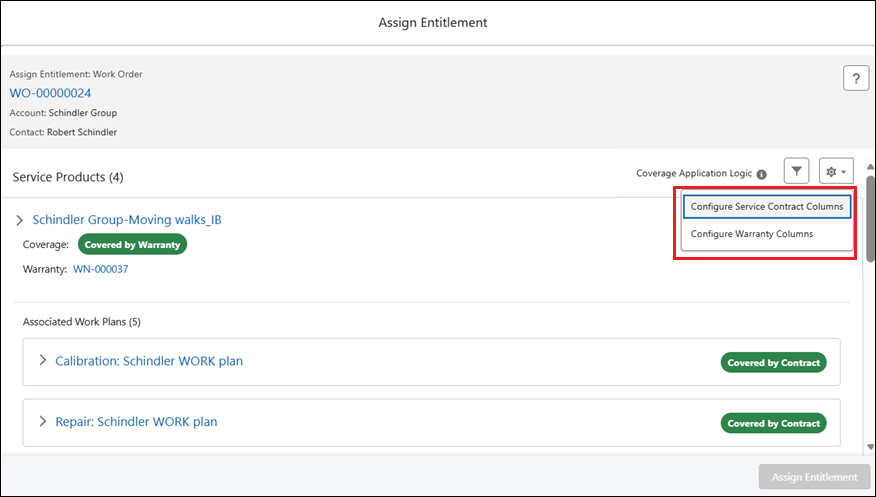
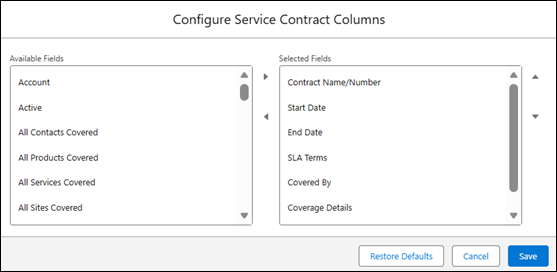
5. Select Configure Service Contract Columns to open the Configure Service Contract Columns pop-up window. This window displays fields from the Service Contract. Move the required fields into the Selected Fields list and rearrange their order using the up and down arrow controls. The selected fields appear in the entitlement selection panel when Service Contracts are displayed.
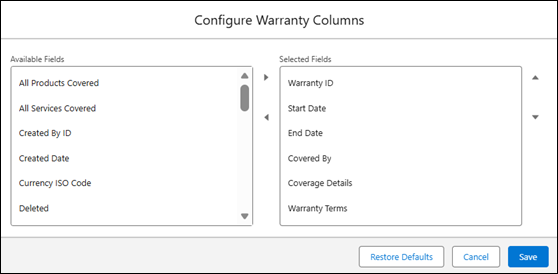
6. Select Configure Warranty Columns to open the Configure Warranty Columns pop-up window. This window displays fields from the Product Warranty. Move the required fields into the Selected Fields list and rearrange their order using the up and down arrow controls. The selected fields appear in the entitlement selection panel when Warranties are displayed.
The selected fields are saved and applied to the entitlement selection panel. The updated column layout is reflected the next time the Assign Entitlement interface is opened.
 |
• You can select up to 12 fields for both Service Contract and Warranty. If you try to select more than 12, the system displays an error and prevents moving additional fields from Available Fields to Selected Fields.
• Clicking Restore Defaults in either the Configure Warranty Columns or Configure Service Contract Columns pop-up window resets the selected fields to the system-defined default configuration.
|
For details about column-specific behavior such as Work Plan Price and Match By, see the Column Behavior for Specific Display Fields section below.
Column Behavior for Specific Display Fields
When configuring display fields for Service Contracts and Warranties in the Assign Entitlement interface, specific fields provide additional context and functionality. Both Work Plan Price and Match By are administrator-configurable in Interactive Entitlement Settings. Users can then choose whether to display these fields in the column configuration within the Assign Entitlement interface. For more information, see Configuring Interactive Entitlement Settings.
Work Plan Price
The Work Plan Price field is available in the field list for both Service Contract and Warranty columns. When this field is selected for display, a Work Plan Price icon appears on Work Plan entitlement rows. Selecting the icon opens the Work Plan Labor Price window, which shows the price book used for the work plan and its active price book entries. For more information, see Work Plan Price Field in Service Contracts and Product Warranties.
Match By
The Match By field is available in the Service Contract field list only and is not applicable for Warranty columns. When this field is selected for display, it shows how each Service Contract matched the entitlement criteria, for example, Account, Contact, or a combination.
Related Topics