Related Object Section Properties
The Section Properties define how a related or child object section is configured and displayed within an SFM transaction.
The following table lists the Related Object Section Properties.
|
Related Object Sections Properties
|
Description
|
||
|---|---|---|---|
|
General
|
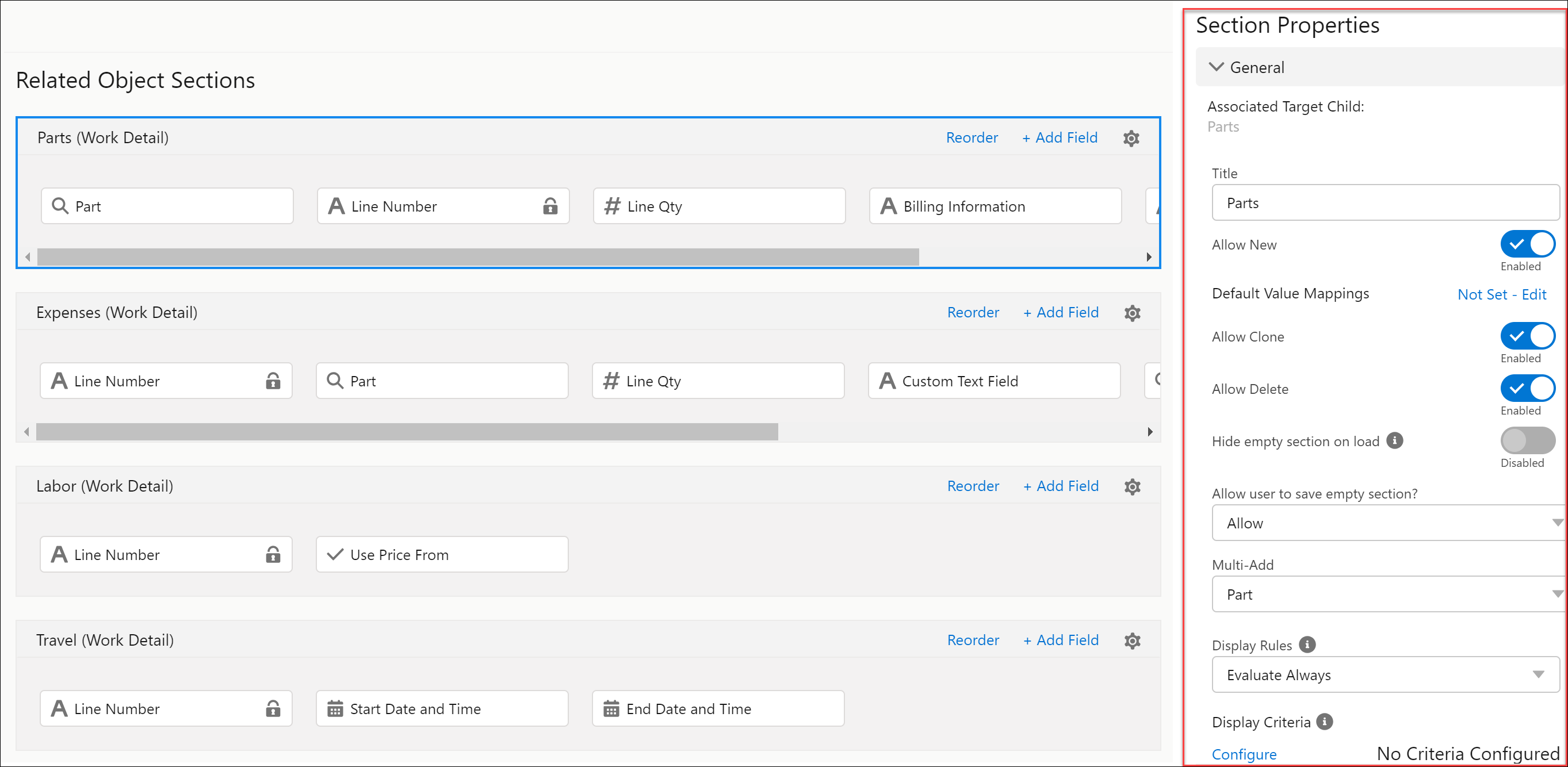
This option displays the general properties within the Related Object Sections.
 |
||
|
Extended Edit
|
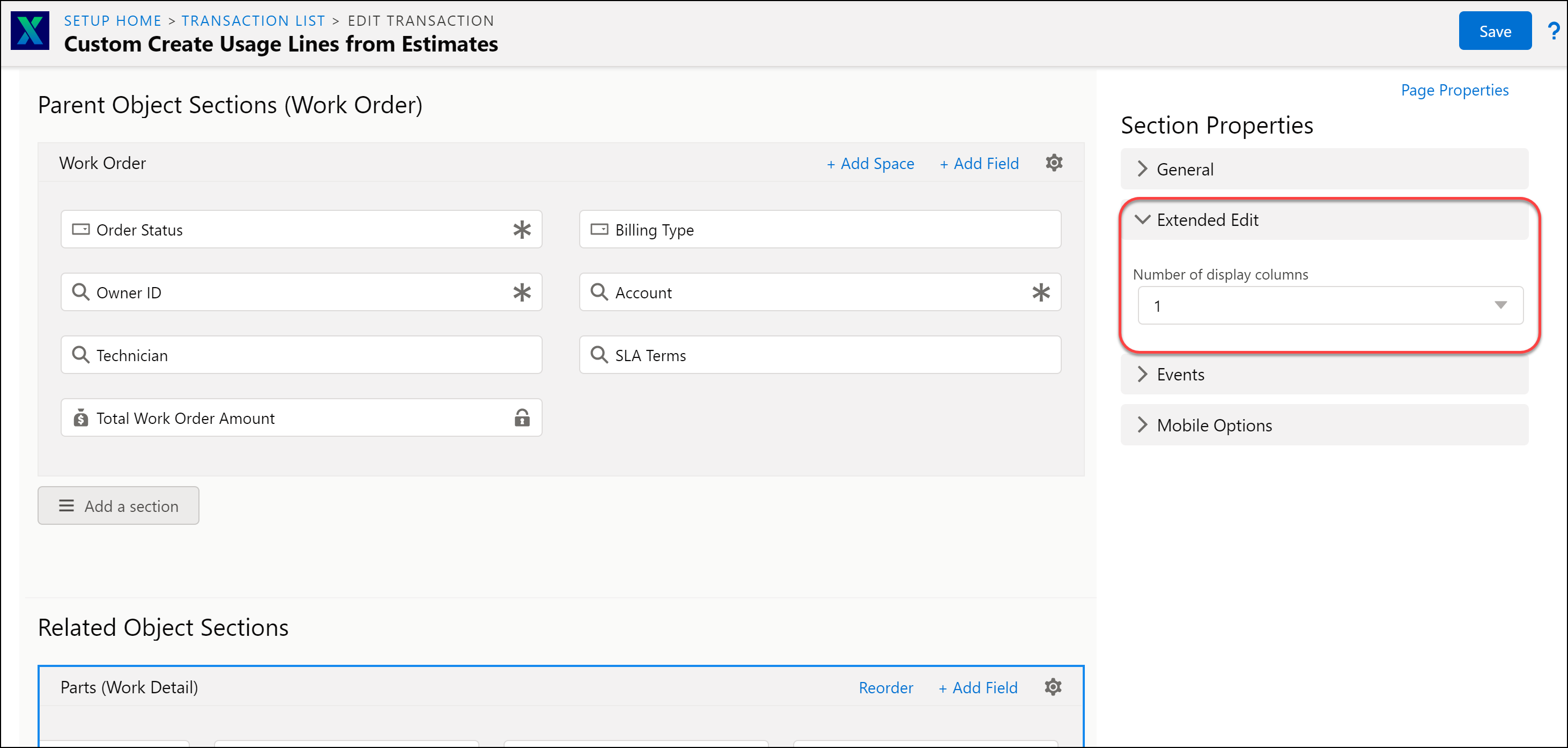
This option lists the number of display columns in the Related Object Sections. The options for columns are 1 and 2.
 |
||
|
Events
|
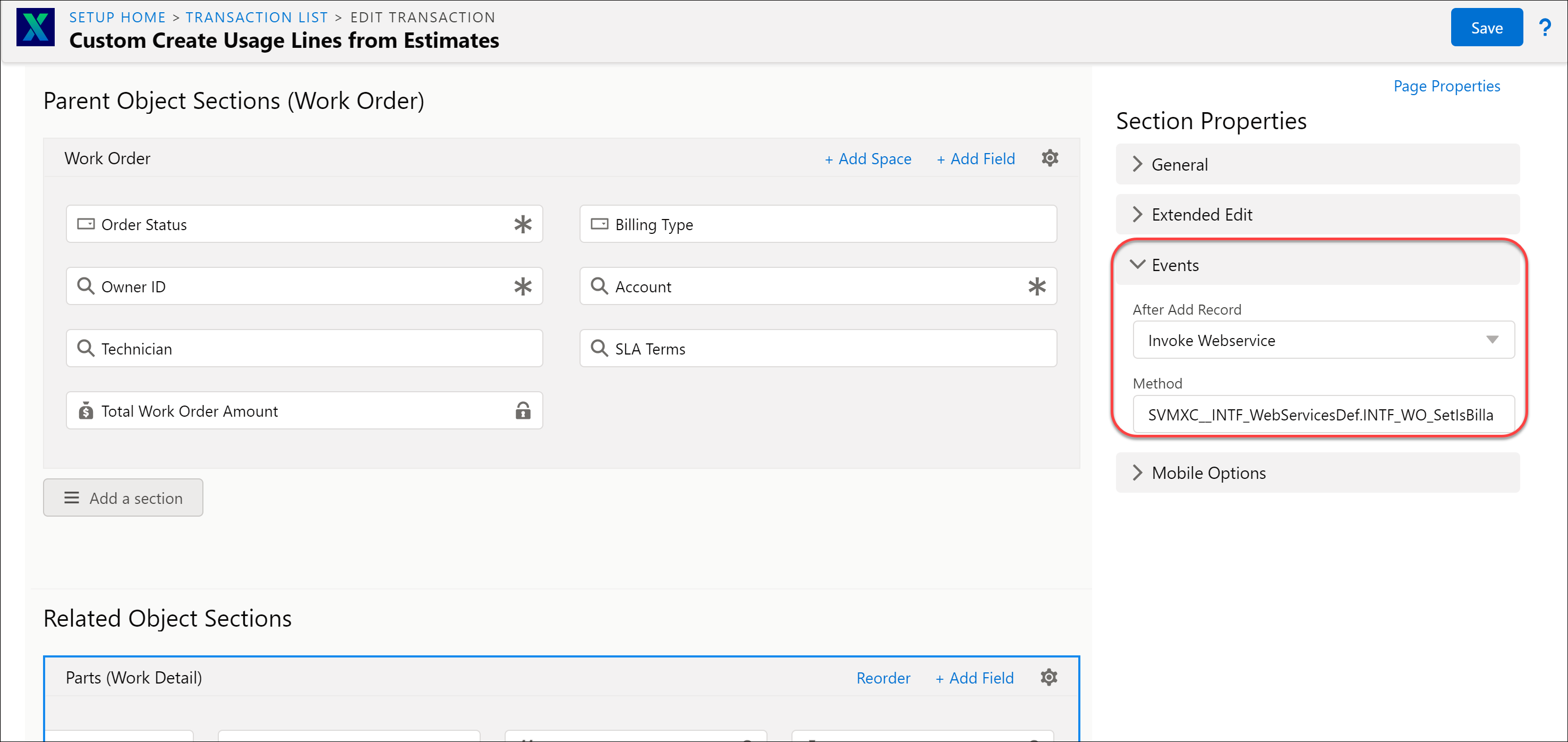
This option displays the After Add Record option.
Configure After Add Record values – None, Invoke Webservice, and Execute JavaScript Code. The default value is None.
• None: This option is by default.
• Invoke Webservice: This option allows you to enter the Webservice method. It is mandatory to enter the name of the method.
• Execute Java Script Code: This option allows you to select the method from the drop-down list.
• Method: It is mandatory to enter the name of the method or select the value from the drop-down list.
 |
||
|
Mobile Options
|
This option is displayed in the Related Object Sections within the Section properties of the Layout Editor.
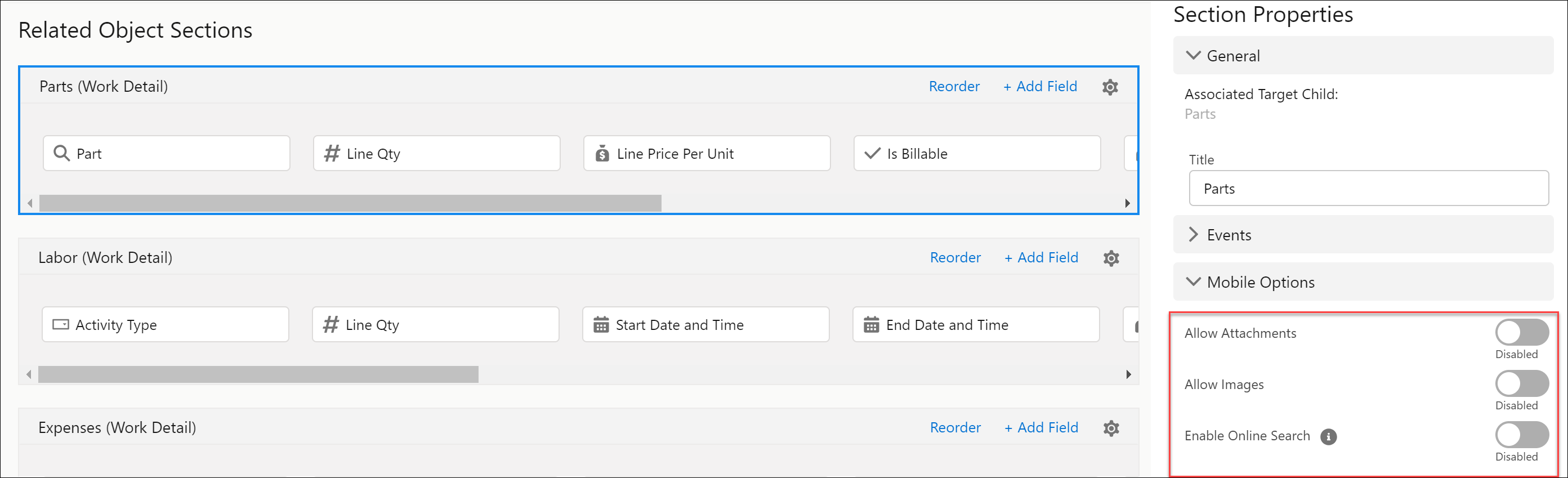
The properties in this section are applicable only on the ServiceMax Go App and have the following toggle buttons:
• Allow Attachments: This toggle button allows you to add attachments.
• Allow Images: This toggle button allows you to add images.
• Enable Online Search: The Enable Online Search toggle button is available only for View SFMs in the Related Child Object Section Properties > Mobile Options section. When enabled, the online search option uses the configured Qualification Criteria to determine the records to search. This allows any desired expressions to be applied to the online search. For example, retrieving records with the status Open, and/or records created in the last_n_days, and so on. This helps the technicians view records for any combination of objects without complex download criteria. By default, this toggle button is disabled.
 |
||
|
Linked Transaction
|
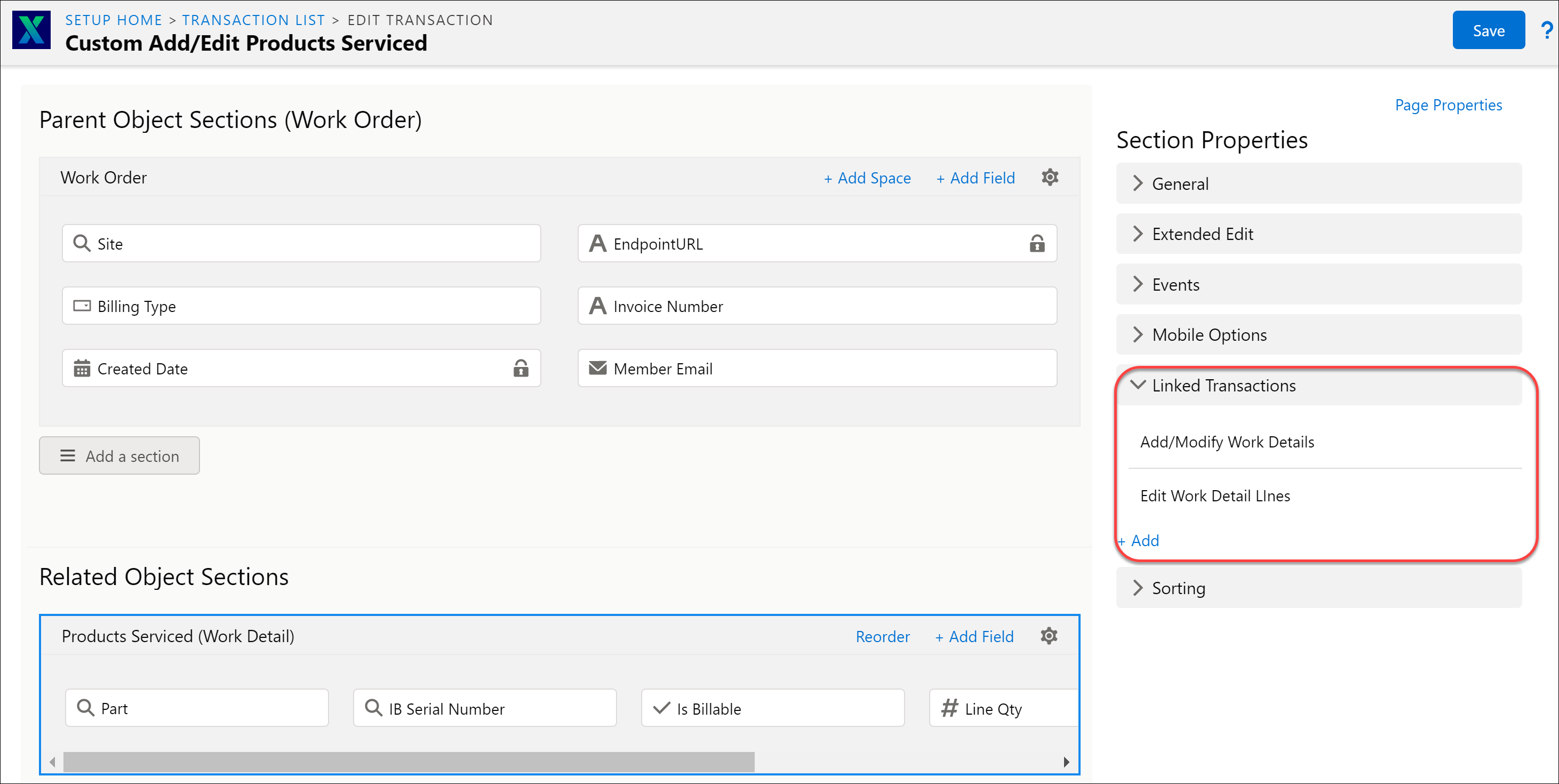
This section connects two SFM transactions, where the linked transaction or SFM is created from the child records of the primary SFM transaction. The label is displayed as No Transactions Linked if there are no linked transactions. The Add icon links the SFM transactions.
 |
||
|
Sorting
|
Sorting is enabled for SFM Type 3 (Update an existing record) and SFM Type 5 (View an existing record). This property displays the list of sorting fields. If no existing fields are selected, the label is displayed as No Sort Selected. If existing fields are selected, it displays the list of sorting fields.
 |
