Adding a Picklist Attribute
In a Technical Attribute Template, a Picklist Attribute allows users to choose a value from a predefined list of options.
To add a picklist attribute:
1. In a Technical Attribute template, go to a Section and click Add New Attribute. For more information, see Adding a Section.
The New Attribute pop-up window is displayed.
2. Provide the details for the fields as described in the following table:
|
Field
|
Description
|
||
|---|---|---|---|
|
Attribute Name
|
Enter the name of the attribute.
|
||
|
Attribute Description
|
Enter a description for the attribute.
|
||
|
Unit
|
Enter the unit for the attribute. To support a wide variety of possible units and metric systems, it defined as a textbox instead of a drop-down list.
Indicates the measurement unit associated with the attribute.
|
||
|
Select Picklist
|
Select the required Picklist from the drop-down. The options in this Picklist are displayed to users when they record this attribute.
|
||
|
Read Only
|
Select this checkbox to make the attribute read-only. If this option is selected, end users cannot modify this attribute.
|
||
|
Data Type
|
Select Picklist data type from the drop-down list. Fields related to the Picklist data type appear.
|
||
|
Mandatory
|
Select this checkbox to make the attribute mandatory. This ensures critical data is captured for an Installed Product.
|
||
|
Default Value
|
Select the default value from the drop-down. By default, this value is displayed when users record this attribute. This is optional.
|

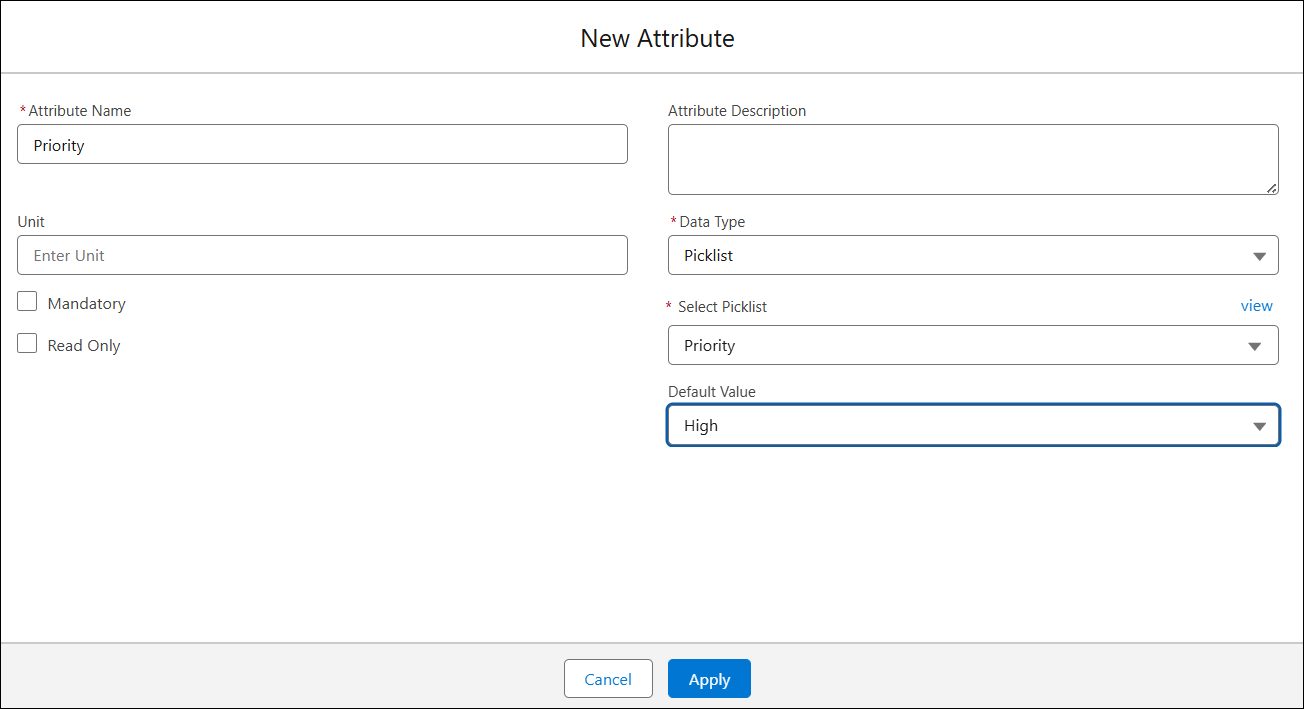
3. Click Apply.
4. Similarly, add additional attributes and click Save.
The Technical Attribute Template is saved with the attributes.