Creating a New Picklist
When adding a Picklist attribute type, you can create a new picklist by adding picklist values. This picklist appears in the Select Picklist drop-down list when you select the Picklist data type.
To create a new picklist:
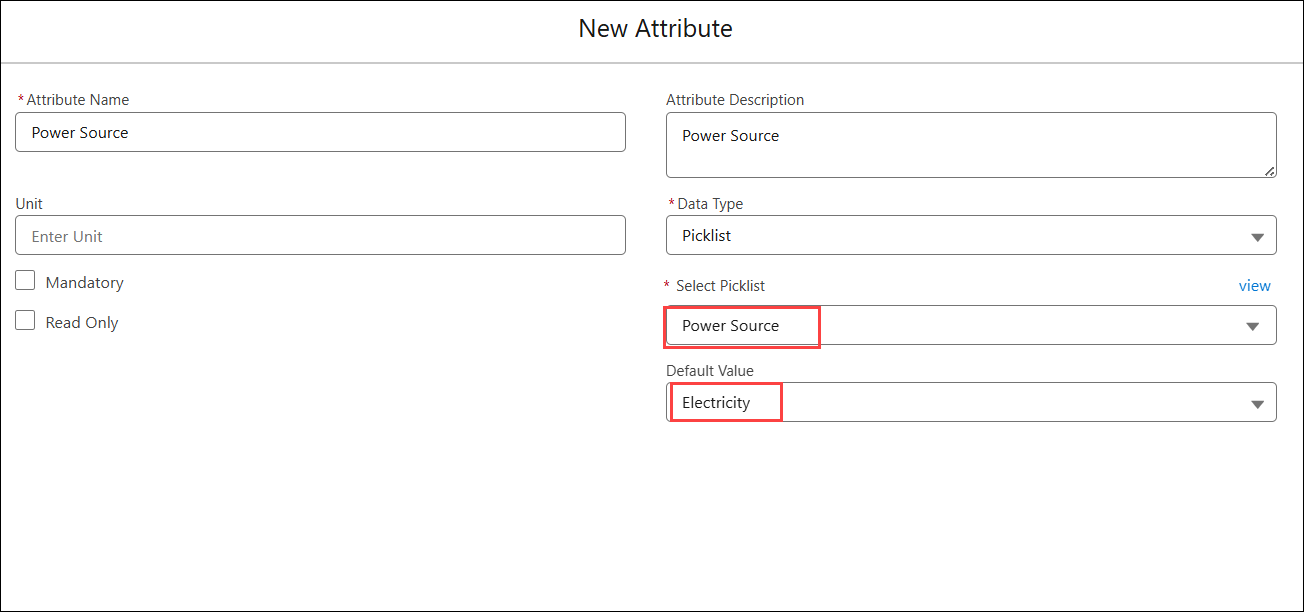
1. In a Technical Attribute Template, go to a Section and click Add New Attribute.
The New Attribute pop-up window is displayed.
2. Provide the details for the fields based on your requirements. For more information, see Adding a Picklist Attribute.
3. In the Select Picklist, click the drop-down and click Create New.
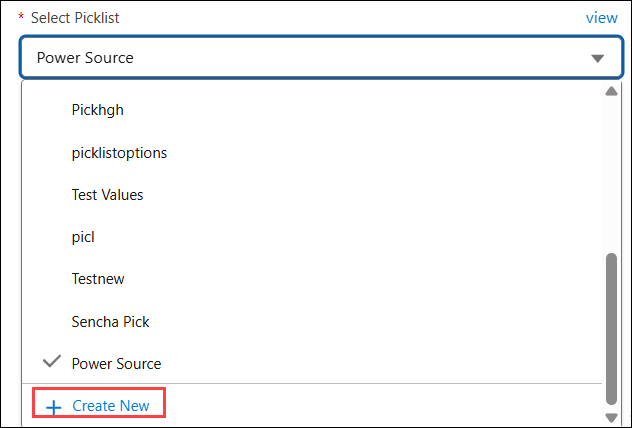
The New Picklist drop-down is displayed.
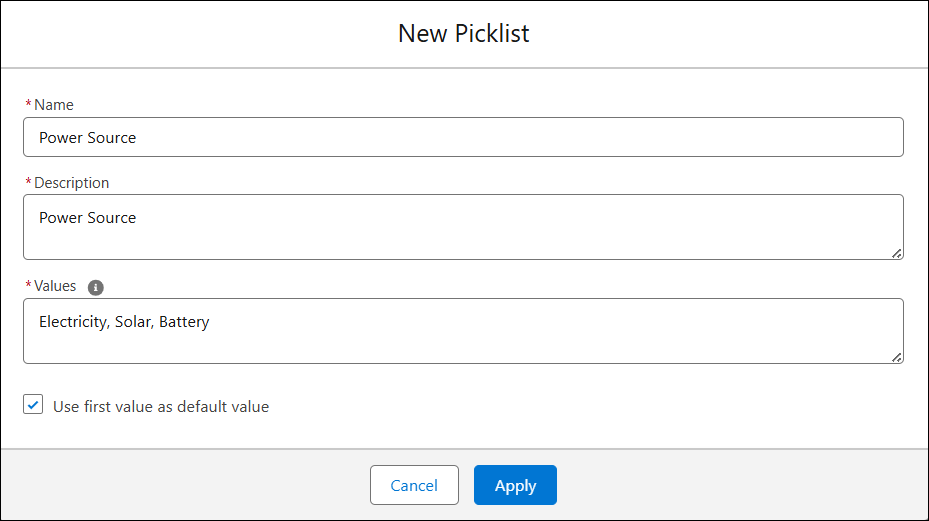
4. Provide the details for the fields as described in the following table:
|
Field
|
Description
|
|---|---|
|
Name
|
Enter the name of the picklist.
|
|
Description
|
Enter a description for the picklist.
|
|
Values
|
Enter comma-separated values for the picklist. For example, Red, Green, Blue.
These values appear as selectable options when users capture this attribute.
|
|
Use first value as default value
|
Select this option to display the first value as default value when users capture this attribute.
|
5. Click Apply.
The Picklist appears in the Select Picklist drop-down. When you select a picklist, the Defualt Value field is automatically populated. You can change the Default Value to one different from the value defined in the selected picklist..