Setting Up Creo+
The next sections describe the tasks you will carry out as a CAD Administrator for your organization:
Configuring Global Settings for an Organization
As an Administrator, you need to configure global settings when you set up a new organization. These are settings that are only required to be done once, for an organization:
2. Click Start on the Global Setup box to open the Global Creo+ Settings dialog box.
3. Maintain the defaults or specify the following settings on the Settings tab:
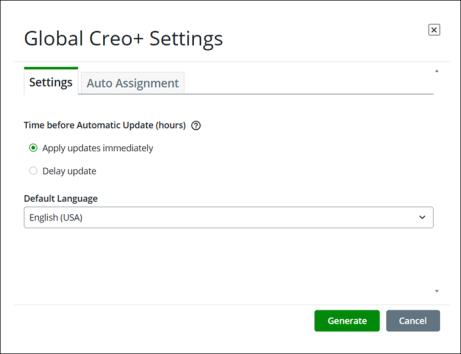
◦ Time before Automatic Update (hours)—Specifies the time after which software updates are automatically installed on a user’s machine. Select one of the following options:
▪ Apply updates immediately—Software updates are immediately installed on the user’s computer. This is the default value.
▪ Delay update—Specify a time after which updates are automatically installed on the user’s computer. The value can be between 0 and 48 hours. Specify 0 for the update to be installed immediately.
◦ Default Language—This is the default language that the software opens with.
4. Click Generate to save the settings for the organization.
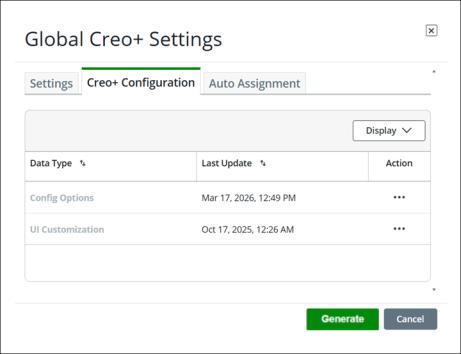
 | The Creo+ Configuration tab is available only after you generate the organization settings for the first time. |
5. Select the Creo+ Configuration tab—Add configurations for the organization from a .Creo+ session. Once created, these settings can be viewed and deleted from the Creo+ Portal. However, they can be created or modified only from a Creo+ session.
Note that profile configuration settings take precedence over the global or organization settings.
6. Select the Auto Assignment tab.
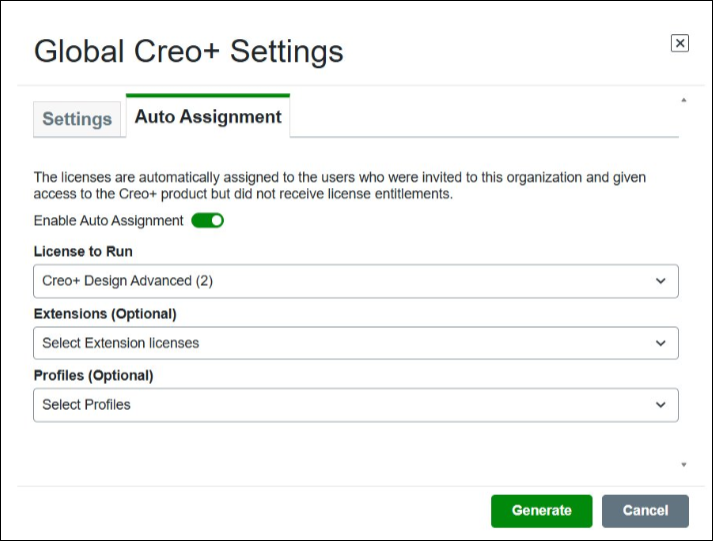
By automatically assigning a default license to run and a default profile for the organization, users can start working on Creo+ as soon as they install it.
Select the following in order to automatically assign license to run, extension licenses and profiles to every new user who is added to the organization:
◦ License to Run—Select the license to run that is to be automatically assigned to every new user.
◦ Extensions—Optionally, select one or more extension licenses to be automatically assigned to every new user.
◦ Profiles—Optionally, select one or more profiles to be automatically assigned to every new user.
| | You can clear these settings later on to stop these assignments to new users by toggling the Enable Auto Assignment button. |
7. Click Generate the first time you make these settings (or Update later on) to save the settings for the organization.
All the settings on the Creo+ Global Settings dialog box are to be done only once when the organization is first created, but you can update them if required.
After configuring global settings for an organization, you can change the named or shared License to Run licenses, and add or remove Extension licenses to users from one of the following locations: