Working with Licenses
Assigning a License to Run to Users
Every user requires a License to Run, in order to run Creo+. By default every new user can be automatically assigned a license to run that is assigned by the Organization Administrator when setting up Creo+ for the organization. As an Administrator, perform the following steps to assign a different License to Run to users:
1. Select the Licenses page from the left tab. The page displays all the licenses available to the organization.
2. Select the License to Run tab.
3. For a specific license, click the arrow next to Action and select Assign to People.
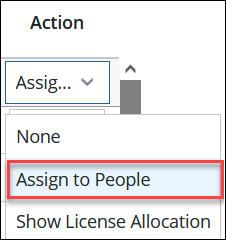
The Assign License to Run to People dialog box opens.
4. Use the filter to display a list of users who have not been assigned a License to Run. Turning off the filter displays all active users in the organization in the Add People list.
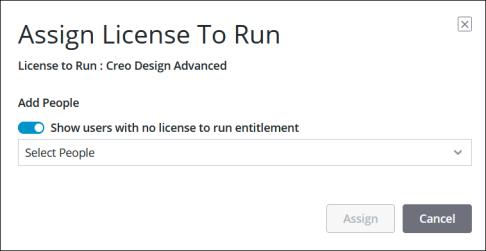
 | Since each user can have only one License to Run, if a user was previously assigned a different license, assigning a License to Run again, overrides the previous assignment. |
5. Select one or more users.
6. Click Assign to assign licenses to the selected users.
Assigning Extension Licenses to Users
As an Administrator, perform the following steps to assign Extension Licenses to users:
1. Select the Licenses page from the left tab. The page displays all the licenses available to the organization.
2. Select the Extension tab.
3. Select one or more Extension license from the list.
4. Click Assign to People to open the Assign Extension License to People dialog box.
5. Click the Add People list to display all active users in the organization.
6. Select one or more users.
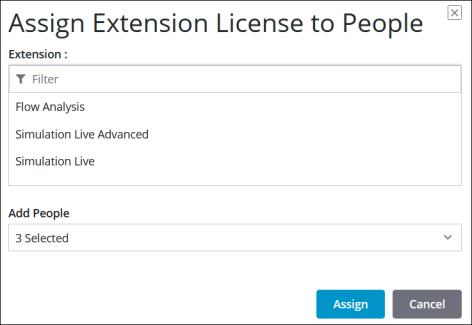
7. Click Assign to assign the Extension licenses to the selected users.
Assigning Floating Licenses to a Profile
As an Administrator, you can create a profile and assign it floating licenses. You can also assign floating licenses to a profile from the Licenses page using the following steps:
1. Select the Licenses page from the left tab. The page displays all the licenses available to the organization.
2. Select the Floating license tab.
3. Select one or more licenses to be assigned to a profile.
4. Click Assign to Profile to open the Assign Licenses to Profile dialog box.
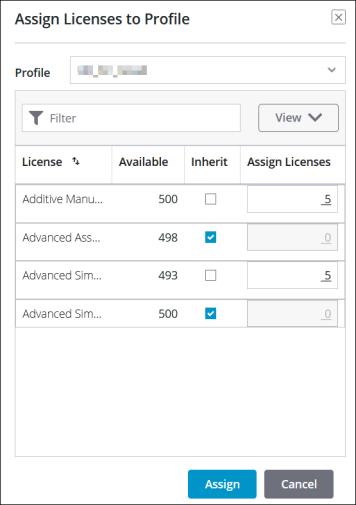
5. Select a profile from the Profile list. Type the name of the profile in the  Filter list to quickly find a specific profile.
Filter list to quickly find a specific profile.6. For each selected license, either retain the selected Inherit check box, or clear the Inherit check box and type a number in the Assign Licenses box.
When you select Inherit, licenses are made available to a profile based on the number of available licenses in the organization pool.
When you specify a number of licenses in the Assign Licenses box, a fixed number of licenses is available to a profile. The number you specify here is deducted from the organization pool.
7. Click Assign to assign the selected licenses to the profile.