User Information
The Creo+ Users page lists all the users in an organization along with relevant information such as email ID, role within the organization, assigned licenses, the last time the user logged into the Portal, and so on.
As an Administrator, you can also assign licenses from this page.
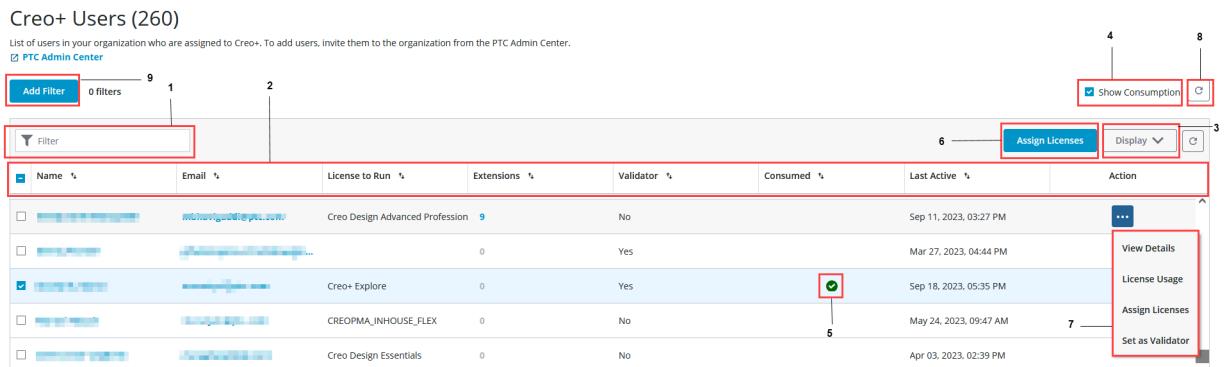
1.  Filter—Type the name of a user to search for.
Filter—Type the name of a user to search for.2. User Information.
3. Controls the user information to be displayed.
4. Displays whether a license is currently in use.
5. Indicates that a license is currently in use.
6. Assigns licenses to users.
7. Enables the following actions for a user:
View Details—Views license assignments for a selected user.
License Usage—Views license usage for the selected user.
Assign Licenses—Assigns licenses to a selected user.
Set as Validator—Assigns the additional role of validator to a user.
8. Refreshes the display.
9. Add Filter—Enables you to search for users based on one or more filters.
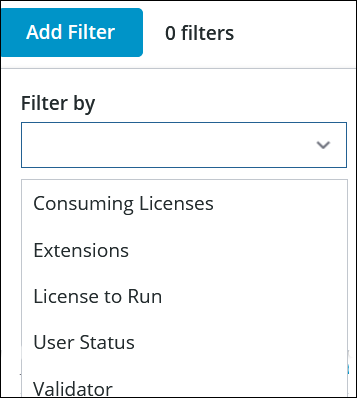
You can add filters with the following conditions:
◦ Consuming Licenses: Filters on whether a user currently has an active Creo+ session running.
◦ Extensions: Filters on whether users are assigned one or more extension licenses.
◦ License to Run: Filters on whether users are assigned a named License to Run.
◦ User Status: Filters on whether users are active , or inactive, or their invitation to the portal has expired.
◦ Validator: Filters on whether users are assigned the role of validators or not.
When you add multiple filters, users are displayed based on the conditions in all the added filters.
Assigning Licenses to a User from the Creo+ Users Page
After inviting a user to the Portal, the user must activate their account so that licenses that are reserved for them can be activated. As an Administrator you can assign a named or shared License to Run, or named Extension license to users using the following steps:
1. From the Creo+ Users page, select one or more users to assign licenses to.
2. Click the Assign Licenses button to open the Assign Licenses dialog box.
3. Select a named or shared License to Run. Note that a user can only be assigned one License to Run. A previously assigned License to Run is removed and the new license is assigned.
4. From the Extensions list, select one or more extension license for the users based on their role and requirement.
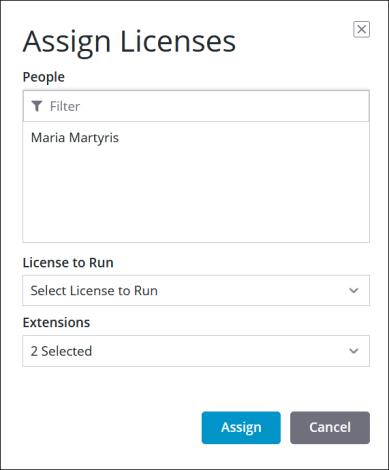
5. Click Assign to assign the licenses to the selected users.