Creating Shift Plans
When you create a Shift Plan, you first specify basic information and save the plan, then define and add Shifts.
To create Shift Plans:
1. In Max Admin, click System Management ( ) > , and then in the list view, in the top left corner, click Create (
 ).
).
) > , and then in the list view, in the top left corner, click Create ().2. On the New Shift Plan form, in the Name field, enter a name for the Shift Plan, and then in the Start Date and Time Zone fields, select a starting date and time zone.
3. In the Shift Cycle field, specify the number of days, weeks, or months in each complete cycle of the Shift Plan, and then in the Shift Cycle Unit field, select Day(s), Week(s), or Month(s).
4. In the top left corner, click Save ( ), and then in the top right corner, click Options (
 ) > .
) > .
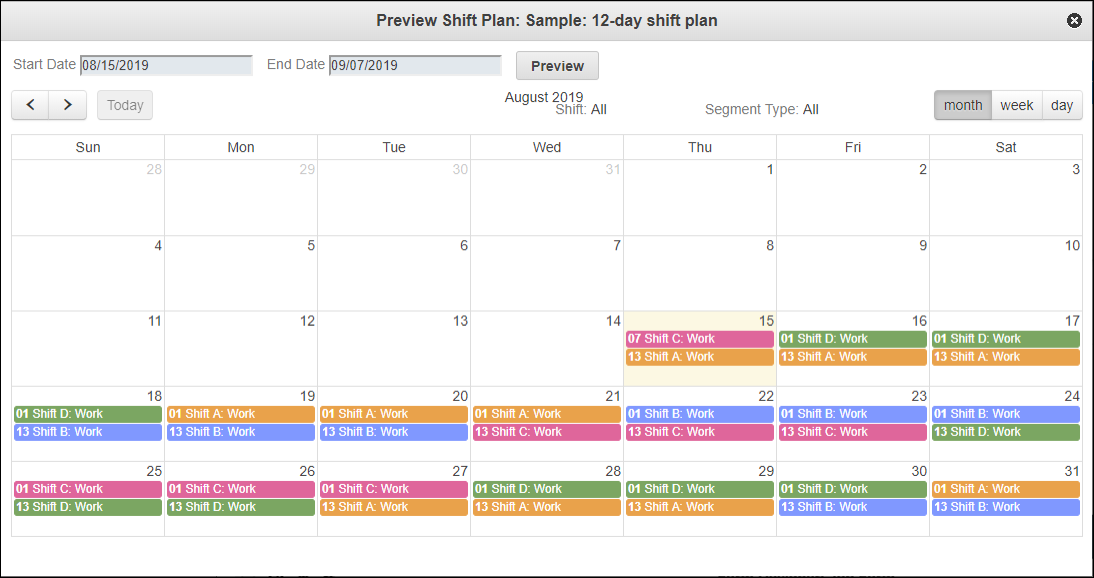
), and then in the top right corner, click Options () > .5. On the Preview Shift Plan page, enter the start and end dates for which you want to preview your Shift Plan, and then click Preview.