Canceling Service Tasks
When you cancel Service Tasks, the Resource, Service Team, and Scheduled Date Time fields are cleared. If the related Appointment is in a non-end state, it is canceled. After you cancel a Service Task, you can schedule or assign it again.
To cancel a Service Task:
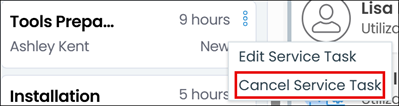
1. On the Job List, on the target Service Task Card, click Service Task Menu ( ) > .
) > .
) > .
2. In the Cancel Service Task dialog box, in the bottom right corner, click Yes.
Canceling Service Tasks in Classic Mode
 | The Classic user interface retires on November 8, 2026. All features are available in the Service Board Modern interface. We recommend switching to Service Board Modern at your earliest convenience to access the latest features. |
When you cancel Service Tasks, the Resource, Service Team, and Scheduled Date Time fields are cleared. If the related Appointment is in a non-end state, it is canceled. After you cancel a Service Task, you can schedule or assign it again.
To cancel a Service Task:
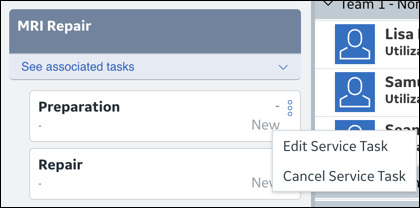
1. On the Job List, on the target Service Task Card, click Service Task Menu () > .
) > .
2. In the Cancel Service Task dialog box, in the bottom right corner, click Yes.
Related Topics