Assigning Work Plans and Service Tasks to Resources
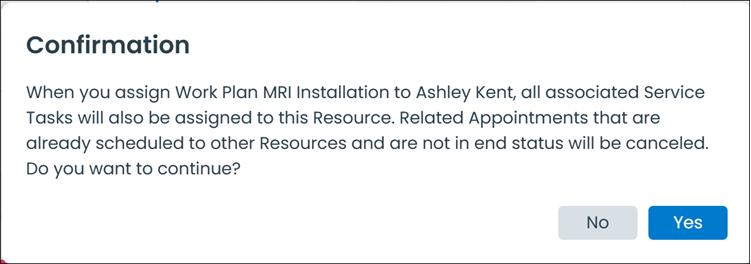
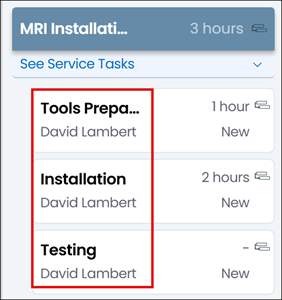
To allow technicians to schedule their own Appointments, you can assign Work Plans, Service Tasks, and the associated Jobs to Resources. When you do so, Resource and Service Team field values in the related records are configured with the relevant values. Additionally, when you assign Service Products or General Tasks to a Resource, all associated Service Tasks are also assigned to that Resource.
 |
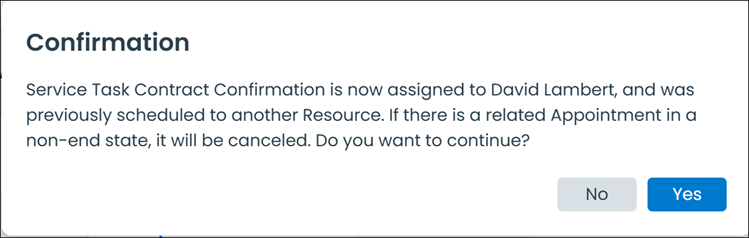
• If you reassign a Service Task to another Resource, its related Appointments in non-end state are canceled.
• You cannot assign Service Tasks with related Appointments that are in an end state, or that are associated with a Job that is in an end state.
|
To assign Work Plans and Service Tasks to Resources:
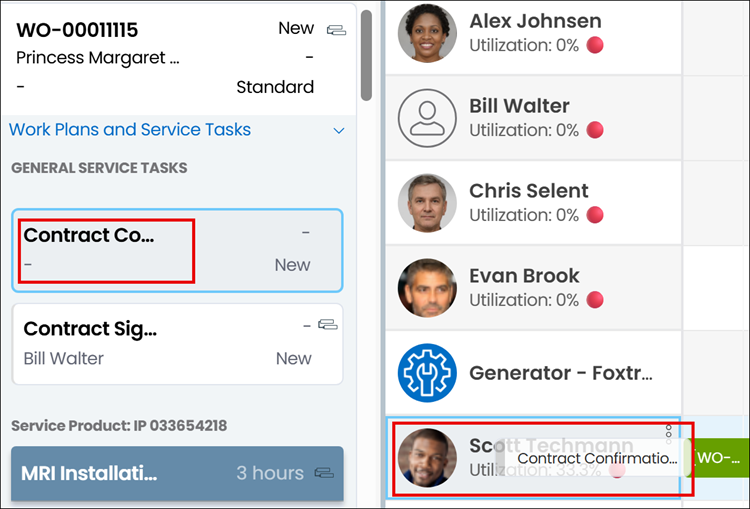
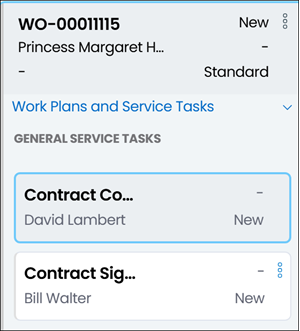
1. To assign a single Service Task, click > and drag a Service Task Card onto a Resource Card in the Scheduler Calendar.
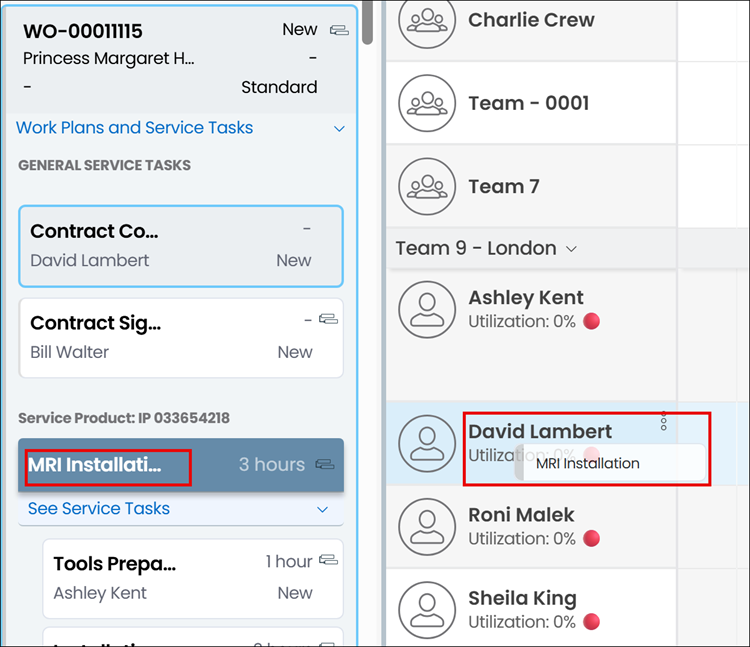
2. To assign a Work Plan, Service Product, or the associated Job, or a General Task, drag and drop its card from the Job List onto a Resource Card.
Assigning Work Plans and Service Tasks to Resources in Classic Mode
| | The Classic user interface retires on November 8, 2026. All features are available in the Service Board Modern interface. We recommend switching to Service Board Modern at your earliest convenience to access the latest features. |
To allow technicians to schedule their own Appointments, you can assign Work Plans, Service Tasks, and the associated Jobs to Resources. When you do so, Resource and Service Team field values in the related records are configured with the relevant values. Additionally, when you assign Service Products or General Tasks to a Resource, all associated Service Tasks are also assigned to that Resource.
| | • If you reassign a Service Task to another Resource, its related Appointments in non-end state are canceled. • You cannot assign Service Tasks with related Appointments that are in an end state, or that are associated with a Job that is in an end state. |
To assign Work Plans and Service Tasks to Resources:
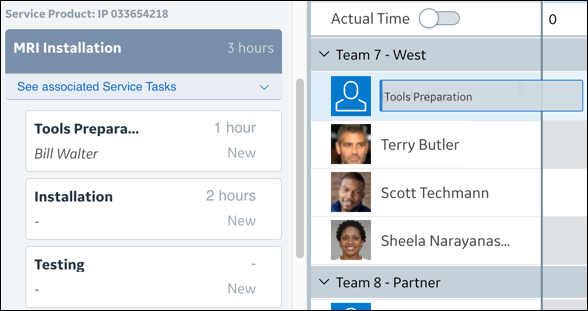
1. To assign a single Service Task, click > and drag a Service Task Card onto a Resource Card in the Scheduler Calendar.
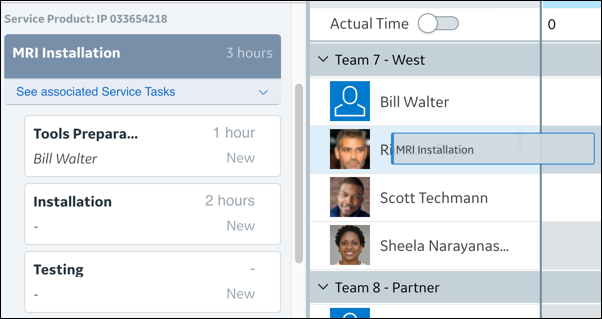
2. To assign a Work Plan, Service Product, or the associated Job, or a General Task, drag and drop its card from the Job List onto a Resource Card.
Related Topics