Canceling Primary Resource Appointments
When you cancel Primary Resource Appointments, all non-primary Resource Appointments for the same Job are also canceled, and Job status returns to New.
To cancel Primary Resource Appointments:
1. On the Scheduler Job List, click a Job assigned to multiple Resources, and then click Job Action Menu ( ) > .
) > .
) > .2. On the Multi-Resource Assignment Calendar, click a Primary Resource Appointment, and then on the context menu, click Cancel Appointment..
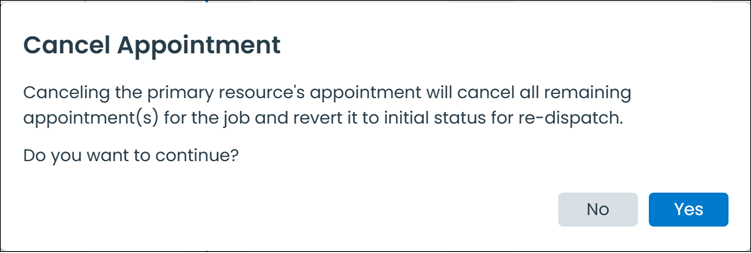
3. In the Cancel Appointment confirmation box, click Yes.
 |
If the currently selected Resource List is configured to hide Appointments in Canceled status, and you assign a Job for which you previously canceled a Multiple-Resource Appointment to a Resource, the newly created Appointment appears on the Multi-Resource Assignment Calendar.
|
Canceling Primary Resource Appointments in Classic Mode
| | The Classic user interface retires on November 8, 2026. All features are available in the Service Board Modern interface. We recommend switching to Service Board Modern at your earliest convenience to access the latest features. |
When you cancel Primary Resource Appointments, all non-primary Resource Appointments for the same Job are also canceled, and Job status returns to New.
To cancel Primary Resource Appointments:
1. On the Scheduler Job List, click a Job assigned to multiple Resources, and then click Job Action Menu () > .
) > .2. On the Multi-Resource Assignment Calendar, click a Primary Resource Appointment, and then on the context menu, click Cancel Appointment..
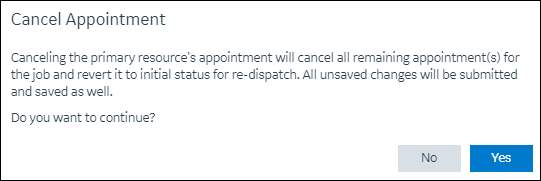
3. In the Cancel Appointment confirmation box, click Yes.
| | If the currently selected Resource List is configured to hide Appointments in Canceled status, and you assign a Job for which you previously canceled a Multiple-Resource Appointment to a Resource, the newly created Appointment appears on the Multi-Resource Assignment Calendar. |
Related Topics