Modifying Priority of Queue Items in List View
The priority of a queue item reflects the priority of the linked Work Order. This helps Supervisors monitor items during the depot repair process. If a Supervisor updates the priority in List View, the queue item adopts the new value. For example, if a Work Order is created with High priority and later changed to Medium in the queue, the item now has Medium priority. This also applies to tasks in the queue.
 |
The Priority column is not shown in the Technician card view in Summary Mode.
|
To modify priority value of a queue item in List View:
1. Go to the Depot Queue tab and select List View. For more information, see Viewing Queue Items in List View.
2. Under the Priority column, click the cell for which you want to update the priority.
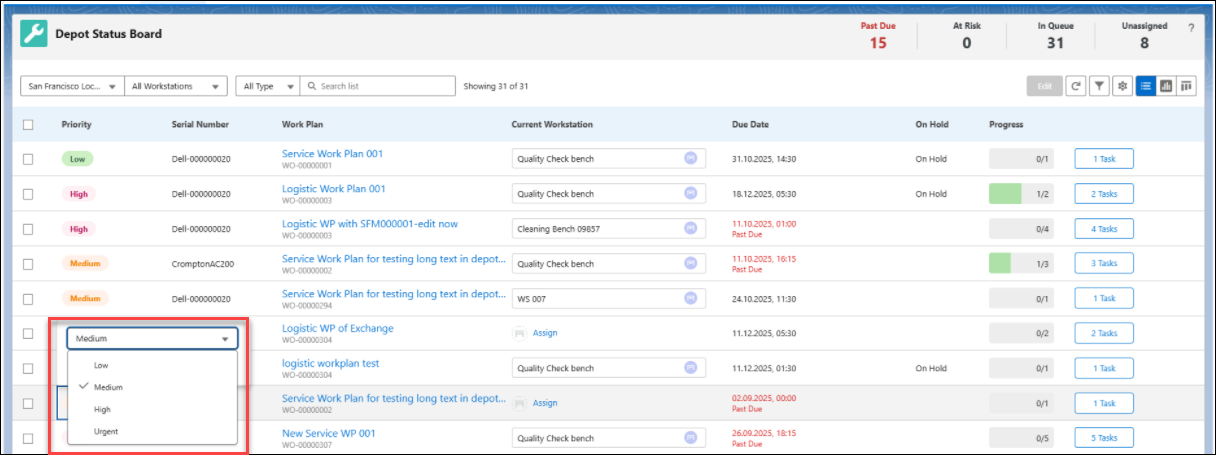
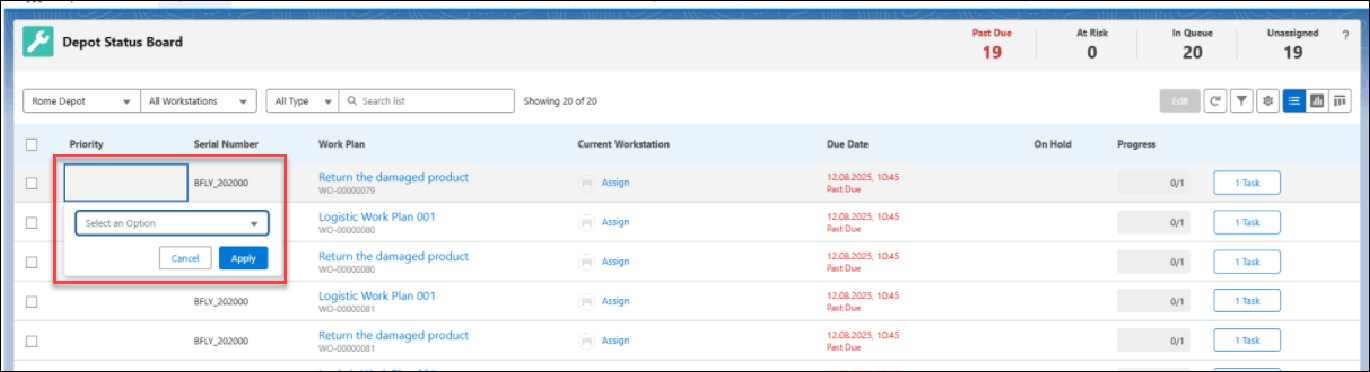
3. Click Apply. The priority value is updated for the selected queue item.
|
|
You can also discard your changes and return to previous state using Cancel.
|
4. If there is no value assigned to a queue item, then click and select a value from the “Select an option” drop-down. This displays the priority values:
◦ High
◦ Medium
◦ Low
|
|
The Work Orders’ priority field supports custom picklist values. Administrators must ensure these same values are configured in the Priority field of the Depot Queue Item. For example, if a Work Order’s priority is set to Urgent, then this value must be configured in order to view them in the Depot Queue tab.
|
Reference Topics