Editing Multiple Queue Items in List View
You can edit multiple queue items using the Edit button in List View. This button gets highlighted only when at least one queue item is selected. This helps to quickly modify cell attributes for queue items with minimal clicks.
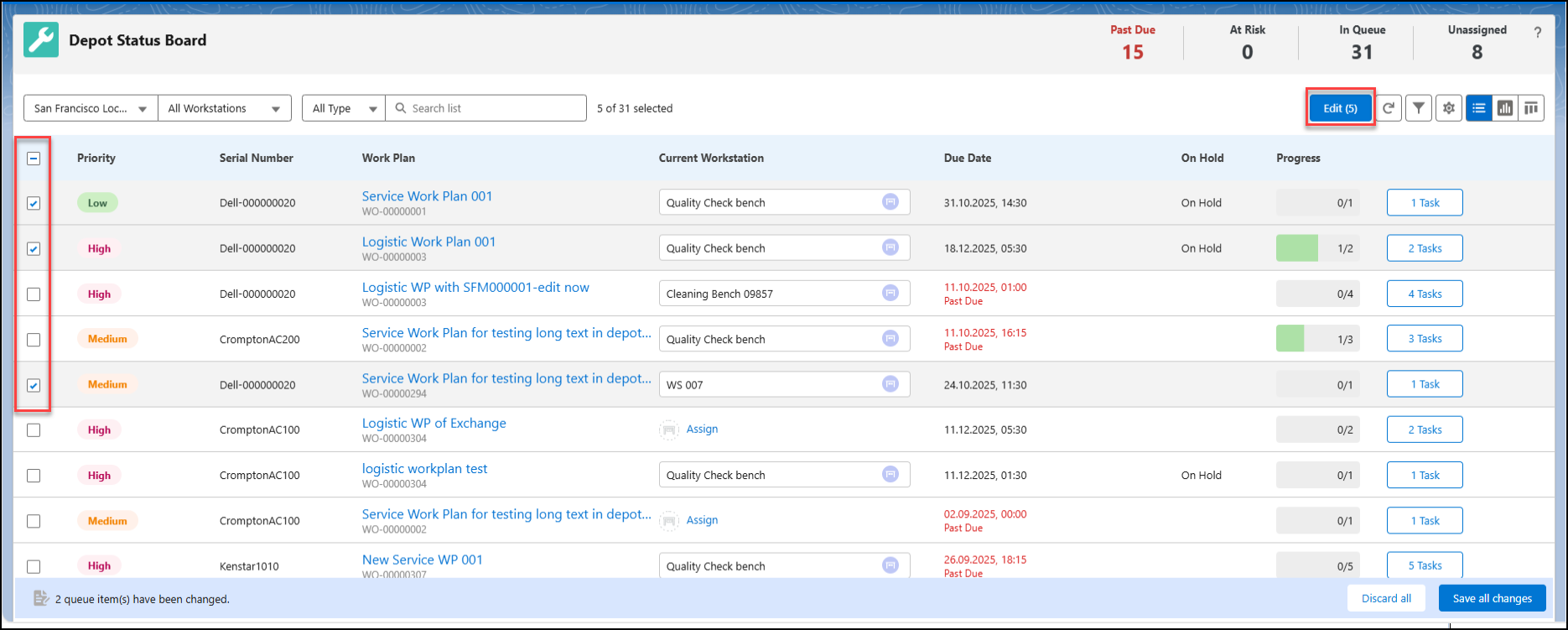
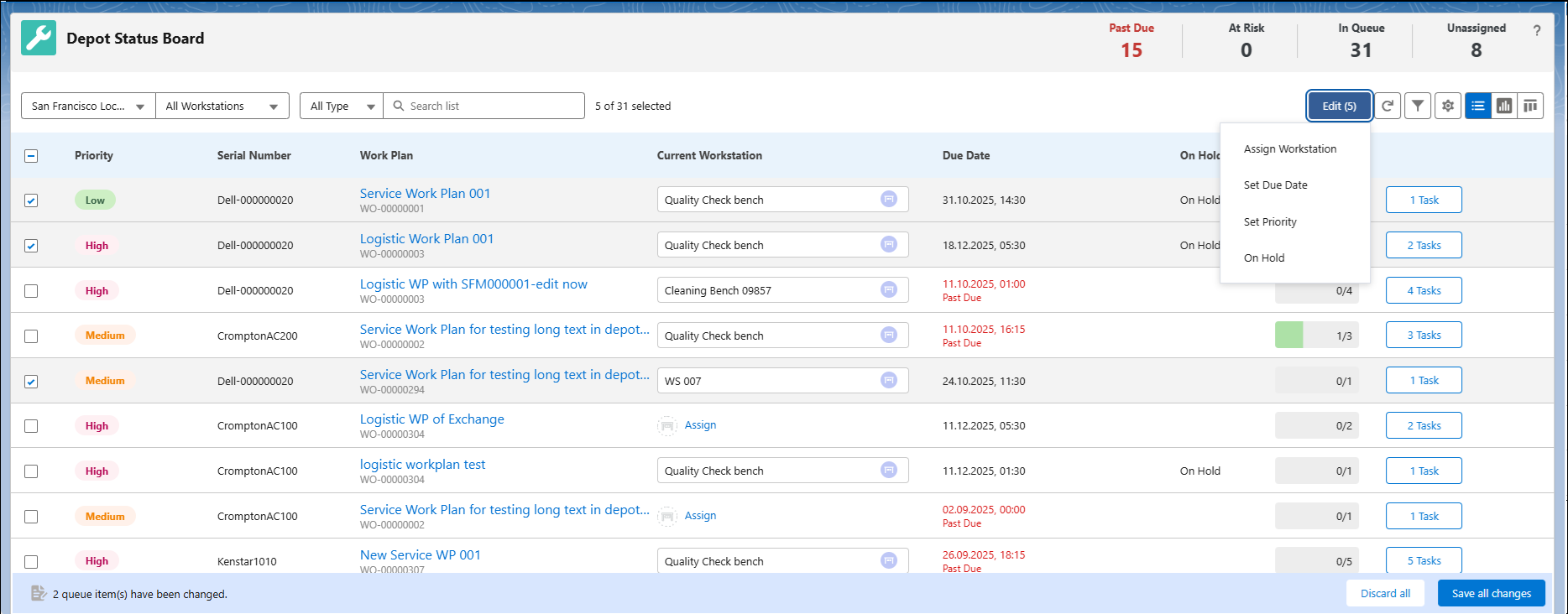
Using this Edit button, you can perform the following actions:
• Assign Workstation
• Set Due Date
• Set Priority
• Set On Hold
Assign Workstation
To assign workstations to multiple queue items:
1. Select one or more queue items from the list. For more information, see Viewing Queue Items in List View.
2. Click Edit. The Edit menu opens.
3. Select Assign Workstation. The Assign Workstation window opens.
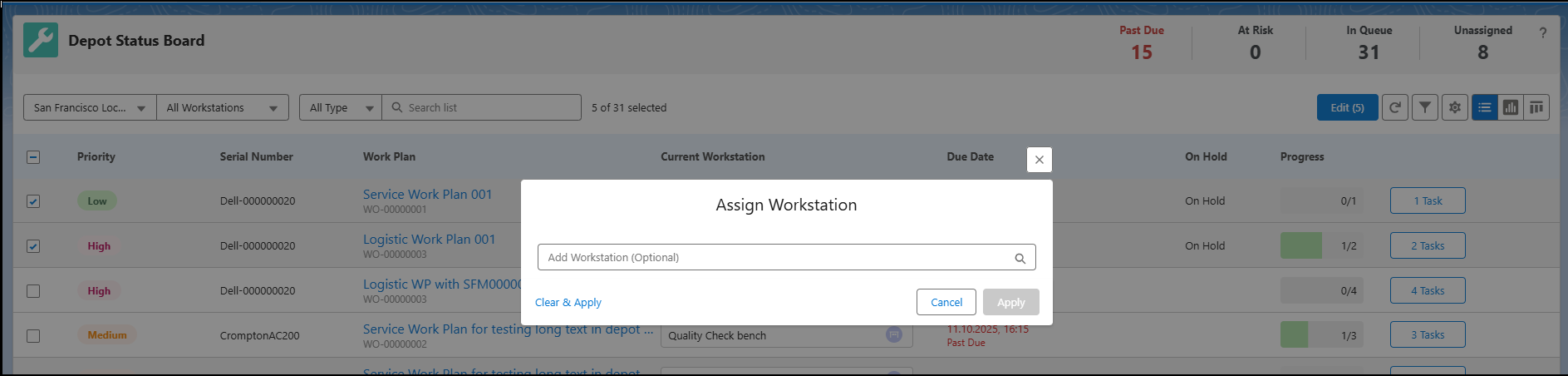
4. Select the relevant workstation from the drop-down.
5. Click Apply.
6. Click Save all changes. The Current Workstation column gets updated for the selected queue items.
Set Due Date
To update the due date columns for multiple queue items:
1. Select one or more queue items from the list. For more information, see Viewing Queue Items.
2. Click Edit. The Edit menu opens.
3. Select Set Due Date. The Due Date window opens. 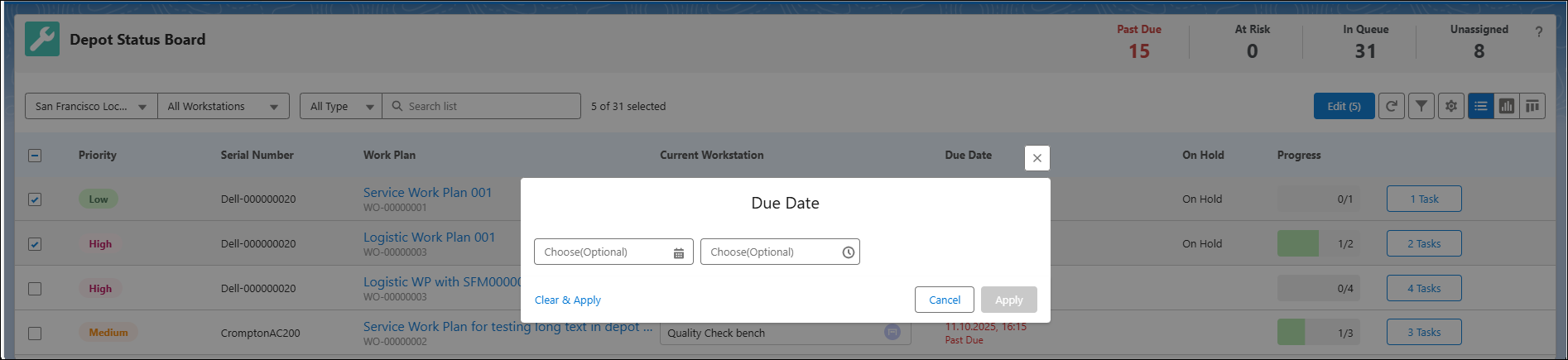
4. [Optional] Select the date or time you want to modify by clicking the Calendar and Clock icons.
5. Click Apply.
6. Click Save all changes. The Due Date column gets updated for the selected queue items.
Set Priority
To change the priority set for multiple queue items:
1. Select one or more queue items from the list. For more information, see Viewing Queue Items in List View.
2. Click Edit. The Edit menu opens.
3. Select Set Priority. The Priority window opens.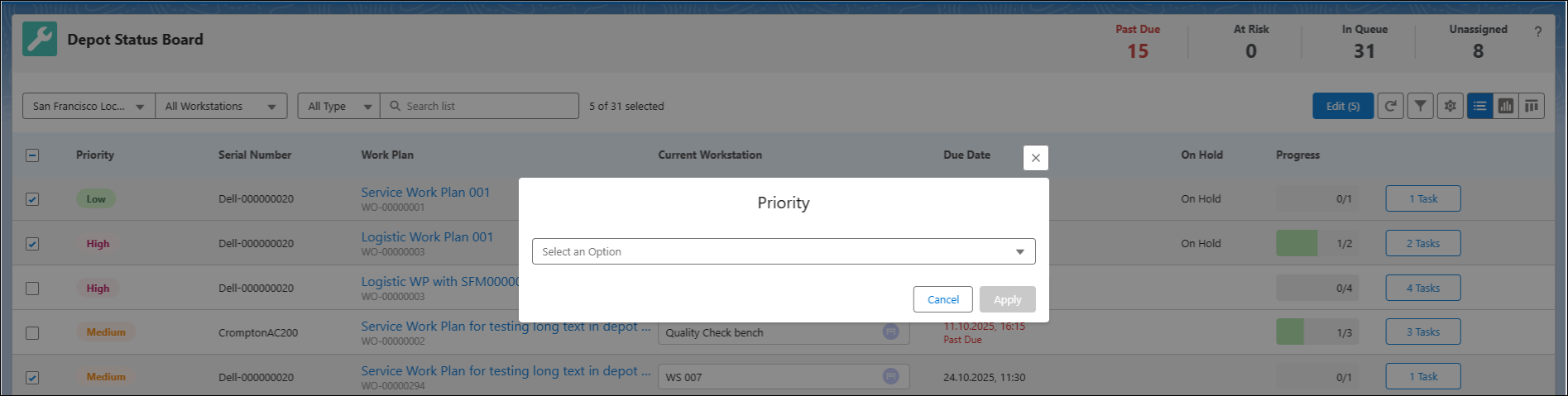
4. Select the appropriate priority from the drop-down list: Urgent, High, Medium, or Low.
5. Click Apply.
6. Click Save all changes. The Priority column gets updated for the selected queue items.
Set On Hold
To mark more than one queue item on hold:
1. Select one or more queue items from the list. For more information, see Viewing Queue Items in List View.
2. Click Edit.
The Edit window opens.
3. Select Set On Hold. The Reason for Hold window opens.
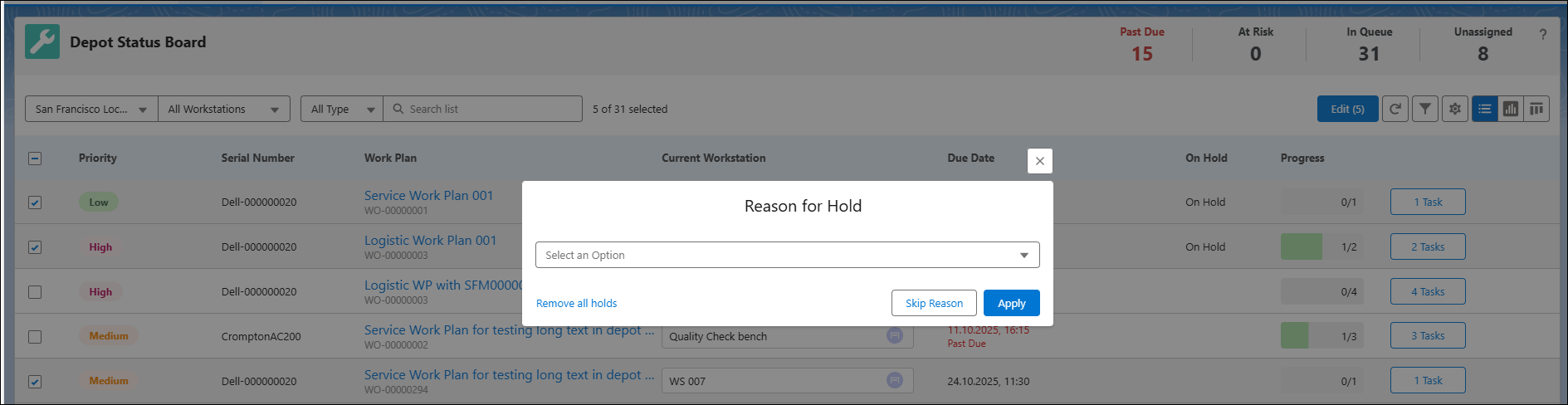
4. Select the relevant reason for adding items on hold. This is an optional step.
 |
It is recommended to add a reason for better visibility of In Progress items.
|
5. Click Apply.
|
|
You can also mark items on hold without adding a reason using Skip Reason. If there are items that are already on hold and you want to remove them from hold, use Remove all holds.
|
6. Click Save all changes. The On Hold column gets updated for the selected queue items.
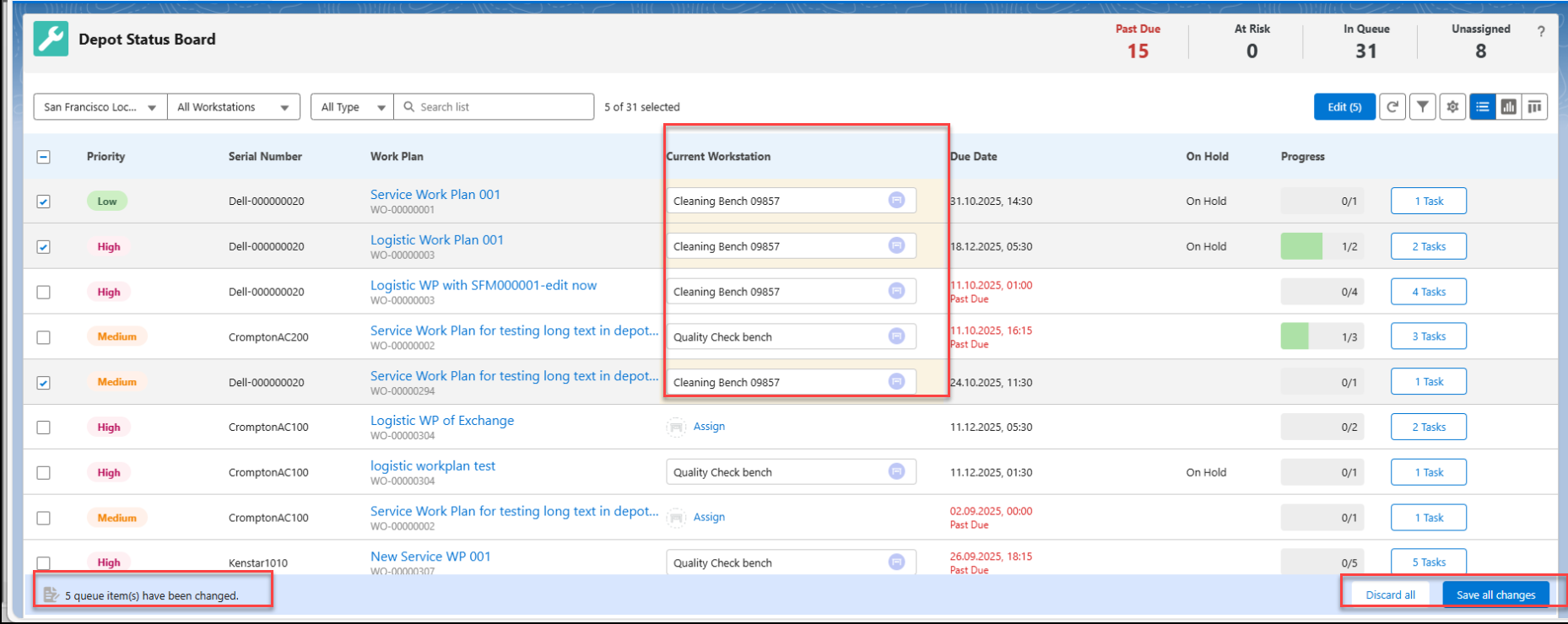
The total number of edited queue items are displayed at the bottom-left of the page.
|
|
You can remove the existing values from the queue item using Clear & apply or click Cancel or X to exit from the selection pop-up window. After you click Apply the cell values are highlighted in yellow to indicate changes and at the bottom-left you are notified of the number of items that are changed. You can use Discard all on the bottom-right if you do not want to save your changes.
|
Reference Topics