Viewing Queue Items in List View
The List View is the default view for the Depot Queue page that provides detailed list of items that can be accessed by both technicians and supervisors.
|
Prerequisite
|
|---|
|
Before performing actions on the List View page, ensure that:
• You are a supervisor or a technician regardless of covered location or a technician at a covered location without supervisor permission. For more information, see Default Queue Modes by User Role.
• You have access to the List View. For more information, check with your administrator.
|
To view queue items in the List View:
1. Sign in to your org as a Supervisor or Technician. The Salesforce Home page is displayed.
2. Click the App Launcher icon and search for Depot Console.
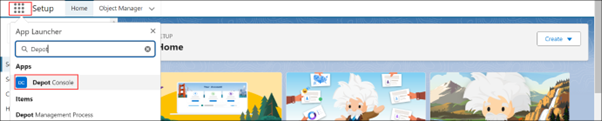
3. Click the Depot Console.
4. Go to the Depot Queue tab. The Depot Queue page is displayed.
5. Select a location from that has queue items from the “Choose depot” drop-down.
The List View displays the list of queue items for the assigned depot location.
6. Optionally, select a Workstation from the list of workstation under “All Workstations” drop-down.
7. Optionally, select the type of Work Plan (Logistics, Service, or All) from “All Type” drop-down.The List View displays the list of queue items relevant to your selection.
 |
The search results display the number of queue items that match the selection criteria. For example, “Showing 27 of 27” indicates there are 27 queue items that belong to the selected depot location, workstation, and type of Work Plan.
|
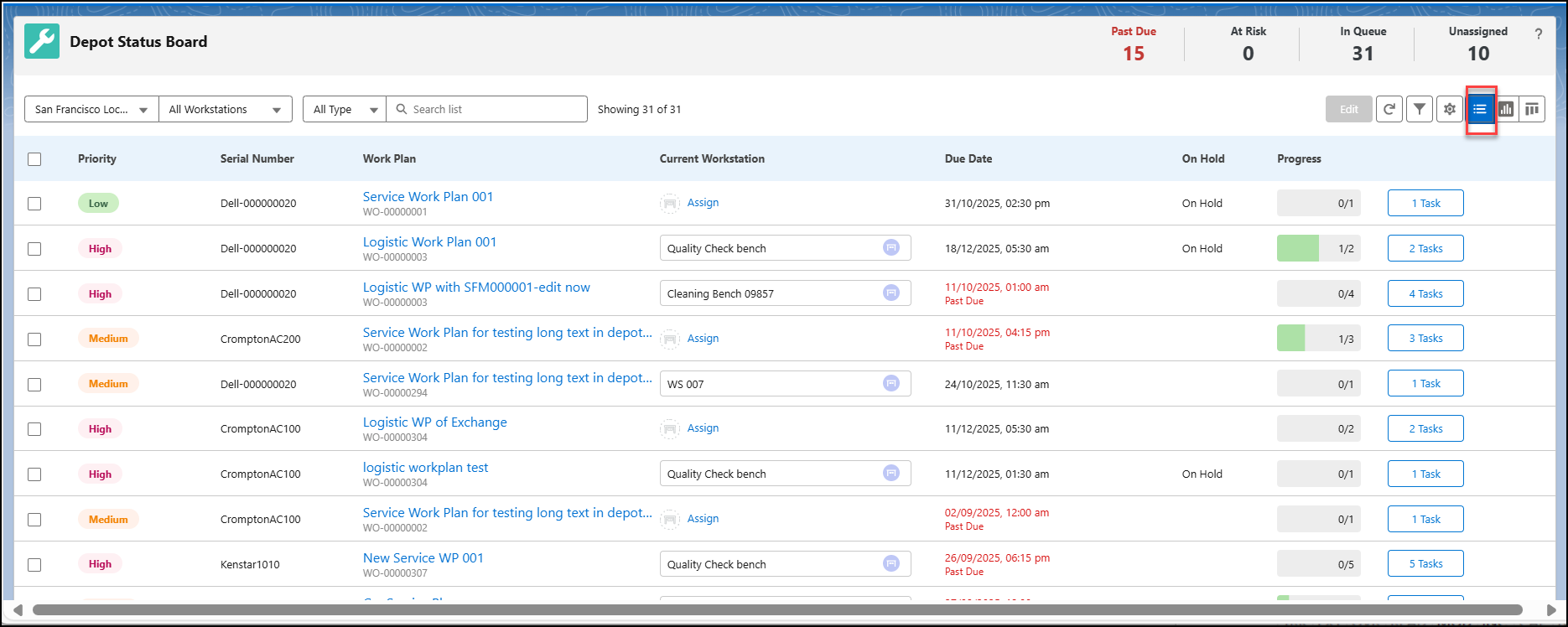
The List View lists the following details in different columns:
|
Column
|
Description
|
||
|
Priority
|
Specifies the Work Order’s priority, such as High, Medium, or Low, for the associated queue asset. This allows Supervisors to identify urgent queue items and schedule others for later.
|
||
|
Serial Number
|
Indicates the serial number of the queue asset or product.
|
||
|
Work Plan
|
Specifies the Work Plan associated with the Work Order or Service Product. You can click the link to view the details of the Work Plan. It can be either a Logistic or Service Work Plan based on the selected section.
|
||
|
Current Workstation
|
Displays the workstation name and its assignment date for the technician. The Current Technicians list all the technicians that belong to the selected workstation.
|
||
|
Due Date
|
Indicates the due date and time of the queue item. For Past Due items, date, time, and subtitle “Past Due” are highlighted in red. For items at risk, only the subtitle “Due date at risk” is highlighted in red.
|
||
|
On Hold
|
Displays the Work Order’s status if put on hold. You can optionally add a reason for updating the status to On Hold.
|
||
|
Progress
|
Highlights the progress of the repair process for a Work Order. It also includes the total number of tasks, including completed and cancelled.
For example, 2/14 to display 2 tasks out of 14 tasks are either completed or cancelled.
|
Reference Topics