Custom Action for Depot Service Request LWC
To create custom action for Depot Service Request LWC:
1. Go to > > . The Custom Action page is displayed.
2. Select an object from the Manage Custom Actions for drop-down list.
3. In the User—defined Custom Actions, click New.
4. Select the Action Type as UI Component. The Custom Action details page for the selected object is displayed.
5. Enter the details as described in the following table:
|
Field
|
Description
|
||
|---|---|---|---|
|
Object
|
Displays the name of the object for which you are creating a custom action.
|
||
|
Action Title
|
Enter the title to appear on the record page. For example, Issue Report/Feedback.
|
||
|
Action ID
|
Enter a unique ID for the custom action.
|
||
|
Description
|
Enter a description for the custom action.
|
||
|
Component Type
|
Select Managed Components from the list.
|
||
|
Name
|
Select Depot Service Request from the list.
|
||
|
Modal Height
|
Select a height from the list. This refers to height of the component when displayed at runtime.
|

6. In the Define the list of parameters for this action, click Add and define the following:
|
Parameter
|
Parameter Type
|
Parameter Source
|
|---|---|---|
|
recordId
|
Field Source
|
Account-Record Type ID
|
The following screenshot displays a sample Depot Service Request custom action configuration on the Account object:
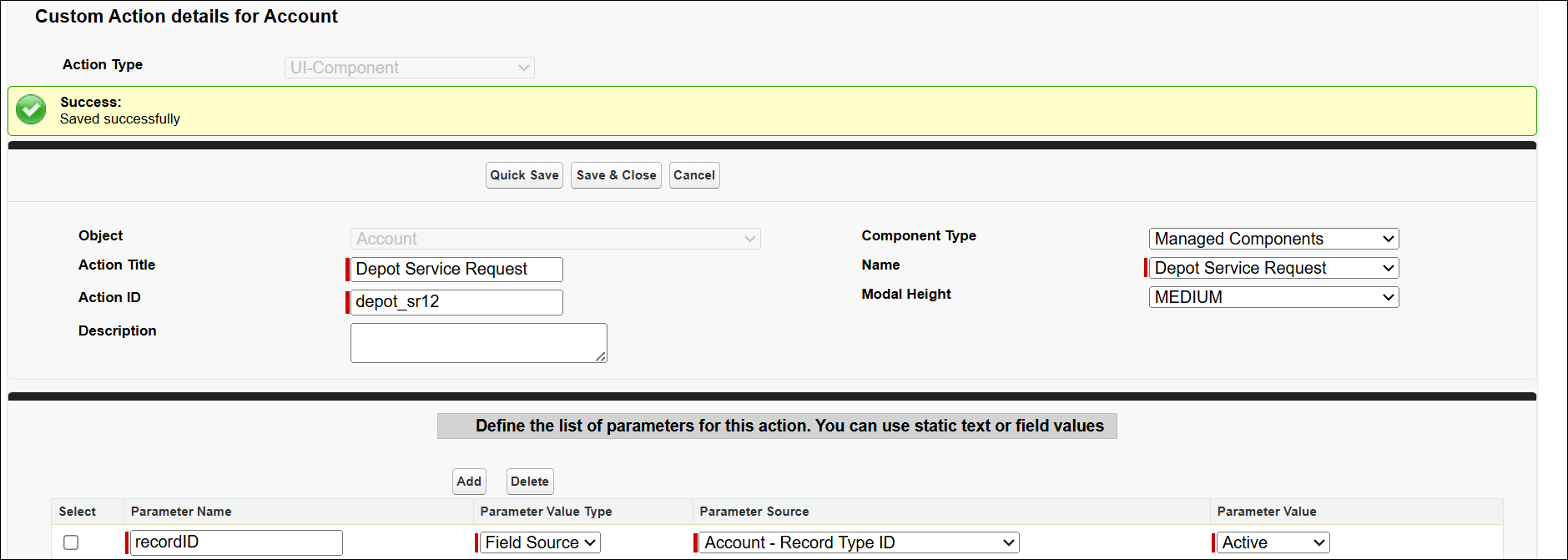
7. Click Save.
The Depot Service Request is available as a wizard step in the Account, Work Order, and Case. For more information, see Depot Service Request.