Managing Translations for Technical Attributes
From the Manage Translations page, administrators can add translations for Technical Attributes. This enables technicians and planners to view Technical Attributes information in their logged-in user language.
Translations are supported for Technical Attribute Templates created using the Sencha or Lightning user interface.
You can define translations for Section name, Attribute name, Attribute description, Warning message, and Unit.
 |
The translation of attribute description is supported only in the lightning widget.
|
The Technical Attribute Template’s fields translations are available in the following areas:
• Service Tasks that have Technical Attribute Templates as Linked Activity. For more information, see Executing a Technical Attribute Task from a Service Product.
• Technical Attribute lightning widget on an Installed Product record. Viewing and Updating Technical Attributes Using Lightning Widget.
• IB Attribute History
• Asset Attribute View
To manage translations for Technical Attribute Templates:
1. Go to ServiceMax Setup > App Administration > Translations.
The Manage Translations page is displayed.
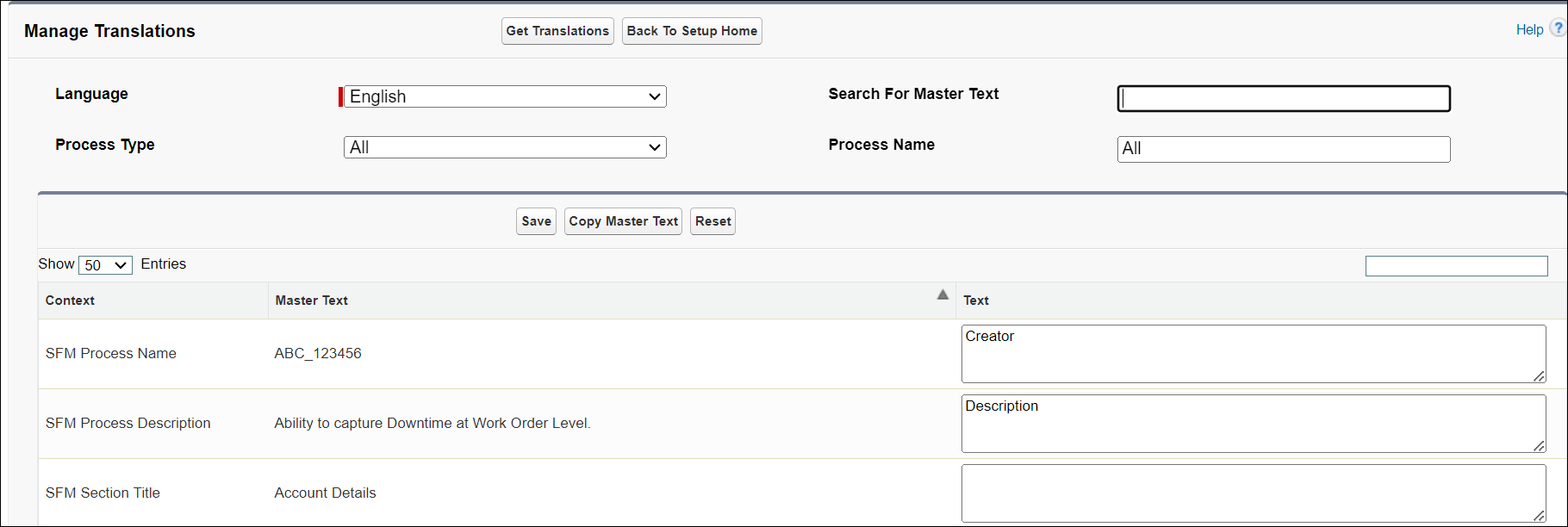
2. In the Language, select the language for which you want to define the translations. For example, French.
3. In the Process Type, select Technical Attribute.
The Manage Translations page is filtered with the Technical Attributes information.
4. For the required Context, enter the translation in the Text field for the selected language, and then click Save. For example, enter a translated text for the Section Name of a Technical Attribute Template.
5. Click Save.