Executing a Technical Attribute Task from a Service Product
You can execute the Technical Attribute task added to a Work Plan associated with a Service Product. When performing the task, you can record attributes, specify task details, and mark the task as complete. The task can either have a Technical Attribute Template already assigned, or the system automatically assigns the appropriate template at runtime based on the Service Product’s installed product. For more information, see Adding Technical Attribute Template task and Adding the Assign Technical Attribute Template at Runtime task.
To execute a Technical Attribute Template task:
1. From the Home page, open a Work Order record.
2. Click the Service Products & Tasks tab.
Associated service products, service tasks, or work plans, if any, are displayed.
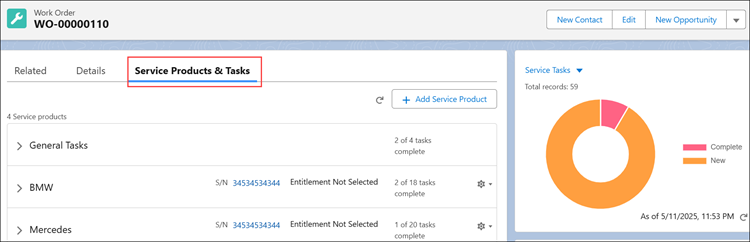
3. Expand a Service Product . The list of work plans and their associated service tasks added to the Service Product is displayed.
4. Go to a Technical Attribute type of task and click Launch.
The Technical Attributes task is displayed with the list of attributes. The corresponding Threshold and Last Saved values are displayed.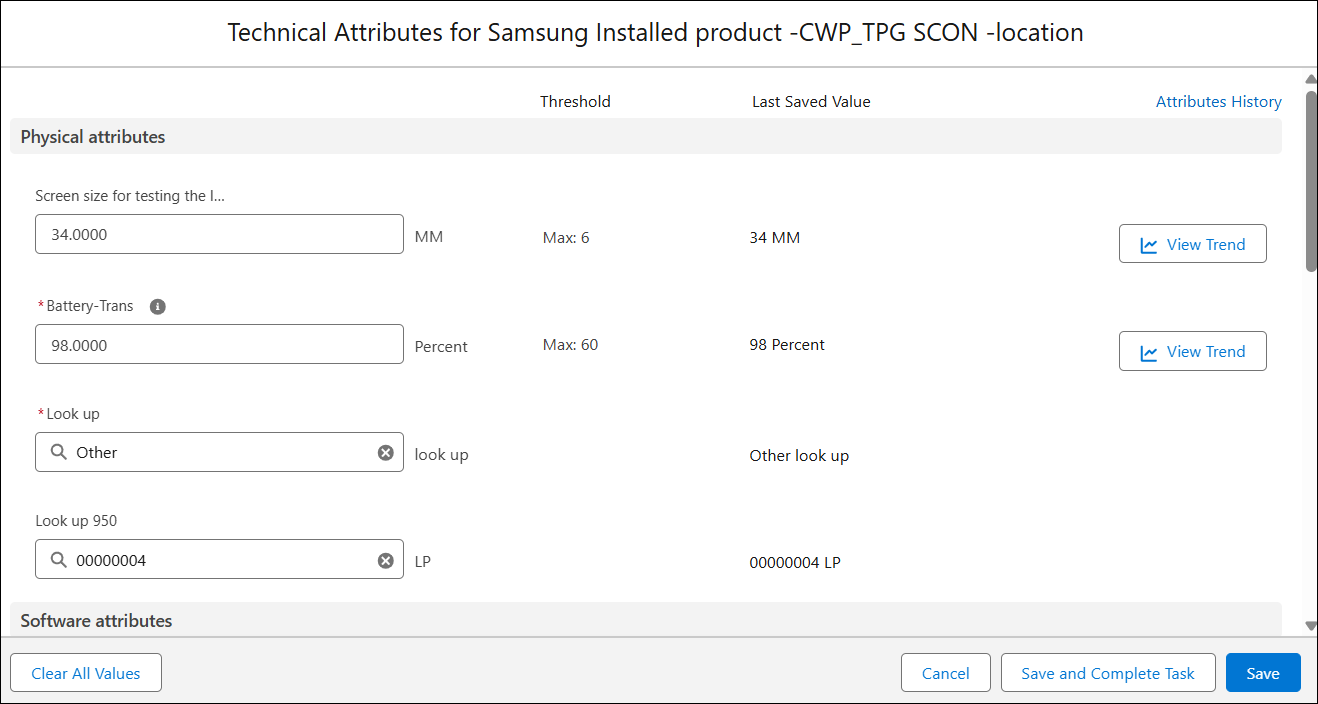
 |
When you open a task, the Status is automatically set to In Progress. If you make no changes and close the task, the Status remains New.
|
5. Record the attributes.
|
|
• You can click the View Trend icon next to an attribute value to view individual attribute history in chart form. This option is listed only for numeric attribute. Each point on the chart shows the attribute value at a specific date and time.
• You can click the Attribute History link to view the change history for all attributes of the Service Product. This opens a new tab showing a list of attribute value changes recorded on specific dates and times.
|
6. Click Save to save the changes and set the task status to In Progress, or click Save and Complete Task to save the changes and mark the task as complete.
|
|
• You are notified if any mandatory attributes are not filled at the time of save.
• A warning message appears if the entered attribute value is outside the defined threshold.
|
|
|
• After you mark a task as Complete, you can no longer record attributes or modify task details.
• If the task details are saved without any changes to attribute values, the technical attributes for the Installed Product are not recorded for that point in time. At least one technical attribute must be updated to record the latest attribute values at the time of save.
|