Screen Buttons
This section describes the fixed and dynamic buttons above the header section in each SFM Delivery type.
This section displays information about the fixed and dynamic buttons and icons above the header section in each SFM Delivery type.
SFM Lightning Delivery
The following table describes the fixed buttons and icons above the header section in SFM Lightning Delivery.
|
Button / Icon
|
Description
|
||
|---|---|---|---|
|
Cancel
|
Discards all unsaved changes and returns to the record detail page.
|
||
|
Save
|
Validates and saves all changes. The page redirects to the record detail page after a successful save.
|
||
|
Quick Save
|
Saves changes without leaving the SFM transaction. You can continue editing after the save completes.
|
||
|
Application Settings icon (gear)
|
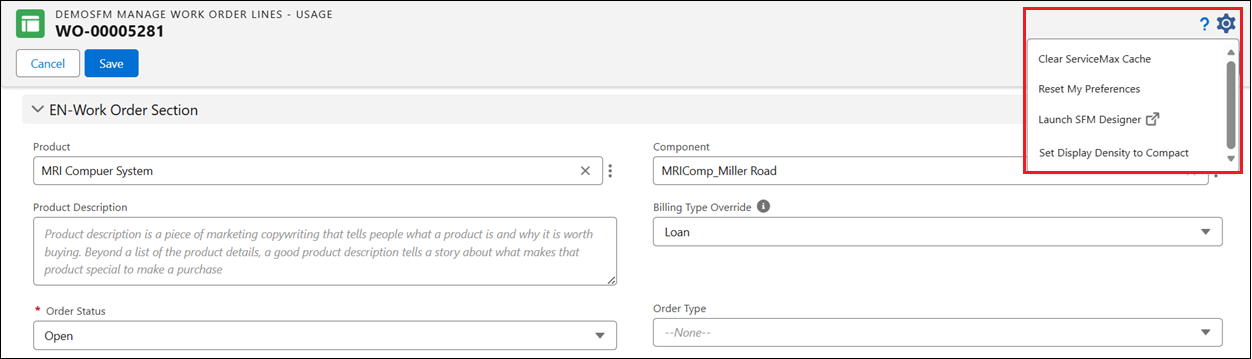
Hover over the gear icon to see the tooltip Application Settings. Click the icon to expand the menu with the following options:
• Clear ServiceMax Cache: Clears cached configuration data (page layout details, field labels, custom labels, picklist values, settings, translations and more.) from the browser. User preferences are not affected. For more information, see Clearing ServiceMax Cache.
• Reset My Preferences: Deletes all saved SFM layout preferences for the logged-in user. The SFM screen reloads with default layout settings. For more information, see Resetting User Preferences.
• Launch SFM Designer: Opens SFM Designer in a new browser tab for the current SFM transaction or Output Document. Requires Feature Permission on the active profile. For more information, see Launching SFM Designer.
• Set Display Density to Compact / Comfy: Toggles between compact and comfortable row spacing on header fields and child grids. The menu item displays the display density setting name as configured for the SFM transaction.
|
 |
The buttons and icons remain anchored at the top of the page while scrolling.
|
Classic Theme
This section displays information about the fixed and dynamic buttons above the header section in SFM Delivery Classic Theme.
Topics:
• Launching SFM Designer: Opens SFM Designer for the current SFM transaction.
• Clearing ServiceMax Cache: Clears cached configuration data from the browser.
• Configuring User Settings: Opens the User Settings page to configure display preferences.
Lightning Theme
This section displays both fixed and dynamic buttons above all the header sections in SFM Delivery Lightning Theme.
Topics:
• Launching SFM Designer: Opens SFM Designer for the current SFM transaction.
• Clearing ServiceMax Cache: Clears cached configuration data from the browser.
• Configuring User Settings: Opens the User Settings page to configure display preferences.