Resetting User Preferences
Reset all stored SFM layout preferences to restore default column widths, section states, frozen columns, and display density settings.
SFM Delivery saves layout preferences for each logged-in user, such as column widths, collapsed sections, frozen columns, and display density. Resetting these preferences restores the default layout defined by the administrator in SFM Designer.
 |
• Reset My Preferences is available in SFM Lightning Delivery only. This option is not available in Classic Theme and Lightning Theme.
• After upgrading to version 30.0, it is recommended to perform a one-time browser cache refresh before using this feature. Without clearing the cache, previously stored preferences persist and the reset does not take effect.
|
To reset your SFM preferences:
1. Open any SFM transaction in SFM Lightning Delivery.
2. Click the Application Settings (gear) icon in the toolbar.
3. Select Reset My Preferences.
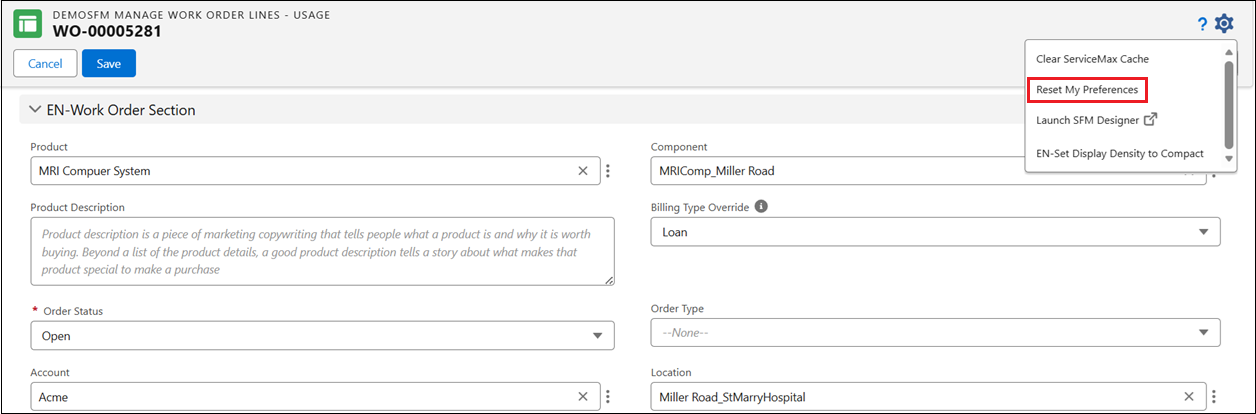
The Reset My Preferences popup window is displayed.
4. Click Proceed to reset preferences, or click Stay on This Page to cancel.
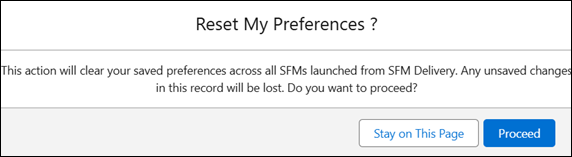
If you click Proceed, SFM Delivery removes your saved preferences and reloads the current SFM transaction. All sections, columns, and display settings revert to the defaults defined in SFM Designer.
After the reset, the SFM loads with the default layout. Any column-width adjustments, collapsed sections, frozen columns, or display density selections you made previously are cleared.