Adding an Attribute to a Section
In a Technical Attribute Template, you can define attributes within a section. You can define attributes of the following data types:
• Number
• Picklist
• Lookup
• Text
• Boolean
To add an attribute to a section:
1. From the Home page, go to Attribute Templates.
2. Click New.
3. In the Template Info, provide the Details and configure Application Criteria. For more information, see Creating a Technical Attribute Template.
4. Click Next.
A new tab appears with the tab name same as template name.
5. Add a Section. For more information, see Adding a Section.
6. In the Section, click Add New Attribute.
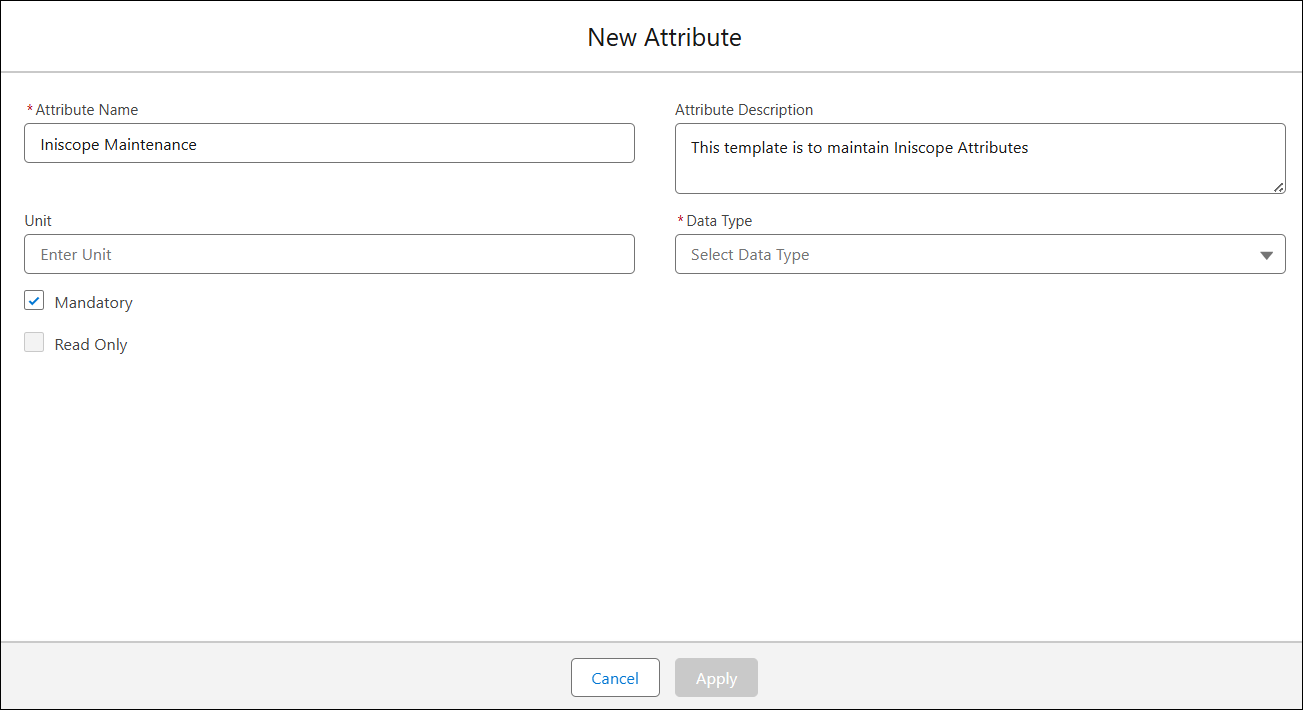
The New Attribute pop-up window is displayed.
7. Provide the details for the fields as described in the following table:
|
Attribute
|
Description
|
||
|---|---|---|---|
|
Attribute Name
|
Enter a unique name of the attribute.
|
||
|
Attribute Description
|
Enter a description of the attribute.
|
||
|
Unit
|
Enter the unit for the attribute. To support a wide variety of possible units and metric systems, it is defined as a textbox instead of a dropdown list.
Indicates the measurement unit associated with the attribute. For example, for the Power attribute, the unit is specified as Watt.
|
||
|
Mandatory
|
Select this checkbox to make the attribute mandatory. This ensures critical data is captured for an Installed Product.
|
||
|
Read Only
|
Select this checkbox to make the attribute read-only. If this option is selected, end users cannot modify this attribute.
|
||
|
Data Type
|
Select the attribute data type from the dropdown. Based on selection, additional fields appear specific to the data type.
|
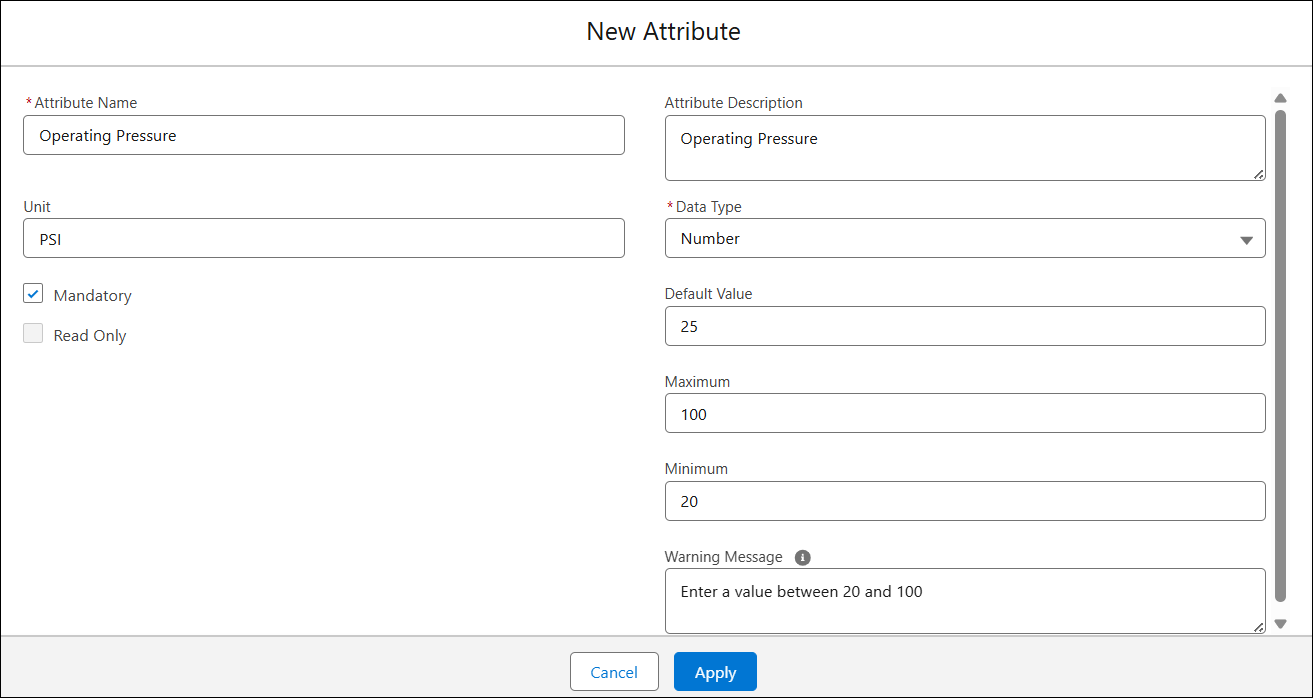
8. Configure other fields based on the selected Data Type and click Apply.
The new attribute is added to the section.
 |
You must save the template to reflect any changes made to attributes.
|