Creating a Technical Attributes Template in Lightning Mode in 25.2
From the Attributes Templates lightning tab, you can create or manage Technical Attribute Template for a Product, Product Line, or Product Family.
 |
You are redirected to the Attributes Templates lightning tab for template creation when you try to mange Technical Attributes from the Installed Base App Setup page in Salesforce Lightning mode.
|
|
Prerequisite
|
|---|
|
This user interface is supported only in Salesforce Lightning mode.
|
To create a Technical Attribute Template:
1. From the Home page, go to Attributes Templates.
The list of Technical Attributes Templates is displayed.
2. Click New.
The New Technical Attribute Template is displayed with the Template Info tab. The Template Info tab holds the general information and application criteria of the template.
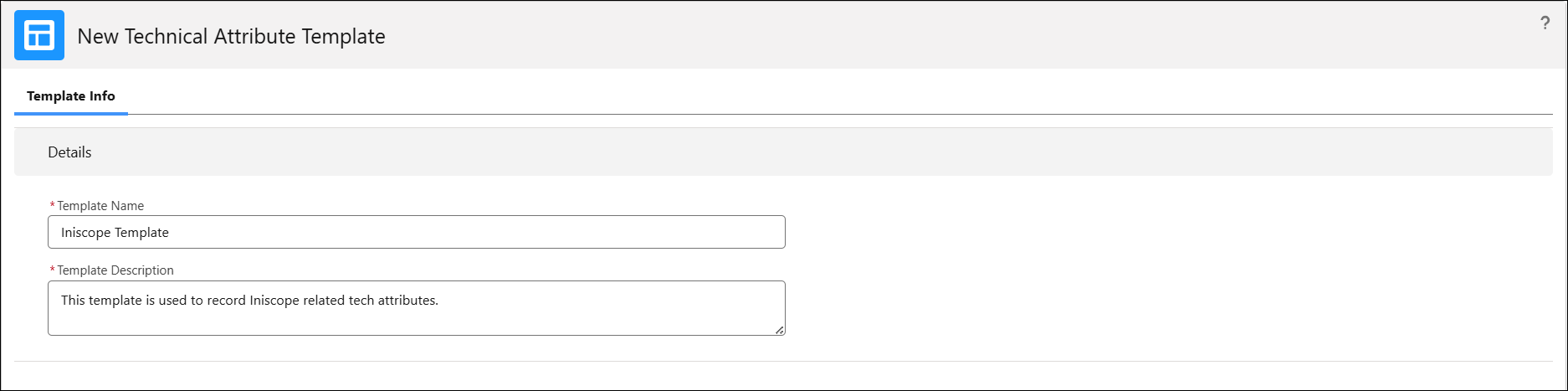
3. In the Details section, provide details for the fields as described in the following table:
|
Field
|
Description
|
|---|---|
|
Template Name
|
Enter the name of the template.
|
|
Template Description
|
Enter a description that explains the purpose of this template. For example, this template is used to maintain maintenance-related attributes for medical equipment.
|
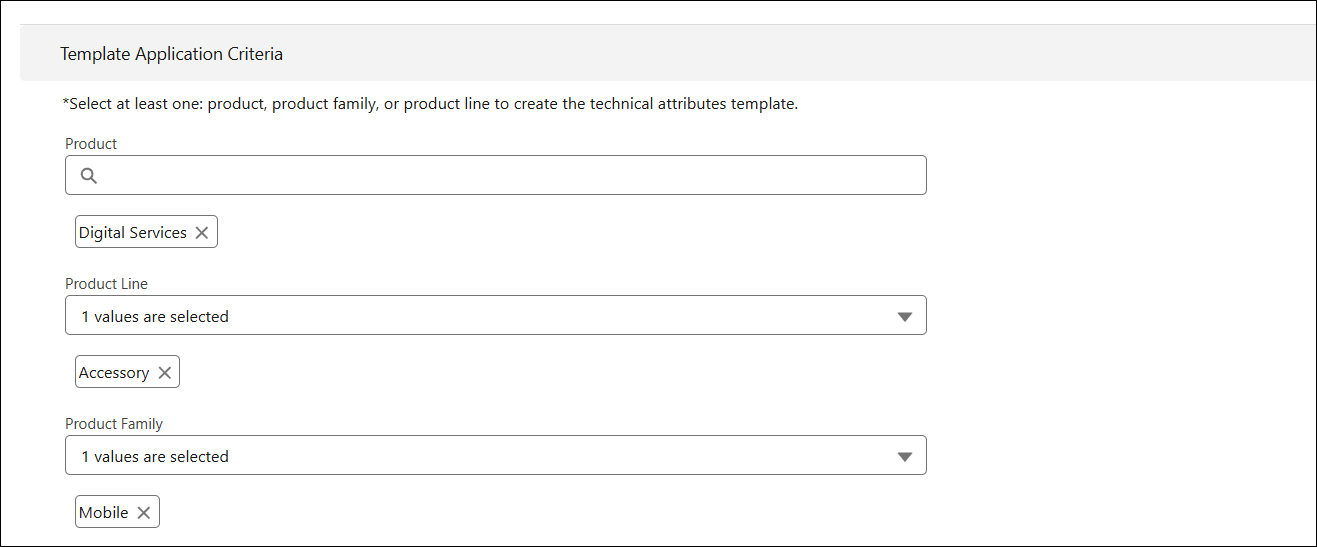
4. In the Template Application Criteria section, select Product, Product Line, or Product Family for which the template is created.
|
|
• You must select at least one Product, Product Line, or Product Family to create a template.
• You cannot add a Product, Product Line, or Product Family that is already associated with another template. A notification message is displayed to remove the duplicate association before you proceed to save the template.
• For an installed product, the template is assigned at runtime. If templates exist for the Product, Product Line, and Product Family of the Installed Base (IB), the Product template takes priority over the Product Line and Product Family templates, and the Product Line template takes priority over the Product Family template.
• You can associate the same template to more than one Product, Product Line, or Product Family.
|
5. Click Next.
A new tab appears with the name of the template.
Available Actions in the Template Tab
In this tab, you can perform the following actions:
|
|
In the mobile app, attributes within a section are grouped together.
|