Viewing Task Dependencies in a Work Order
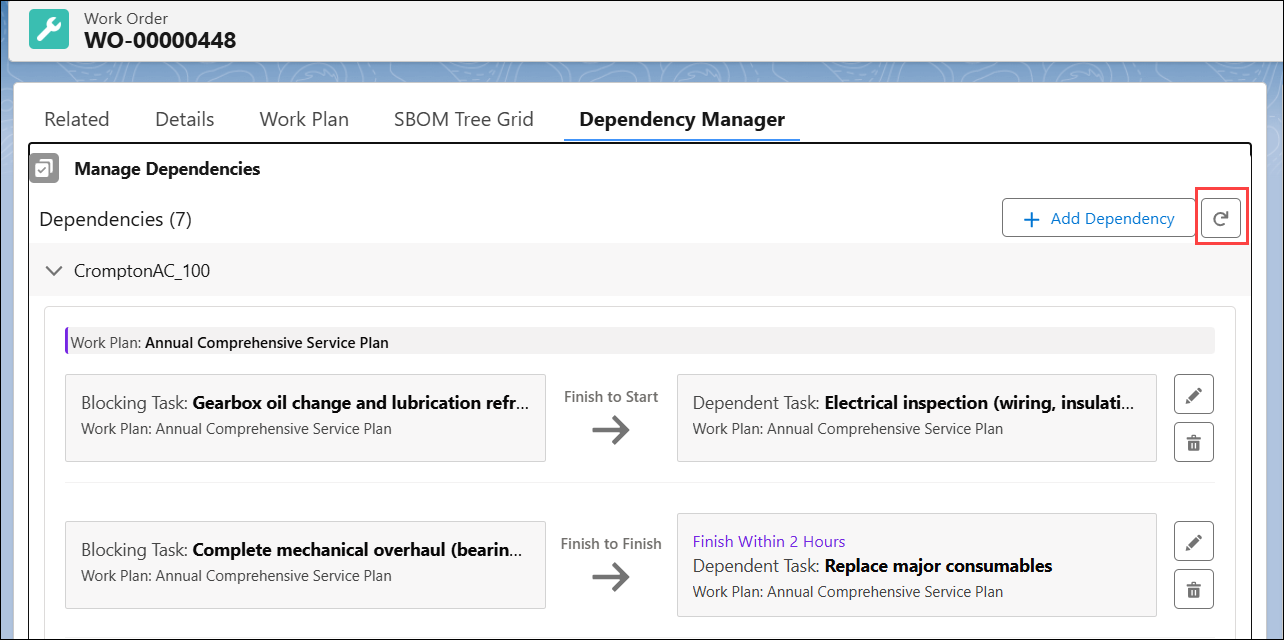
From a work order, you can view task dependencies defined between tasks as part of work plans or added directly to general tasks using the Dependency Manager tab.
 |
If no dependencies exist between tasks, an empty state is displayed.
|
To view task dependencies from a Work Order:
1. From the Home page, go to the Work Order tab.
2. Open a Work Order record.
3. Go to the Dependency Manager tab.
Dependencies are displayed between tasks in the General Tasks section and between tasks associated with Service Products, grouped by their assigned Work Plans.
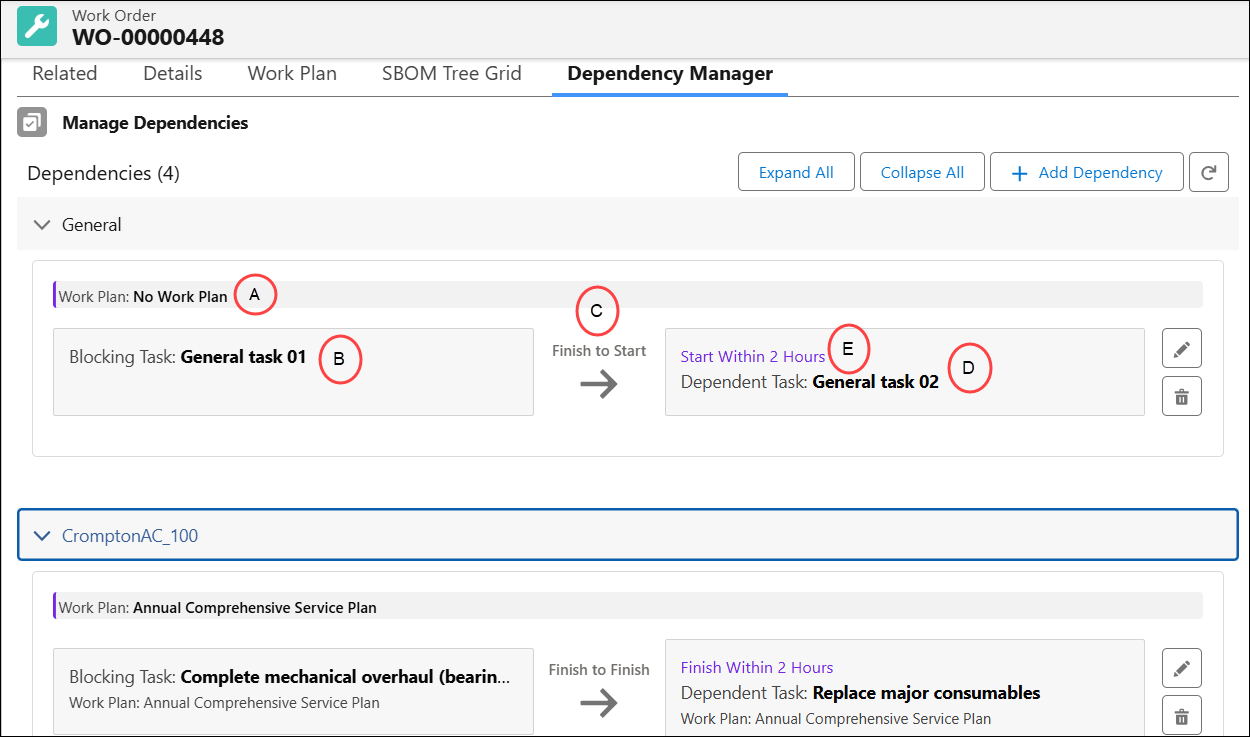
The following table describes each callout and explains the key elements of a task dependency:
|
Callout
|
Field
|
Description
|
|---|---|---|
|
A
|
Work Plan
|
Displays the Work Plan name associated with the dependency. Displays No Work Plan when the dependency is created directly between general tasks.
|
|
B
|
Blocking Task
|
The primary task that must be completed or progressed before the dependent task can proceed.
|
|
C
|
Dependency Type
|
Indicates the relationship between tasks, defining how the blocking task controls the dependent task. The following are various dependency types:
• Finish to Start: The primary task must finish to start the secondary task.
• Start to Start: The primary task must start to start the secondary task.
• Finish to Finish: The primary task must finish to finish the secondary task.
• Start to Finish: The primary task must start to finish the secondary task.
|
|
D
|
Dependent Task
|
The task that is dependent on the blocking task and follows the defined dependency rule.
|
|
E
|
Dependency Constraint
|
Specifies the time constraints applied to the dependency, indicating when the dependent task should start or finish relative to the blocking task.
The following scheduling constraints are displayed based on dependency type:
• Finish to Start and Start to Start: Start Within, Start After, and Must Start
• Finish to Finish and Start to Finish: Finish Within, Finish After, and Must Finish
|
Available Actions in the Dependency Manager Tab
In the Dependency Manager tab, you can perform the following actions:
• Click Expand All or Collapse All to expand or collapse all dependencies.
• Click the Refresh icon to view the latest task dependencies.