Adding a Dependency for a Task in Work Order
|
Prerequisite
|
|---|
|
You must have Create permission on the Work Order Dependencies object to add task dependencies.
|
In a Work Order, you can add a dependency for a task using the Dependency Manager tab. You can add dependencies for tasks associated with a Work Plan or for General tasks. When adding a dependency, you can select the blocking task and define time offsets that control when the dependent task must start or finish relative to it. This ensures tasks are executed in the correct order with controlled timing.
To add a dependency for a task in the Work Order:
1. From the Home page, go to the Work Order tab.
2. Open a Work Order record.
3. Go to the Dependency Manager tab.
Dependencies between tasks under the General and related Service Products section are displayed.
4. Click Add Dependency.
The Add New Dependency pop-up window is displayed.
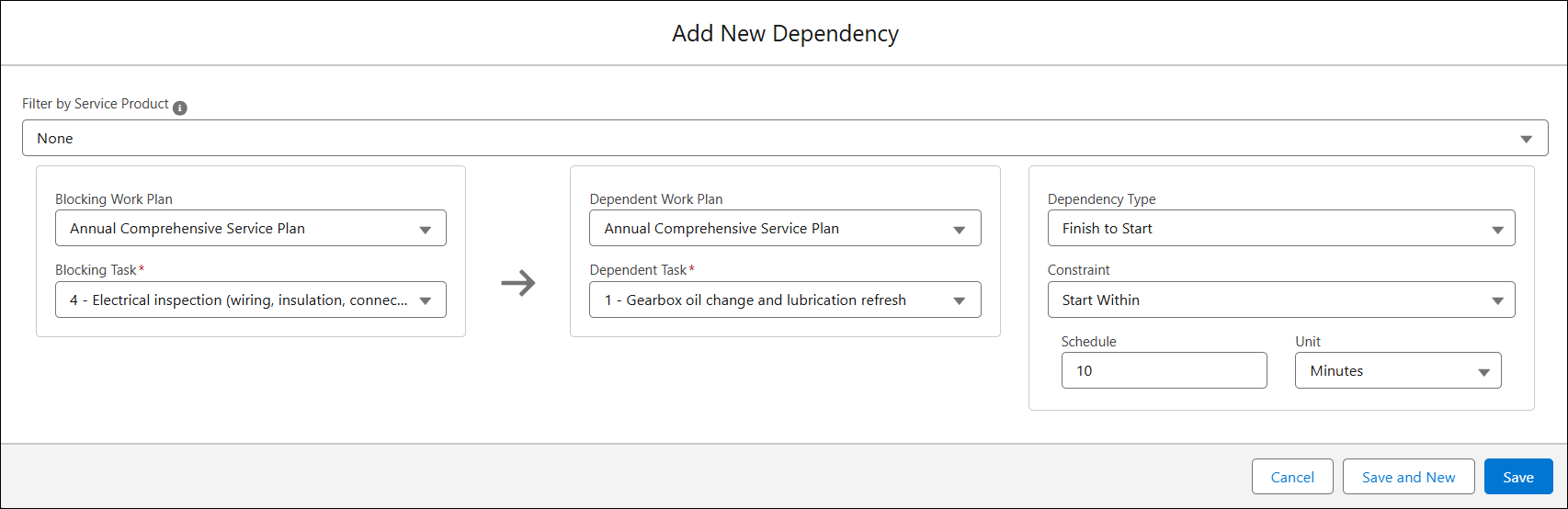
5. Provide details for the fields as described in the following table:
|
Field
|
Description
|
||
|---|---|---|---|
|
Filter by Service Product
|
Select the required Service Product added to the Work Order.
This filters the available work plans in Blocking Work Plan and Dependent Work Plan fields based on the selected Service Product and helps narrow down relevant dependencies.
This field is optional. If no Service Product is selected, then all Work Plans associated with the Work Order are available for selection.
|
||
|
Blocking Work Plan
|
Select the Work Plan that includes the task you want to select as a primary or blocking task.
To add General tasks, select No Work Plan option from the drop-down.
|
||
|
Blocking Task
|
Select the task that must be completed or started before the dependent task can proceed. This is a mandatory field.
This field is disabled if the Blocking Work Plan is not selected.
|
||
|
Dependent Work Plan
|
Select the Work Plan that includes the task for which you want to add a dependency.
To add General tasks, select No Work Plan option from the drop-down.
|
||
|
Dependent Task
|
Select the task that depends on the blocking task. This field is mandatory.
This field is disabled if the Dependent Work Plan is not selected.
|
||
|
Dependency Type
|
Select how the dependent task is related to the blocking task. The following are various dependency types:
• Finish to Start: The secondary task starts after the blocking task finishes.
• Start to Start: The secondary task starts after the blocking task starts.
• Finish to Finish: The secondary task finishes after the blocking task finishes.
• Start to Finish: The secondary task finishes after the blocking task starts.
|
||
|
Constraint
|
(Optional) Select a time-based condition that controls when the dependent task must start or finish relative to the blocking task.
You can set the following scheduling constraints based on dependency type:
• Finish to Start and Start to Start: Start Within, Start After, and Must Start
• Finish to Finish and Start to Finish: Finish Within, Finish After, and Must Finish
By default, the Constraint is set to None.
|
||
|
Schedule
|
Enter the time offset or duration associated with the selected constraint (for example, delay or buffer time).
|
||
|
Unit
|
Specifies the unit of time for the schedule value. The Unit can be Hours, Minutes, or Days.
|
 |
• In the Blocking Work Plan and Dependent Work Plan, you can either select the same Work Plan or different Work Plans based on your requirements.
• You cannot select the same task in the Blocking Task and Dependent Task fields.
• If you are creating dependencies between two different Work Plans, the Dependency Type is always set to Finish to Start and you cannot modify it.
|
6. Click Save.
In the Dependency Manager tab, you can view the dependencies added for the task under related Service Product or General section. If you have added dependencies between two different Work Plans, the two Work Plans are highlighted in different colors.
After you add the first task dependency to a Work Order, a Dependency Group record is automatically created for the Work Order. The record name follows the format “DG–Work Order Name”. You can view and manage Dependency Group records in the Dependency Management tab. For more information, see Managing Dependency Group Records.
Additionally, a Work Order Dependency record is created in the Work Order Dependencies tab for each task dependencies added in the Work Order. Each record displays the Primary Task, Secondary Task, and the associated Dependency Group. The Work Order is updated with relevant Dependency Group details.
Each Work Order has a single associated Dependency Group.
Use Case
Enforcing Task Sequence with Dependencies across Network Infrastructure Work
Role: Service Planner
A service planner at Iniscope International configures the Network Installation and Activation Work Plan with a Finish-to-Start dependency where Network Testing can start only after Installation completes. The planner adds the dependency directly on the work order so the technician performing network setup at ClearPath Diagnostics must complete the Installation task before the system allows the Testing task to proceed. When the technician marks Installation as Complete, the system automatically unblocks Network Testing, ensuring proper sequencing, preventing premature activation attempts, and maintaining the integrity of the network infrastructure setup.