Using Run AI Action
The Run AI Action feature enables you to evaluate AI actions directly from the ServiceMax AI Console using records such as Accounts, Work Orders, Cases, Locations, and Installed Products. You can test and refine AI instructions, validate configuration changes, and troubleshoot issues.
Run AI Action enables users to execute and evaluate AI actions in a controlled, non‑production context. It allows administrators and service teams to preview AI‑generated outputs, validate configuration changes, and refine AI behavior without impacting live workflows.
It is used by service administrators, service managers, and service teams to preview AI‑generated outputs, validate configuration changes, and evaluate AI behavior across ServiceMax objects
You can use Run AI Action in the following scenarios:
• To evaluate AI‑generated results before enabling them in production environments.
• To test AI instructions and confirm correct context handling.
• To review AI‑generated insights without launching the full application or triggering live workflows.
• To troubleshoot and refine AI actions using a sandbox‑like interface.
The AI Console tracks all AI action usage for analytics. For more information, see ServiceMax AI Analytics.
|
Prerequisites
|
|---|
|
To enable this feature, ensure the following:
• Predefined AI Actions are available in the AI Console.
• Save changes to AI instructions before running the action.
|
To run an AI Action, perform the following steps.
1. Navigate to > > .
The ServiceMax AI Console is launched.
2. On the sidebar, select .
The AI Actions page displays and lists all available AI actions.
3. Choose an AI action and click Run. For example, Summarize Work Order.
The AI Console displays the Try AI Action – Job Overview window, where you can search for a Work Order record.
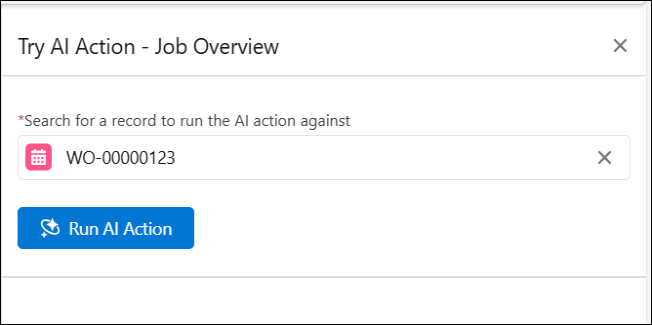
4. Provide the details for the fields as described in the following table.
|
Field
|
Description
|
|---|---|
|
Fields marked with * are mandatory.
|
|
|
Run AI Action
|
Generates an AI summary based on the selected object, such as:
• Account
• Case
• Location
|
|
Search for a record*
|
A text input field used to search for a record within the selected Work Order object. The field supports autosuggestions and dynamically filters matching records based on a minimum input of three characters such as 123 or XYZ. Once a record is selected, a summary of the selected object is displayed according to the specified AI instructions.
|
|
X
|
The selected AI action or record can be removed using the adjacent X button.
|
 |
The AI Console disables the Run AI Action button if you have unsaved changes or delete the AI action, to prevent running outdated or invalid configurations. It still displays previously generated results for reference.
|
Example
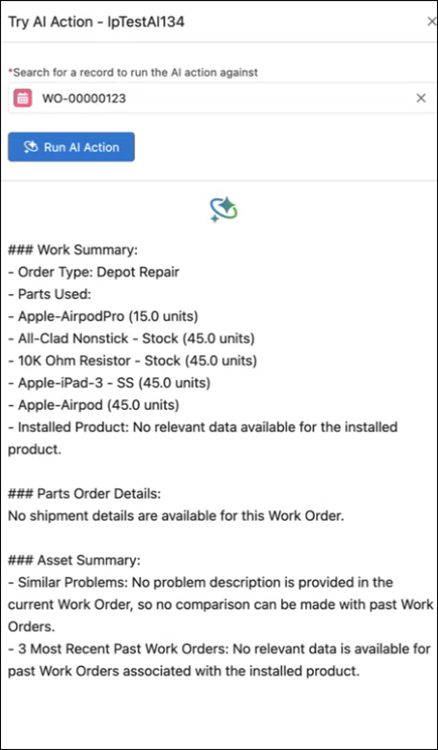
You can enter 123 or XYZ characters in the search box and select a record from the dropdown. Once a record is selected, the AI Action results are displayed.
Related Topics