Configuring AI Actions
You can configure AI Actions in your ServiceMax org to instruct ServiceMax AI on the tasks it should perform when an end user invokes an AI Action. This configuration enables you to automate workflows and improve operational efficiency by defining precise AI behavior that aligns with business goals.
To configure and run an AI action using the SFMs, perform the following steps.
1. Navigate to > > .
The ServiceMax AI Console is launched.
 |
You can also log in to the ServiceMax AI console directly at https://console.servicemax.io/ai with your Salesforce org credentials.
|
2. Navigate to > .
The AI Actions page is displayed.
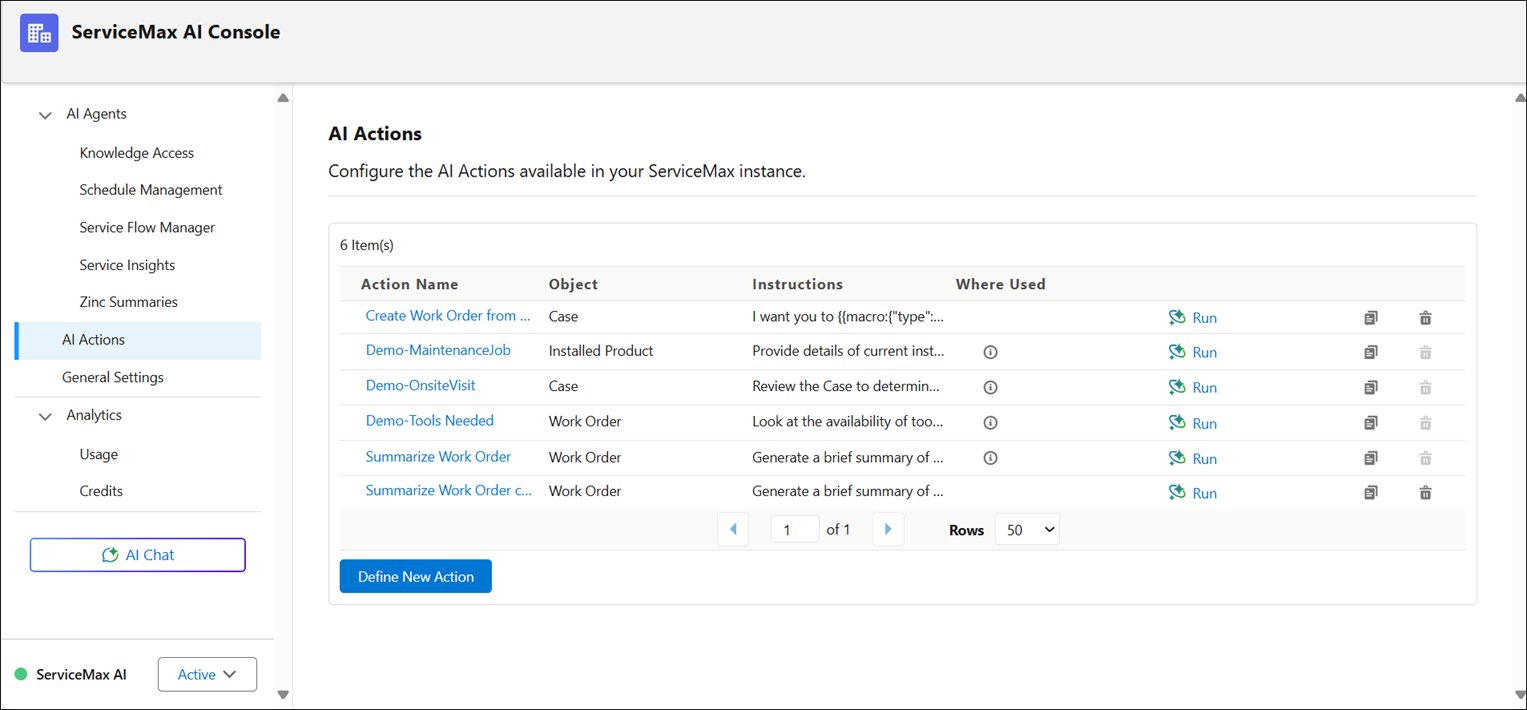
The following table describes the fields on the AI Actions page:
|
Field
|
Description
|
|---|---|
|
Action Name
|
The name of the AI action.
|
|
Object
|
The type of data the action applies to Account, Case, Installed Product, Location, and Work Order.
|
|
Instructions
|
A brief description of what the AI Action should do.
|
|
Where Used
|
Indicates where the action is currently being used. For more information, see Using Where Used.
|
3. Select the AI Action you want to configure.
The AI Instructions window is displayed.
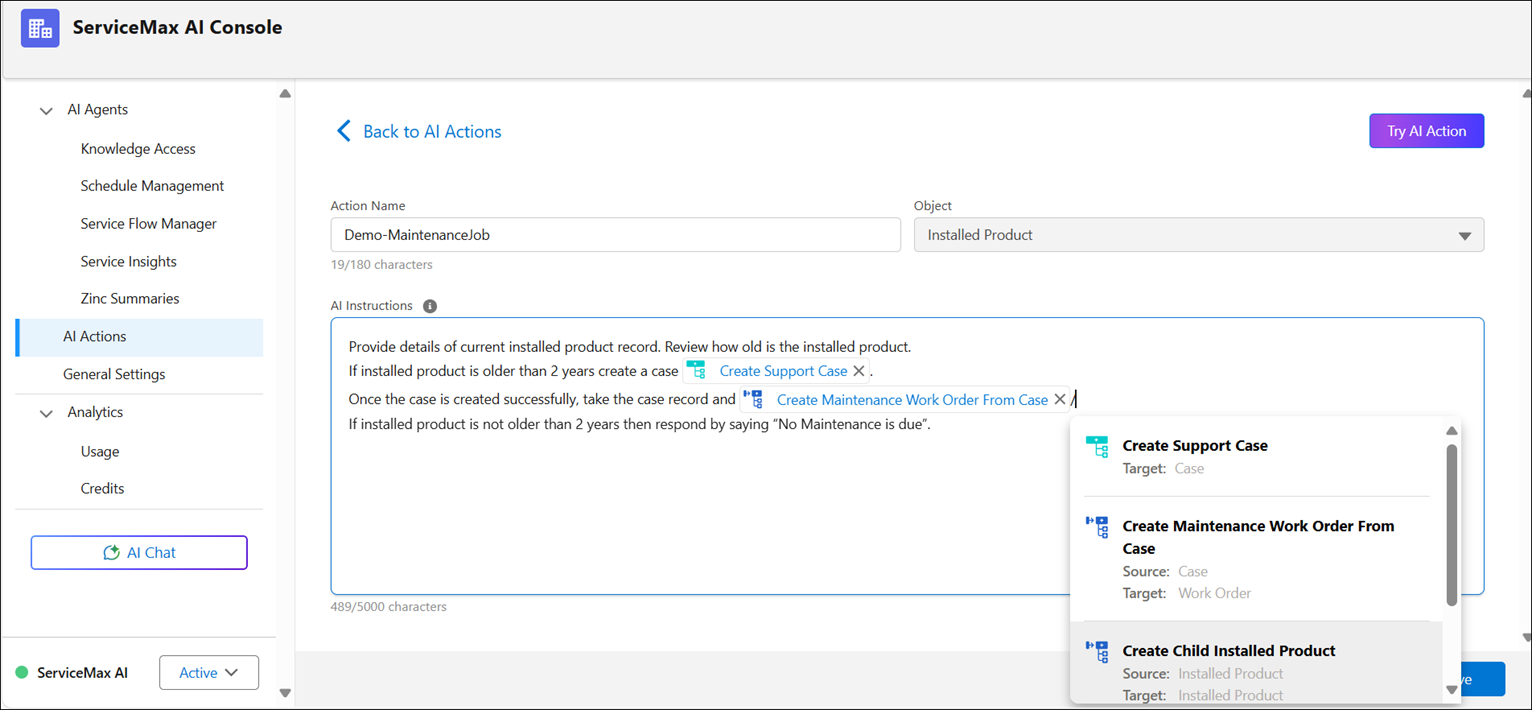
4. Enter the instructions for AI Action. For example, if you want to configure the Maintenance Job Action, specify the actions to be performed by ServiceMax AI, such as checking details of the current installed product, creating a support case, and creating a maintenance job from the Work Order.
|
|
You can use a maximum of 5000 characters to write the instructions.
|
5. To insert SFM transactions, enter a forward slash (/) in the AI Instructions window.
A dropdown of enabled SFM transactions is displayed. You can select any of the following SFMs type:
◦ Create a standalone record
◦ Create new record from source to target
◦ Update an existing record
For more information, see Examples of AI Actions using SFMs.
6. From the dropdown, select an SFM transaction.
The dropdown closes automatically, and the reference is inserted at the current cursor location or at the end of the text if no cursor is active.
7. Click Save.
8. Click Run AI Action to test the action with sample records. For more information, see Using Run AI Action.
9. Review the output and refine the instructions as needed to achieve the desired response.
The AI Action is configured and available on supported platforms. For more information, see AI Actions.
Examples of AI Actions using SFMs
The following examples display how you can configure AI Actions using different type of SFMs:
• Create a new record using the To create Standalone record and To create Target from Source SFM transactions.
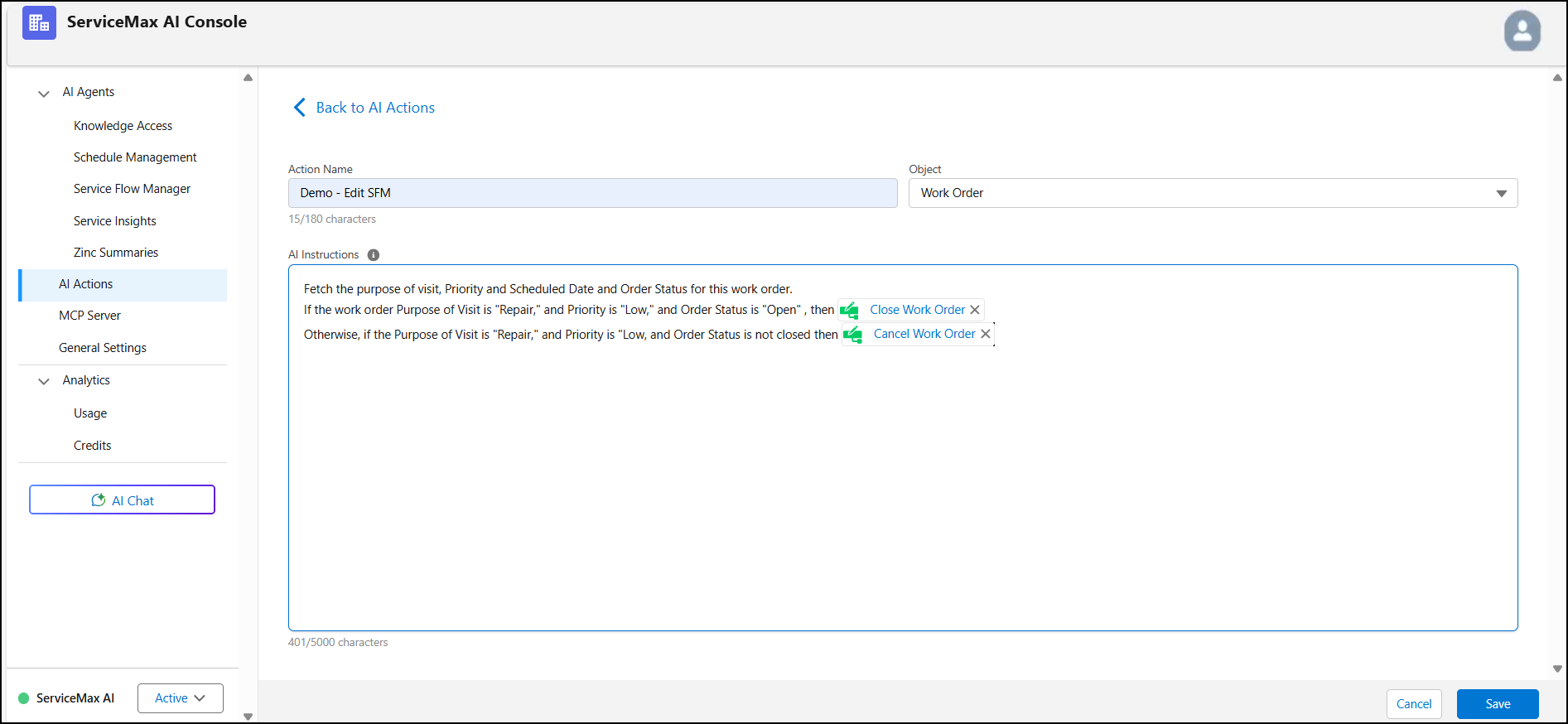
• Update existing records using the To update existing records SFM transaction.
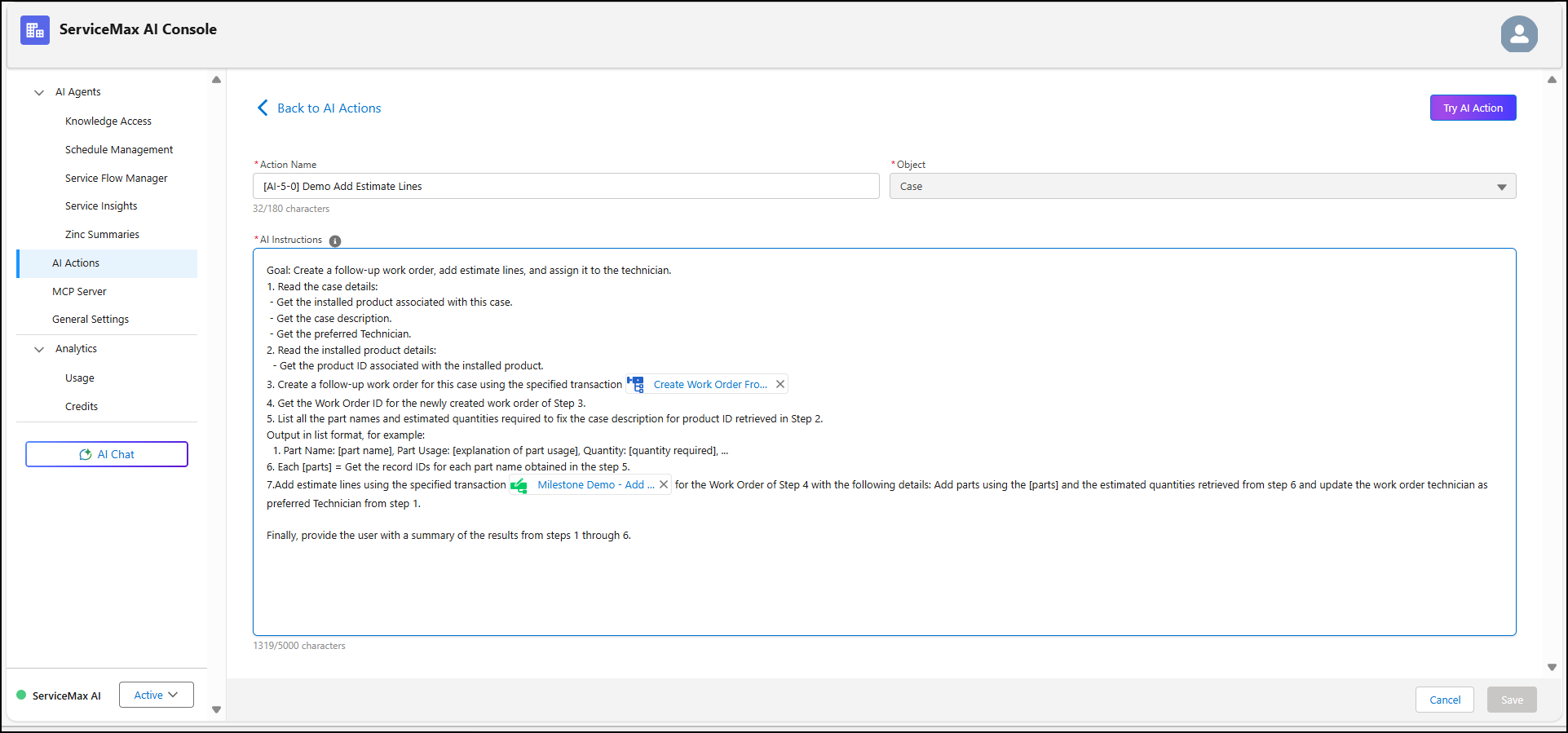
• Analyze the case details using the Knowledge Access agent to know the problem statement and potential root cause. You can then use AI to create a follow-up Work Order record and add Estimate Lines using SFM agents.
• Create RMA lines using AI Actions if the estimated parts are unavailable in the trunk stock.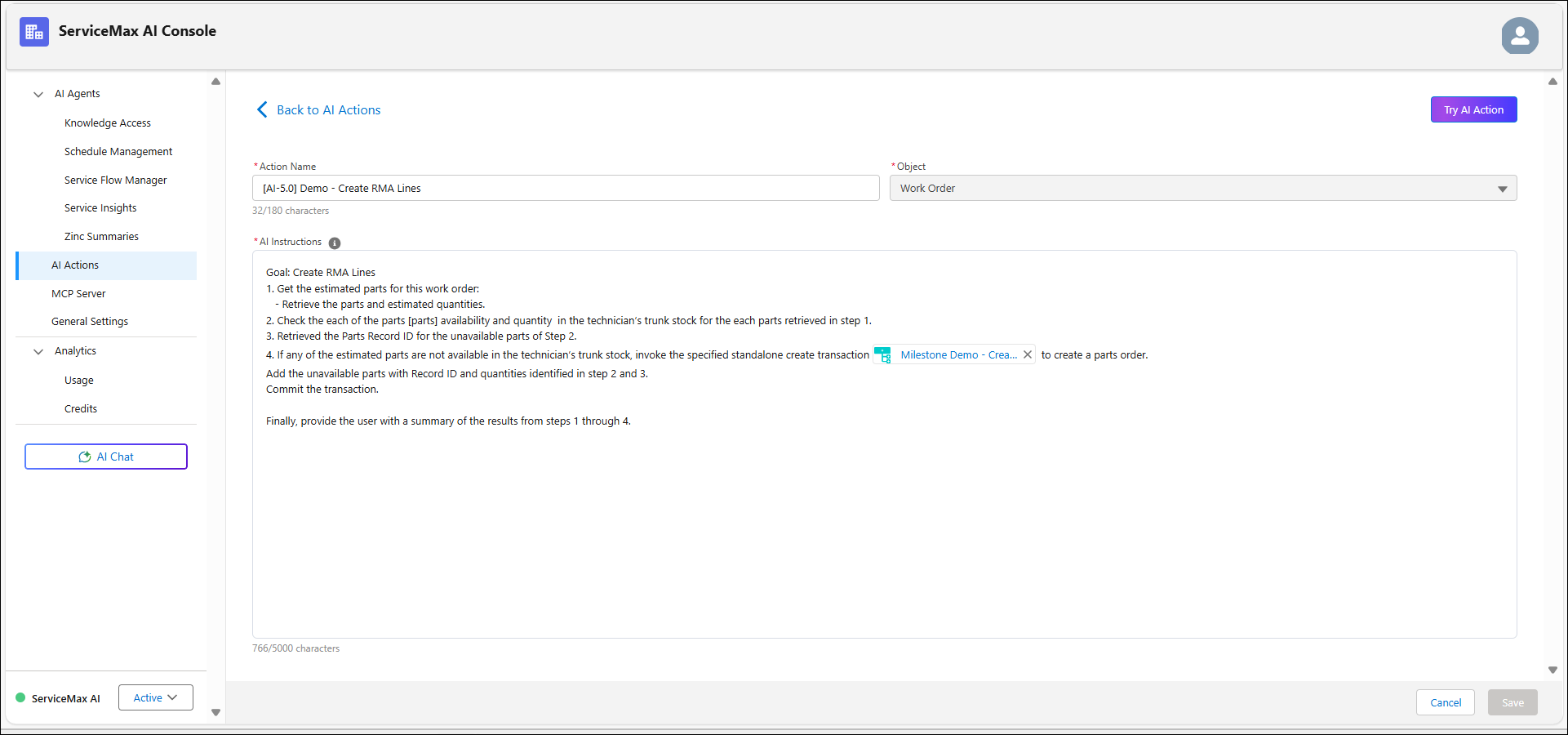
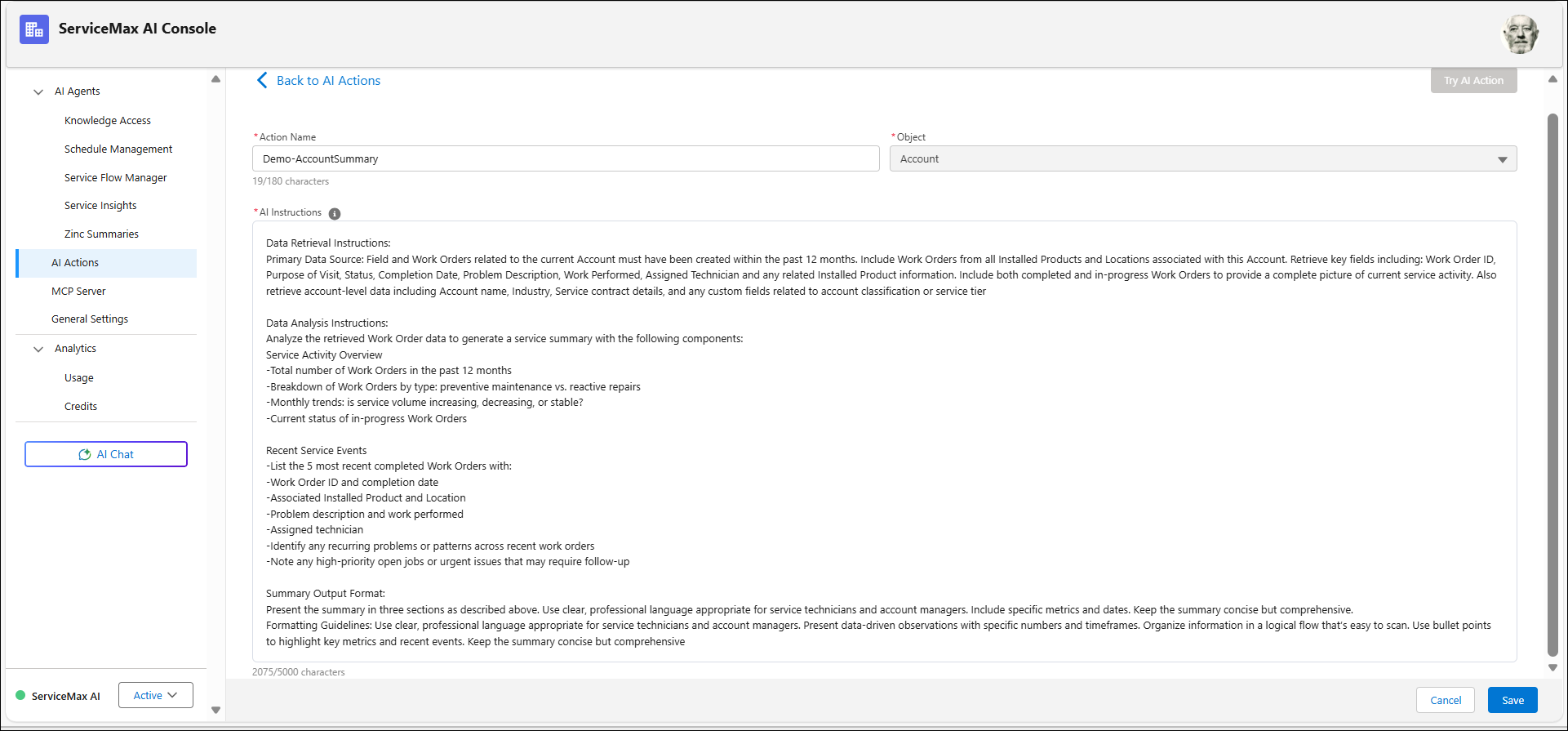
• Retrieve and analyze Work Order and Account data to create a service summary for an Account.
Related Topics