Using AI Actions in Windows Go App
ServiceMax AI extends AI Actions to Windows Go so that you can use AI-powered assistance directly within Service Flow Manager (SFM) wizard steps while performing jobs. AI Actions provide quick access to critical job information without disrupting the current workflow.
AI actions in Windows Go provide the same core capabilities available on iOS, Android, and Web platforms.
 |
Feedback controls and follow‑up chat are not available in this release. You cannot leave the AI Action loading screen and return to it later. These enhancements are planned for future.
|
Use Cases
This feature supports common real‑world scenarios. For more information, see Use Cases for AI Actions to understand when and why to use it.
|
Prerequisites
|
|---|
|
To enable this feature, ensure the following:
• A ServiceMax AI license is assigned to the user.
• AI Actions are authored and published in the AI Console with clear instructions and agent assignments.
• AI Action Wizard Steps are configured in the org and assigned to the user profile.
• The required agents, such as ServiceMax (or Service Insights), Knowledge Access, and SFM, are enabled and accessible
• At least one AI Actions is added and available for the target object.
• You have access to the record (for example, a Work Order or Account) for which you want to run the AI Action.
|
To use an AI action in Windows Go app, perform the following steps.
1. Login to the Windows Go desktop app with your credentials.
2. Navigate to the record page where you want to run the AI Action.
3. Select Actions..
4. Select the AI Action you want to use on the record object. For example, select, Summarize Work Order. The AI Action is in progress.
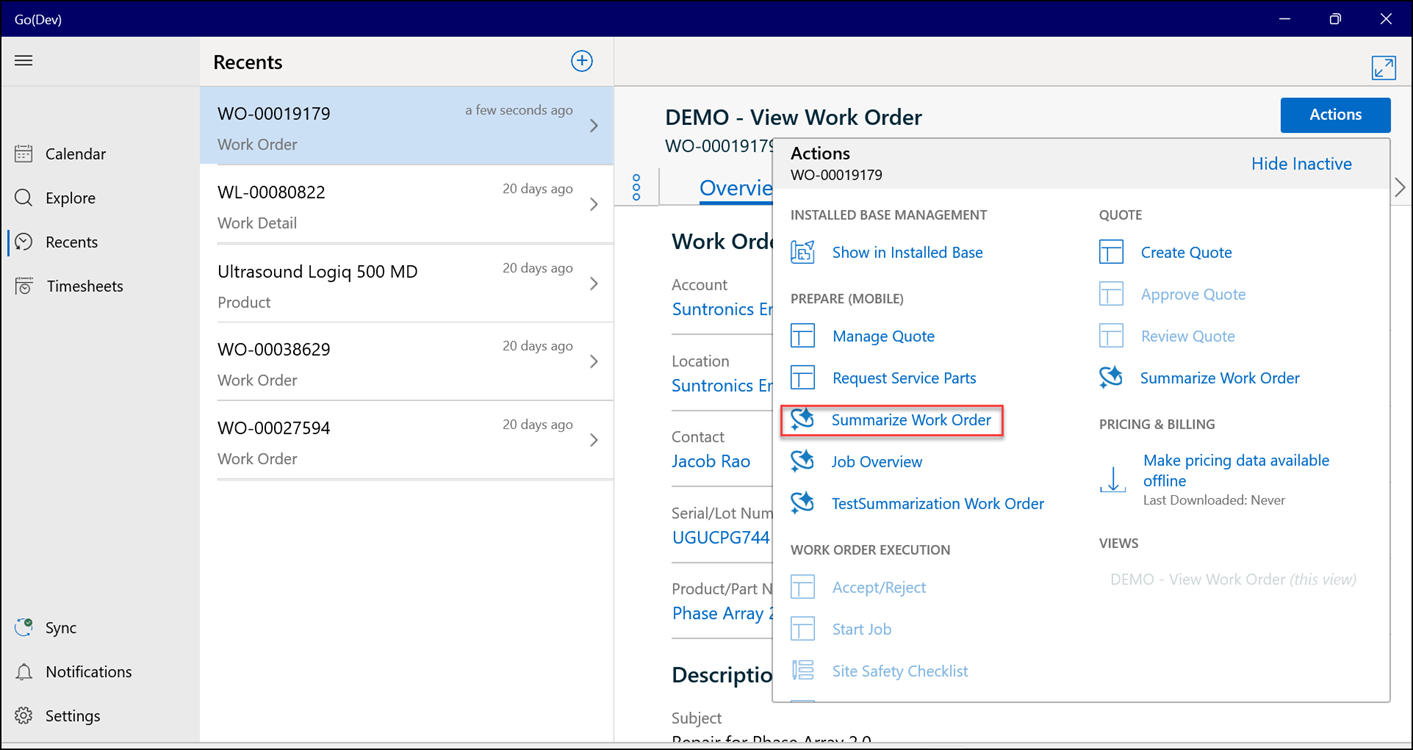
5. Review the AI-generated summary.
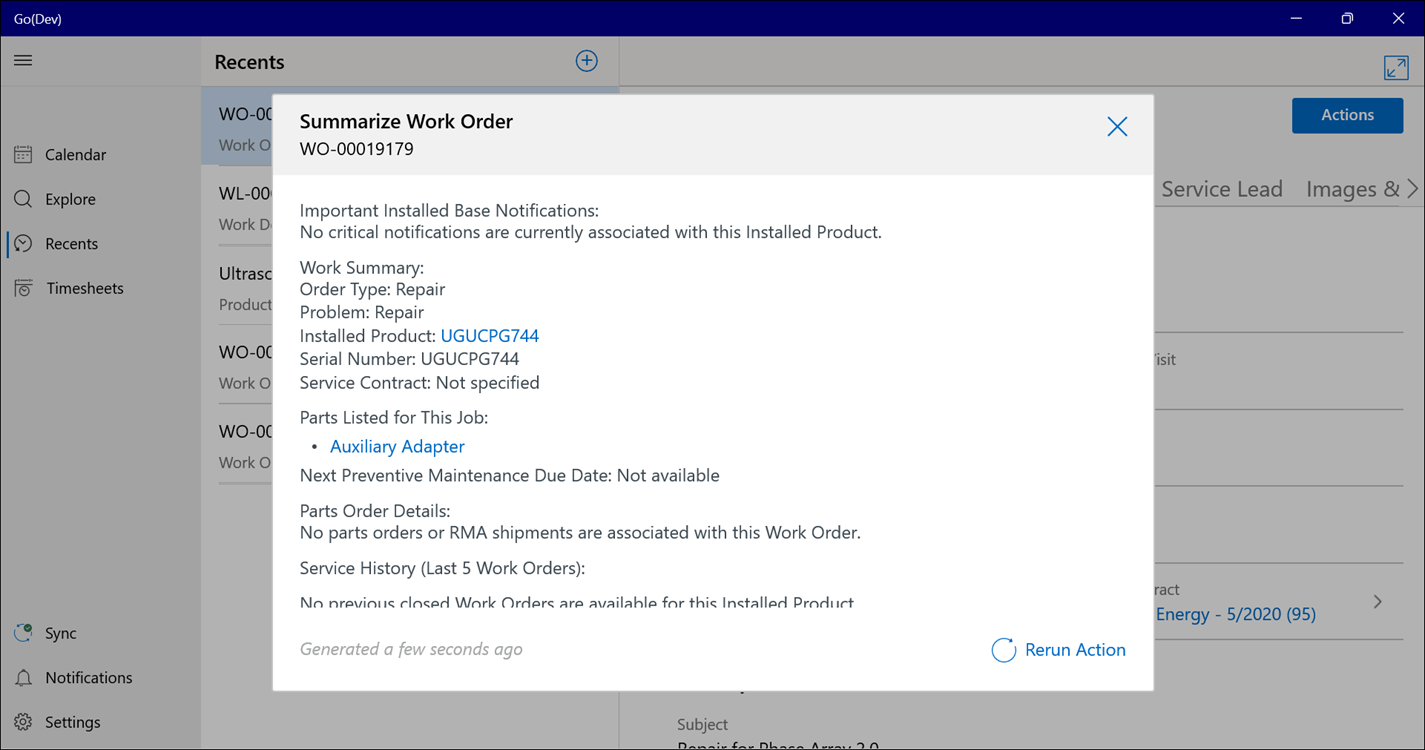
6. Close the AI response window.
Using AI actions in the Windows Go app, you can: