Using ServiceMax AI Chat in Windows Go App
The ServiceMax AI Chat is a natural language interface in the Windows desktop app. It provides quick access to service data through prompts instead of multiple screens. You can find information about work orders, product history, and inventory levels in seconds. The assistant returns results based on the signed-in user. This feature supports faster decisions and accurate data access in the field. It keeps you focused on service delivery, not app navigation.
|
Prerequisites
|
|---|
|
To enable this feature, ensure the following:
• You have access to the Go app on your device.
• Your user profile has permissions to view relevant records such as Work Orders, Installed Products, Locations, and Inventory.
• The ServiceMax AI Assistant icon is visible in the top menu of the Go app.
• Your organization has enabled the AI Assistant feature in the Go app configuration.
|
To use ServiceMax AI Assistant in Windows Go desktop app:
1. Log in to the Windows Go desktop app with your credentials.
2. Select Explore > Work Orders Search. This displays a list of Work Orders.
You can also open ServiceMax AI Assistant from the top icon on the Calendar page too.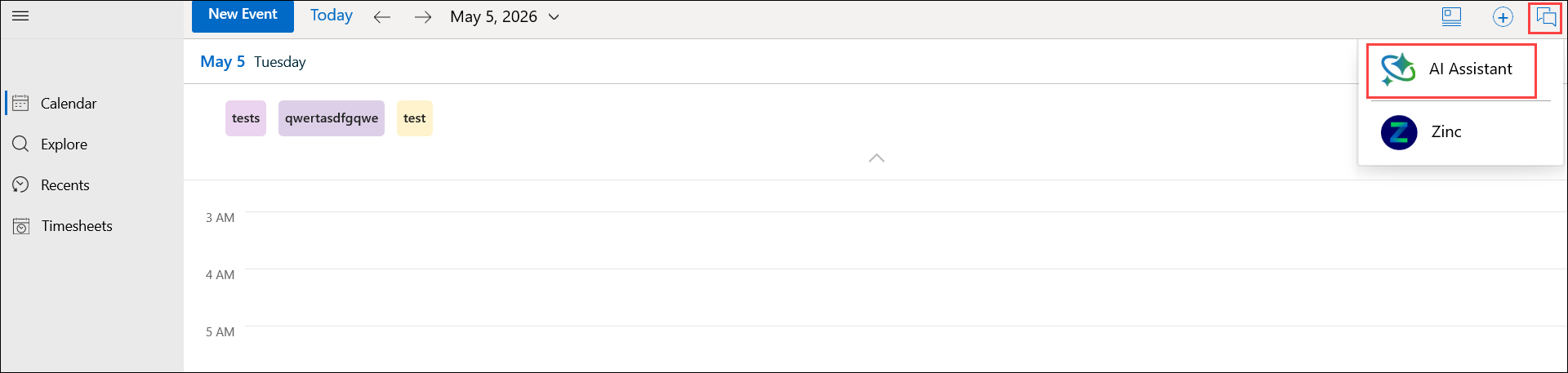
3. Select any one of the following from the type of Work Orders in the menu. For example, Unassigned Work Orders.
4. Select Unassigned Work Orders. This displays a list of work orders to select from.
5. Search and select a work order from the list. For example, WO-00019144.
6. Select the ServiceMax AI Assistant icon from the top menu on the work order view.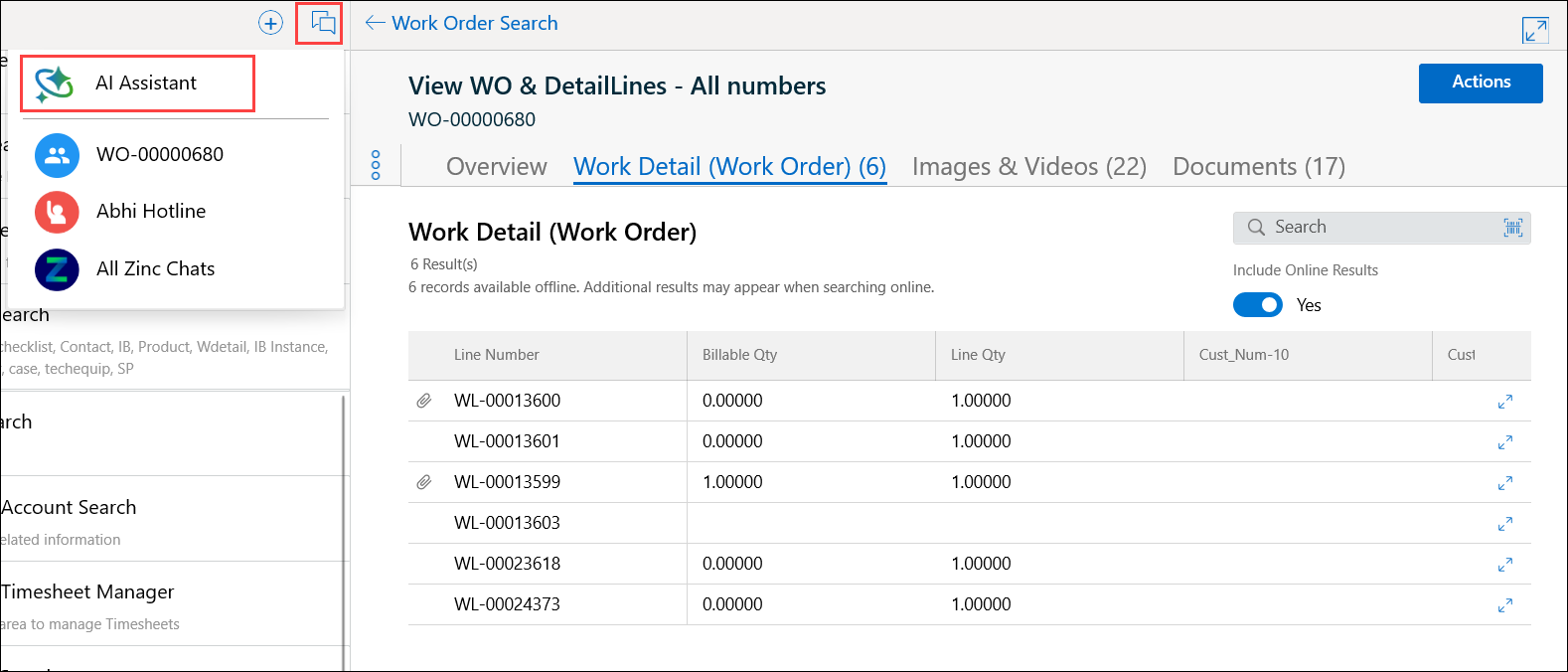
The ServiceMax AI Assistant interface is displayed with the greeting message.
The Hamburger menu displays the list of past conversations.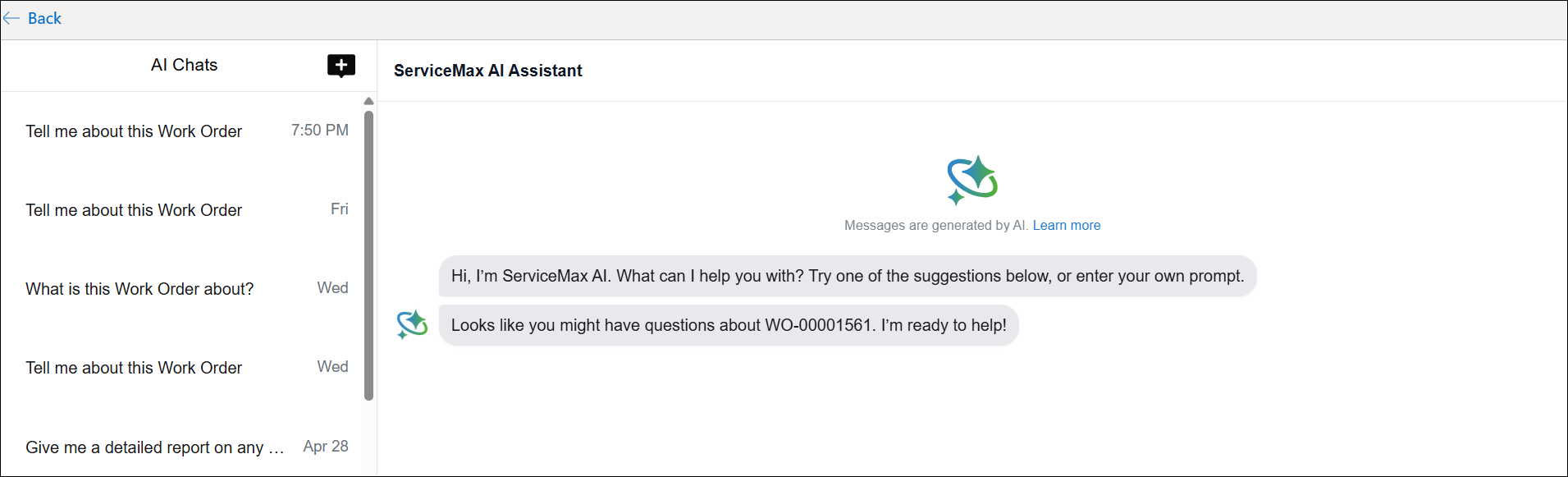
7. In the input field, type your questions and tap the Send button. For example, Tell me more about this Work Order. Alternatively, you can also select a suggested input from the interface.
The AI response displays quick summary of the work order including important details like Location, Start Time, Preferred End Time, Estimated Service Duration, Work Order Status, and Service Contract details.
 |
If you have access to the displayed records, the record names appear as links. You can click the link to open the record within the Go app.
|
8. In the input field, type a follow-up question. For example, can you provide more details about associated installed product?
The AI checks the Installed Product details and displays the relevant details.
|
|
Use AI actions for user-scoped questions through automation.
|
Related Topics