Compare Parts in Group
The Compare Parts in Group option enables you to efficiently compare parts by displaying the results of part comparison in columns with thumbnails and attributes grouped in order.
The parts are displayed on the right pane of the screen and the facet options such as Name, Identity, Number are available on the left pane. The right pane displays the details of each part of a group from which the Compare Parts in Group action was initiated on the previous page (the Search Results page).
The facets appear for the attributes that are different among the parts in the group.
In the example below, you can see 5 parts arranged in a row, with details of each part displayed in columns. The image compares these 5 parts, highlighting that they are 100% similar, except for a few details which are slightly different and, therefore, are marked accordingly. The details that are identical appear in green.
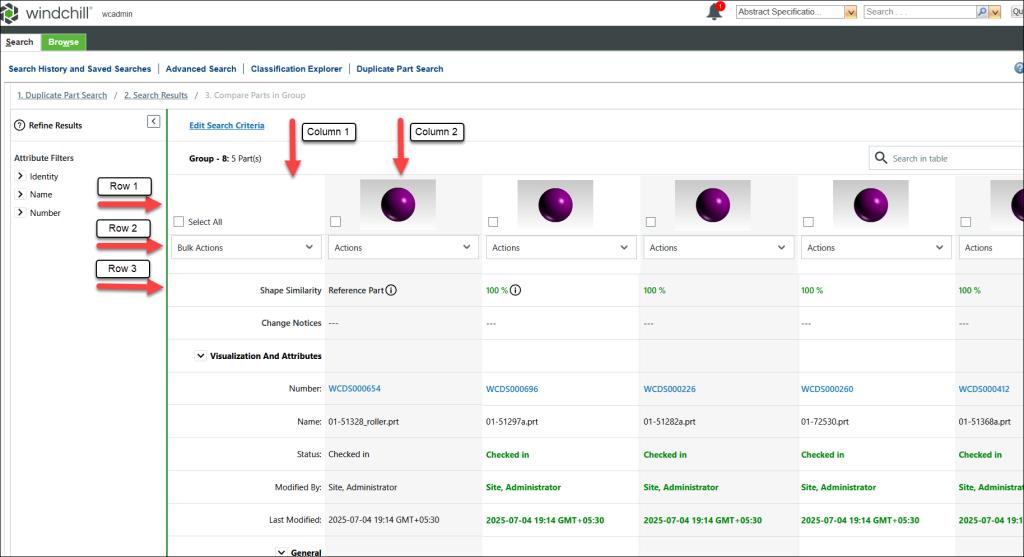
The comparison results are displayed in tabular format:
• Rows Structure
◦ Row 1—Displays the lightweight representation of the part.
◦ Row 2—Contains the Actions menu list.
◦ Row 3—Displays the Shape Similarity threshold.
• Column Structure
◦ Column 1: Displays the name of the Attribute Group, exactly as shown on the part information page.
◦ Column 2: Displays the reference part details.
◦ Remaining Columns: Display parts details.
The attributes of the first column are categorized as follows:
Attributes | Description |
|---|---|
Shape Similarity | Compares all parts against the Reference Part and displays the percentage of similarity. |
Change Objects | Displays new or existing change objects such as change notice, problem report, or change request. |
Change Notice | Displays new or existing change notices. |
Problem Report | Displays new or existing problem reports. |
Change Requests | Displays new or existing change requests. |
System Attributes | All modeled attributes, similar to the part information page. |
Visualization and Attributes | Attributes related to the part such as name, number, last modified date. |
Fields and Actions on the Compare Parts in Group Page
Once duplicate parts are identified, users can take various actions. They can either supersede a part with another existing part or create a change object to mark duplicate parts as obsolete. The following table explains the fields and actions on the Compare Parts in Group page:
Fields/Actions | Description | ||
|---|---|---|---|
Group | Displays the grouped parts in the cluster you have selected from the previous page. | ||
Shape Similarity | Displays the shape similarity threshold for comparing parts. | ||
Change Status | Shows the change status of the selected parts. | ||
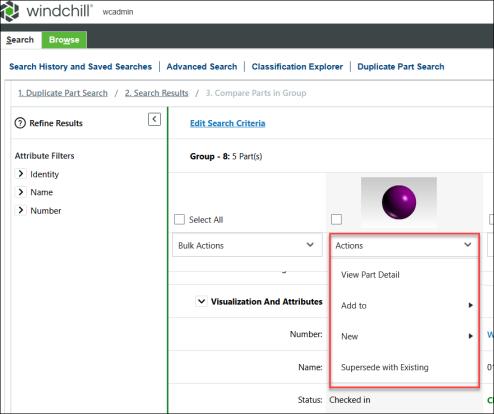
Actions | Provides a menu list with various actions you can perform on the selected parts. | ||
Edit Search Criteria | Redirects you to the Duplicate Part Search page and allows you to modify the search parameters to refine the parts being compared. | ||
Refine Results | Provides facets to further narrow down the search results based on specific criteria. | ||
Search in Table | Enables you to search for specific parts or attributes within the comparison table. | ||
Select All | Selects all parts displayed in the comparison table for bulk actions. | ||
Bulk Actions | Provides a menu list with various bulk actions that you can perform on the selected parts. The actions are available in the attributes column of the table. For more information, see the Bulk Actions section. | ||
Supersede with Existing | Opens the Supersede with Existing action. You can select a part and supersede it with another existing part. For more information see Superseding a Part with an Existing Part. Users can select only those parts to which they have access. | ||
Set as Reference Part | Sets the selected part as the Reference Part on the first column. | ||
Compare with Reference Part | Launches the Compare Two Parts page. This action compares the reference part with the selected part. For more information, see Compare Two Parts topic. | ||
View Part Detail | Opens the Windchill part details page of the selected part. | ||
Add to Change Notice Add to Problem Report Add to Change Request | Displays the change notice, problem report, or change request that you can access. The administrator has provided the subtype of a change notice, problem report, or change request when configuring the AI Parts Rationalization plugin. For more information, see the Configure AI Parts Rationalization Plugin section.
For more information, see Editing a Change Notice, Editing a Problem Report, Editing a Change Request. | ||
Add to a New Change Notice Add to a New Problem Report Add to a New Change Request | Opens a new Change Notice, Problem Report, or Change Request page with the selected part prepopulated as an affected object on the respective change object. For more information on creating above change object, see Creating a Change Notice, Creating a Problem Report, Creating a Change Request. |
The image below shows a menu list with various actions that you can perform on the selected parts.
 | You can also refine the search results using the Refine Results option available on the left pane of the Compare Parts in Group page. • If an attribute value is identical for all searched parts, that attribute facet does not appear in the Refine Search pane • The facets reflect only those values that exist for objects within your current search result list. |
Bulk Actions of Compare Results
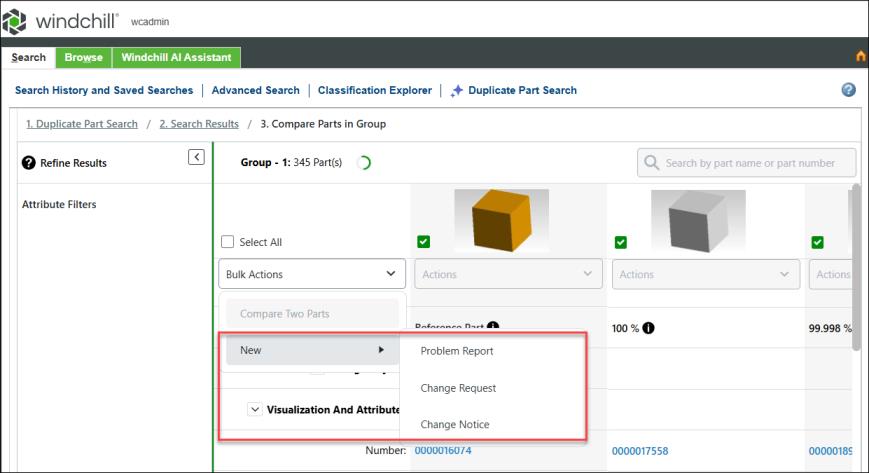
After you have the Compare Parts in Group result, you can perform bulk actions on the result. Bulk actions become available when you select at least one part. The following table explains the bulk actions that are available for all parts on the Compare Parts in Group page:
Bulk Actions | Description |
|---|---|
Compare Two Parts | This option is available when you select two parts on the Compare Parts in Group page. It opens the Compare 2 Parts page, displaying the selected two parts and their comparison result with or without the reference part. For more information, see Compare Two Parts topic. |
Change Notice | This option is available under > > . It opens a new Change Notice page for the selected parts. The selected parts are prepopulated as affected objects on the change task of the change notice. For more information on creating a new change notice, see Creating a Change Notice. |
Problem Report | This option is available under > > . It opens a new Problem Report page for the selected parts. The selected parts are prepopulated as affected objects on the Problem Report page. For more information on creating a new problem report, see Creating a Problem Report. |
Change Request | This option is available under > > . It opens a new Change Request page for the selected parts. The selected parts are prepopulated as affected objects on the change request page. For more information on creating a new change request, see Creating a Change Request. |
The image below shows a menu list with actions that you can perform on the selected parts.
| | All the information page launch points for parts and change object information pages open in a new tab in the parent browser. For subsequent launches, the same tab is updated. |