Compare Two Parts
To compare two parts on the Compare Parts in Group page, select any two parts, and then click > . This page also opens when you select one part and click the Compare with Reference Part action. The Compare 2 Parts page opens. This page is designed for detailed comparison and analysis of duplicate parts. It displays the attributes and thumbnail image of two parts for comparison. To view the 3D image of the part, click the thumbnail. The Compare Two Parts page highlights similar attributes in green and different attributes in red of two parts.
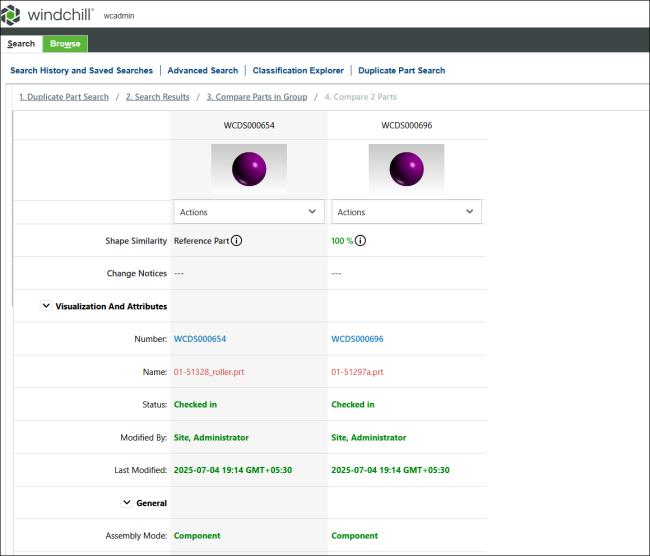
Actions
You can perform various actions for each part using the Actions menu list on the Compare Two Parts page:
Actions | Description |
|---|---|
Supersede with Existing | Opens the Supersede with Existing action. You can select a part and supersede it with another existing part. For more information see Superseding a Part with an Existing Part. Users can select only those parts to which they have access. |
Add to Existing Change Notice Add to Existing Change Notice Add to Existing Change Notice | Displays the change notice, problem report, or change request that you can access. Select the required change object to open the respective change object’s page. For more information, see Editing a Change Notice, Editing a Problem Report, Editing a Change Request. |
Add to New Change Notice Add to New Change Notice Add to New Change Notice | Opens a new change objects page with the selected part prepopulated as an affected object on the respective change object’ page. For more information on creating a new change notice, problem report, or change request, see Creating a Change Notice, Creating a Problem Report, Creating a Change Request. |
Compare Parts in Creo View | Starts Creo to compare the parts in Creo View. For more information see, Compare Parts in Creo View. |
 | The information page launch point for a part and change object information pages open in a new tab in the parent browser. For subsequent launches, the same tab is updated. |