Configuring Guest User Terms and Conditions
When guest users click Guest Connect Links after you invite them to join ensure Group Conversations, they are prompted to enter their first and last names on a sign-in screen. To inform them of the terms and conditions of their access, you can configure a link to that information on the sign-in screen.
To configure guest user terms and conditions:
1. In the Administrative Console, click Settings.
2. On the Settings tab, expand the Guest Connect Links section.
3. In the Terms and Conditions Link text box, enter a link to your Terms and Conditions page.
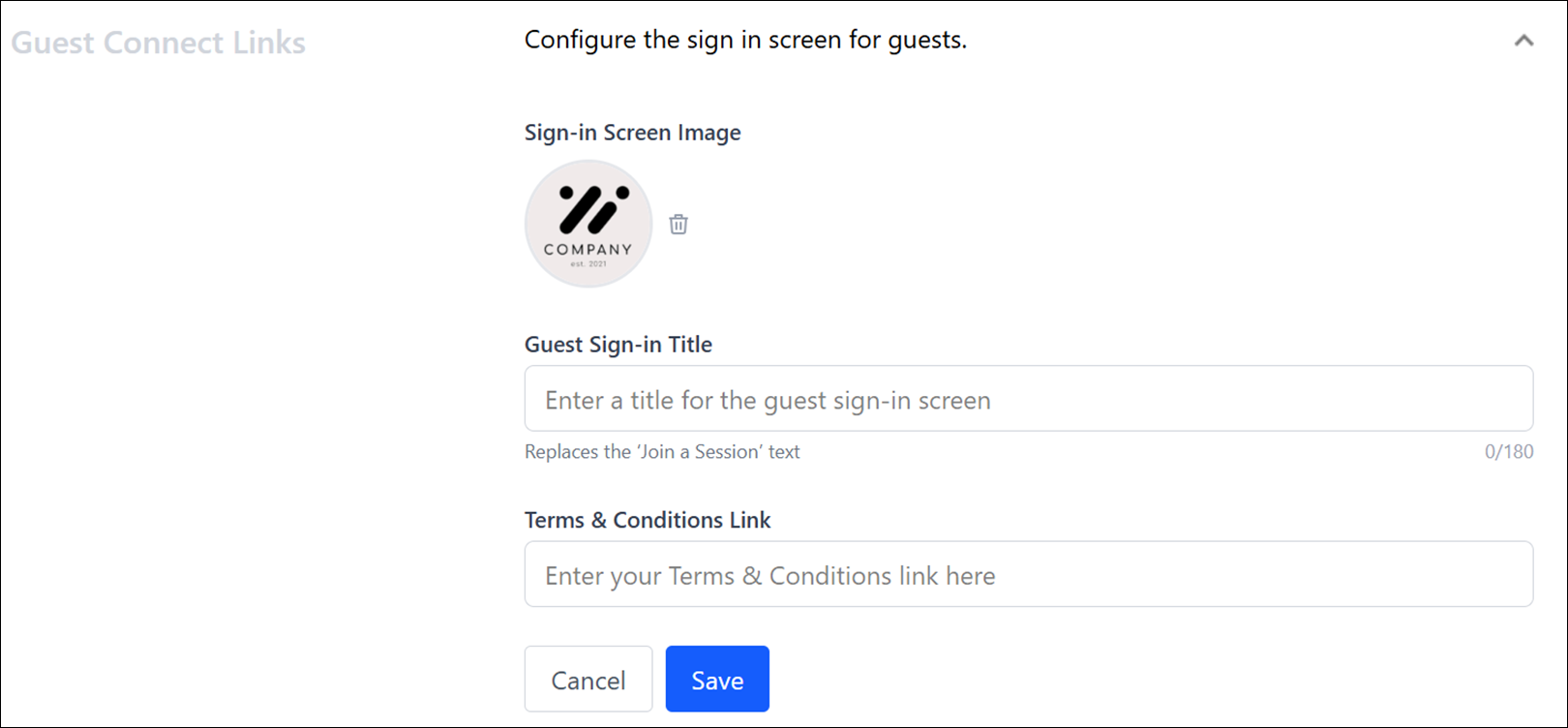
4. Click Save.
 |
The Guest User Terms & Conditions settings have moved into the Guest Connect Links section. In this section, you can also customize the guest connect landing screen with a custom title and company logo. For more information, see Customizing the guest connect landing screen.
|