Adding Resources to the Service Task Planning Calendar
You can easily add Resources to the Service Task Planning Calendar.
1. On the Scheduler tab, do one of the following:
◦ On the Job List, click a Job associated with a Service Task, Work Plan, or Service Product, and then on the context menu , click Open Service Task Planning.
◦ On the Job List, click a Service Task, Work Plan, or Service Product, and then on the context menu , click Open Service Task Planning.
◦ On the Scheduler Calendar, click a Service Task Appointment block, and then on the Appointment menu, click Open Service Task Planning.
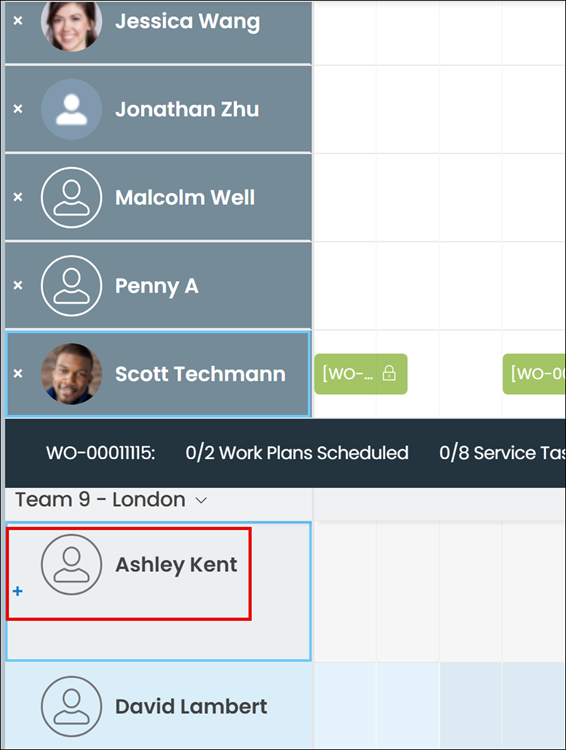
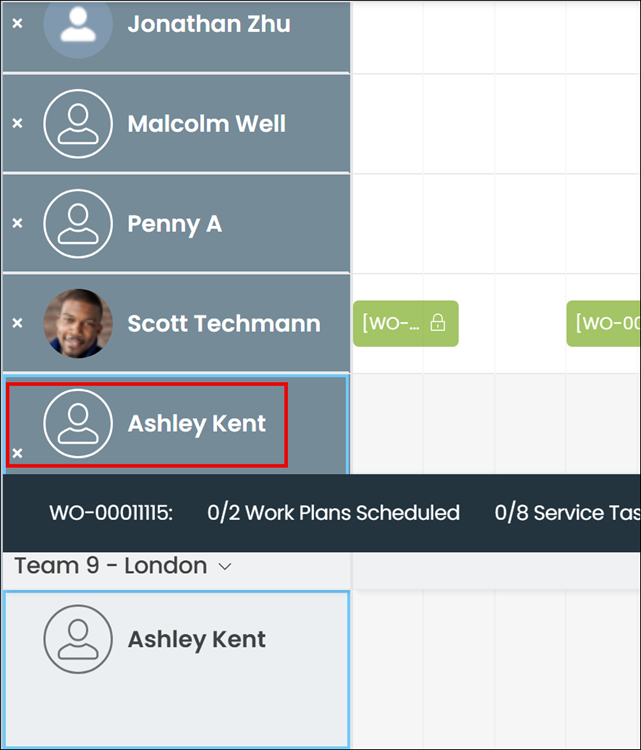
2. To add a Resource to the Service Task Planning Calendar, on the target Resource Card, click Add.
3. Do one of the following:
◦ To save your changes and continue working in the Service Task Planning Calendar, click Save.
◦ To save your changes and exit the Service Task Planning Calendar, click Save & Exit.
◦ To exit the Service Task Planning Calendar without saving your changes, click Exit.
Adding Resources to the Service Task Planning Calendar in Classic Mode
 | The Classic user interface retires on November 8, 2026. All features are available in the Service Board Modern interface. We recommend switching to Service Board Modern at your earliest convenience to access the latest features. |
You can easily add Resources to the Service Task Planning Calendar.
1. On the Scheduler tab, do one of the following:
◦ On the Job List, click a Job associated with a Service Task, Work Plan, or Service Product, and then on the context menu ( ), click Open Service Task Planning.
), click Open Service Task Planning.◦ On the Job List, click a Service Task, Work Plan, or Service Product, and then on the context menu (), click Open Service Task Planning.
), click Open Service Task Planning.◦ On the Scheduler Calendar, click a Service Task Appointment block, and then on the Appointment menu, click Open Service Task Planning.
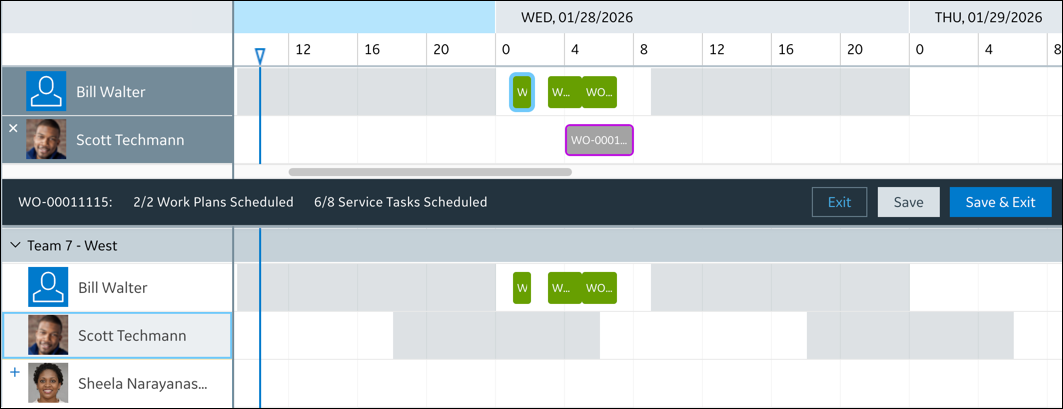
2. To add a Resource to the Service Task Planning Calendar, on the target Resource Card, click Add ( ).
).
).
3. Do one of the following:
◦ To save your changes and continue working in the Service Task Planning Calendar, click Save.
◦ To save your changes and exit the Service Task Planning Calendar, click Save & Exit.
◦ To exit the Service Task Planning Calendar without saving your changes, click Exit.
Related Topics