Deleting Project Templates
You can delete Project Templates when and as needed from the Project Template List or from the Project Template view.
To delete Project Templates:
1. To delete a Project Template from the Project Template List, on the Project Tab Picklist, click a Project Template list view.
2. In the selected Project Template list view, hover your mouse pointer over the Project Template that you want to delete, and then on the far right, click Delete.
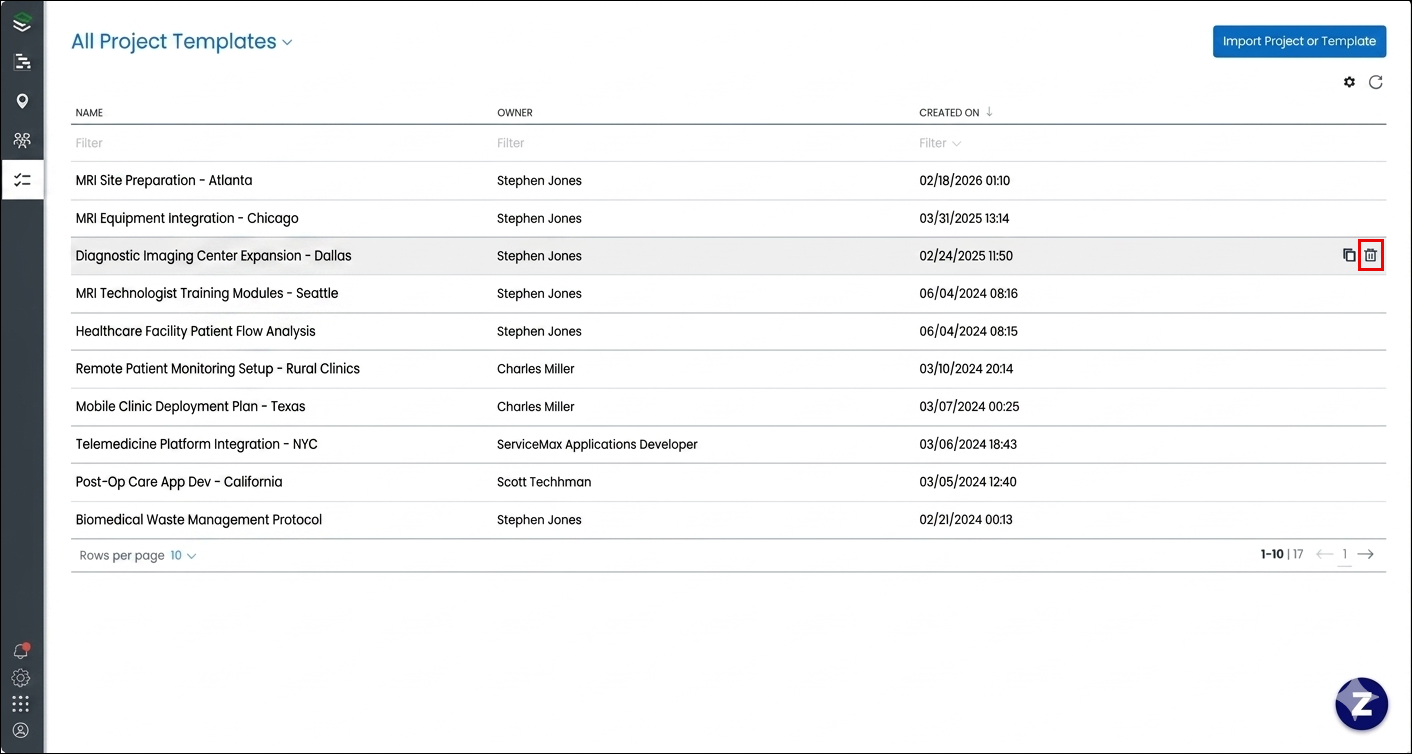
3. To delete a Project Template from the Project Template view, on the Project Tab Picklist, click a Project Template list view, and then click the Project Template you want to delete.
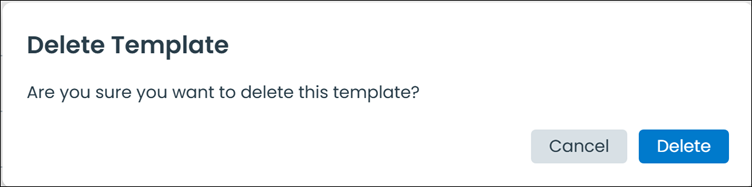
4. In the Project Template view, click > .

Deleting Project Templates in Classic Mode
 | The Classic user interface retires on November 8, 2026. All features are available in the Service Board Modern interface. We recommend switching to Service Board Modern at your earliest convenience to access the latest features. |
You can delete Project Templates when and as needed from the Project Template List or from the Project Template view.
To delete Project Templates:
1. To delete a Project Template from the Project Template List, on the Project Tab Picklist, click a Project Template list view.
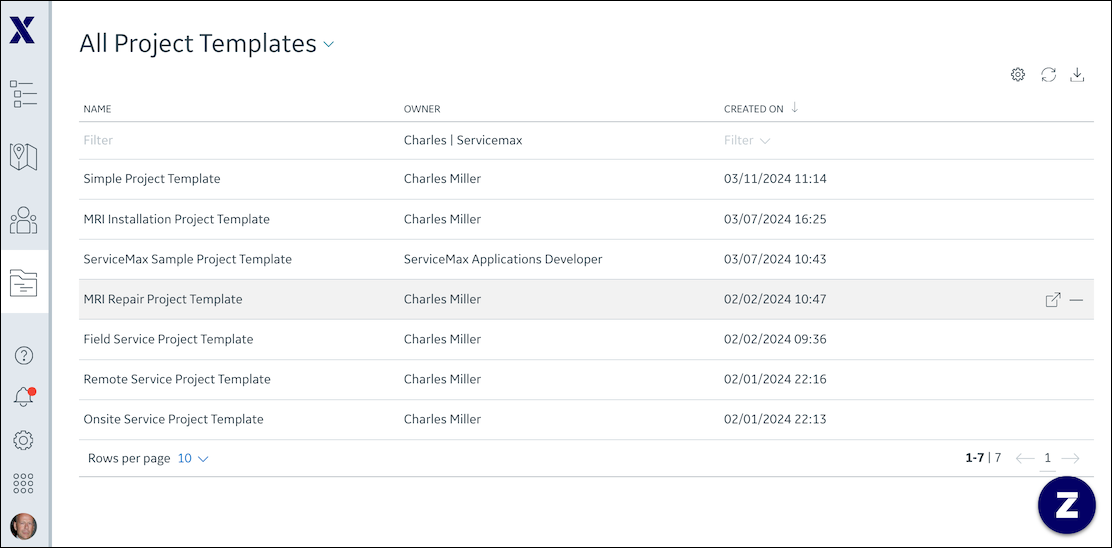
2. In the selected Project Template list view, hover your mouse pointer over the Project Template that you want to delete, and then on the far right, click Delete ( ).
).
).
3. To delete a Project Template from the Project Template view, on the Project Tab Picklist, click a Project Template list view, and then click the Project Template you want to delete.
4. In the Project Template view, click Action Menu ( ) > .
) > .
) > .
Related Topic