Accessing Remote Service Lightning App
You can use the Remote Service Lightning App, a packaged Lightning App with pre-configured layouts, to manage investigations, review asset context, and perform remote service activities directly from Case and Work Order records. The app provides a unified workspace that reduces navigation effort and supports faster issue resolution, without requiring custom configuration.
To access the Remote Service app, select the App Launcher, search for Remote Service, and select it from the results.
The Remote Service app opens with a navigation bar that provides quick access to the following tabs:
• Cases
• Work Orders
• Investigations
• Observations
• Root Causes
• Solutions
• ServiceMax Setup
 |
By default, the Service Requests tab is not included in the Remote Service app navigation bar. For more information on how to add it, see Adding Service Requests Tab to Remote Service App.
|

These navigation tabs provide quick access to the core objects and tools used in remote service workflows.
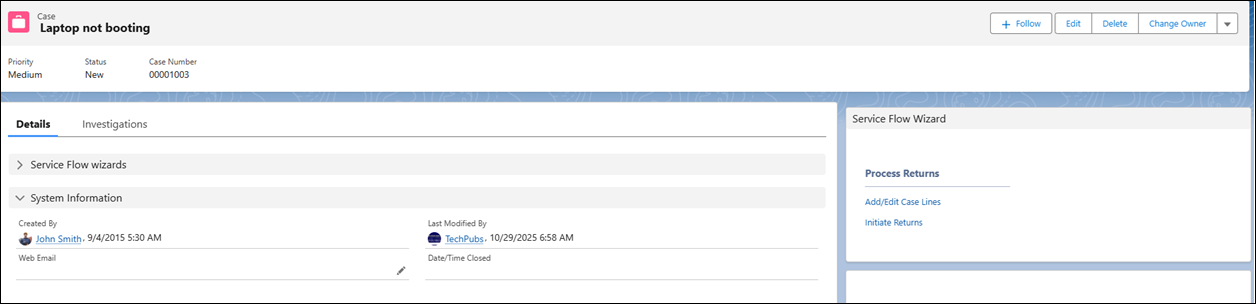
When you open a Case or Work Order, the record page displays a focused workspace with the following tabs:
• Details (default): Displays primary record information.
• Investigations: View or manage investigations linked to the service record.
The Service Flow Wizard panel is displayed to provide guided steps for executing service tasks in a consistent and structured manner.
The Remote Service app enables you to perform the following activities:
• Work in a Unified Workspace: Access all key Case and Work Order information in one place, without switching between multiple pages. You can also access related records such as Observations, Root Causes, and Solutions, enabling a comprehensive view of the service context and facilitating faster issue resolution.
• Manage Investigations Efficiently: Use the Investigations tab to add, update, and track investigations linked to the service record.
• Follow Guided Service Steps: The Service Flow Wizard panel is displayed to provide guided, step-by-step instructions for completing service tasks consistently across Case and Work Order records.
Reference Topics