Marking Queue Items On Hold in List View
You can mark queue items on hold and optionally add a reason to pause the progress of queue items without removing them from the workflow. Held items stay visible but inactive until resumed, helping manage dependencies or pending inputs. You can mark queue items on hold in the List View and Kanban modes.
To mark queue items on hold:
1. Go to the Depot Queue tab and select List View. For more information, see Viewing Queue Items in List View.
2. Under the On Hold column, click the cell for which you want to update the status.
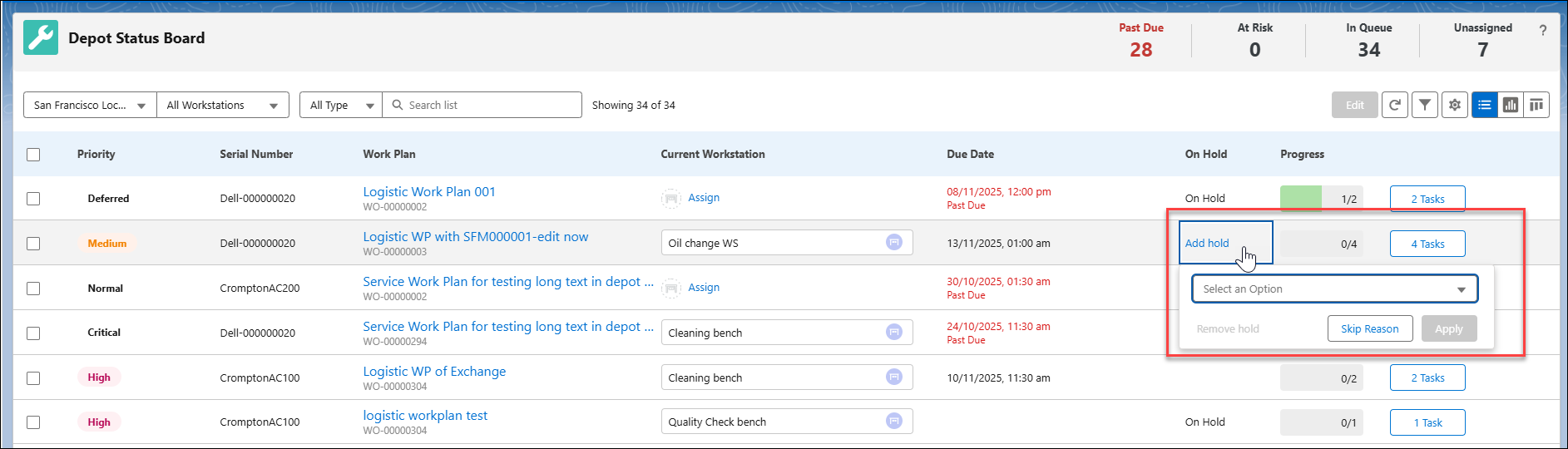
3. Place your cursor on the cell you want to mark on hold and click Add Hold. The Add Hold drop-down menu opens. Select an option from the following:
◦ Awaiting Payment
◦ Awaiting RMA
◦ Customer Response Pending
◦ Customer reason
◦ Incomplete Documentation
◦ Quality Inspection Hold
◦ Scheduling Conflict
◦ Technical Review Needed
◦ Tooling Unavailable
◦ Waiting for Parts
◦ Warranty Verification
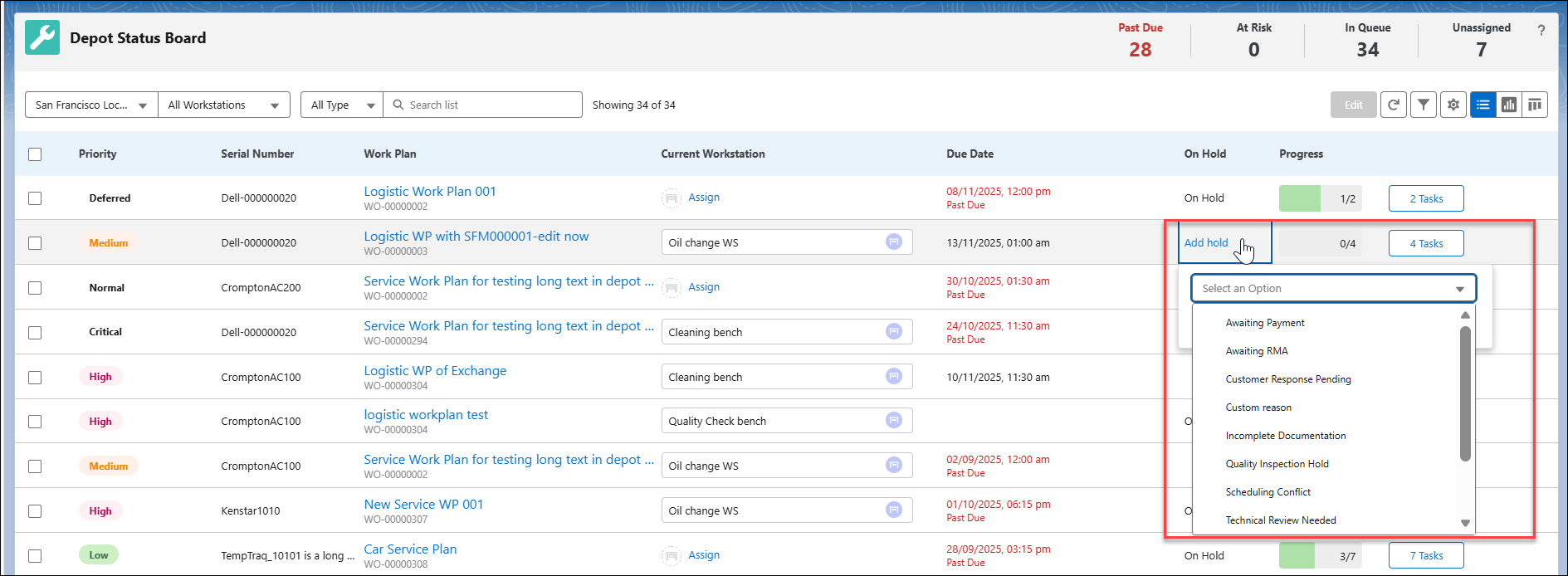
4. Click Apply. This saves the reason for adding an item on hold.
The queue item is marked as held.
 |
You can also put items on hold without adding a reason using Skip Reason. This marks items On Hold, but without a reason.
|
To remove queue items from on hold status:
1. Click the cell that is set to On Hold.
2. Click Remove Hold to remove the item from hold.
The selected queue item is removed from hold.
|
|
For the queue items already On Hold, you can also retain the status and add or modify the reason from the drop-down menu.
|
Reference Topics