Custom Labels and Help Text for Fields
SFM Delivery displays custom field labels and inline help text on the SFM transaction screen, overriding the standard Salesforce field labels.
Fields on a Salesforce object are sometimes used across different business processes. Custom field labels and help text provide guidance to users on what data to enter, helping reduce input errors and improving adoption without additional support.
SFM Designer supports help text on fields added to the SFM layout. Standard Salesforce field labels are limited to 40 characters. Administrators can configure custom labels or help text on a field, and SFM Delivery then displays those custom values instead of the default Salesforce labels. There are three ways to configure this guidance: label override, info tooltip, and placeholder text. For more information, see Configuring Custom Field Labels and Help Text.
 |
Custom field labels and help text are displayed in SFM web delivery only, not in Mobile.
|
Label Display
Redefine complex or ambiguous field names to provide better clarity and ensure consistent data input. A configured custom label replaces the standard Salesforce field label in SFM Delivery. The custom label appears in the following areas:
• Header field labels
• Extended Edit window field labels
• Child grid column headers. The custom label is truncated to fit the column width. The full label is visible when the column is expanded.
Label display varies by view mode:
• Comfy view: The label wraps to display the complete custom text.
• Compact view: The label wraps within the available space.
Label override is supported on all data types.
|
|
Data Validation Rule (DVR) error messages also display the overridden label instead of the original Salesforce field name.
|
Help Text Display
Help text appears in SFM Delivery based on the configured display mode:
• Info icon tooltip: An info icon appears at the end of the field label when help text for tooltip is configured. Hovering over the icon displays the help text in a tooltip, providing contextual guidance that assists with user onboarding, reduces errors, and improves adoption without requiring immediate support. If no help text for info icon is configured, the info icon is not displayed. Info tooltip is supported on all data types.
• Placeholder text: Greyed-out text appears inside the field input area as a short directive or hint explaining how the field should be filled. The text disappears when data entry begins and reappears when the field value is cleared.
Supported field types: text fields (text, text area, long text area), rich text area, email, URL, number, currency, phone, percent, date, datetime, time, and picklist (when no default value is set). For text area, the field can be expanded to display the complete placeholder content. If the placeholder text exceeds the input field width, the text is trimmed to fit.
|
|
Placeholder text is supported on identified data types only. Tooltip can be used for the data types not supported by placeholder text.
|
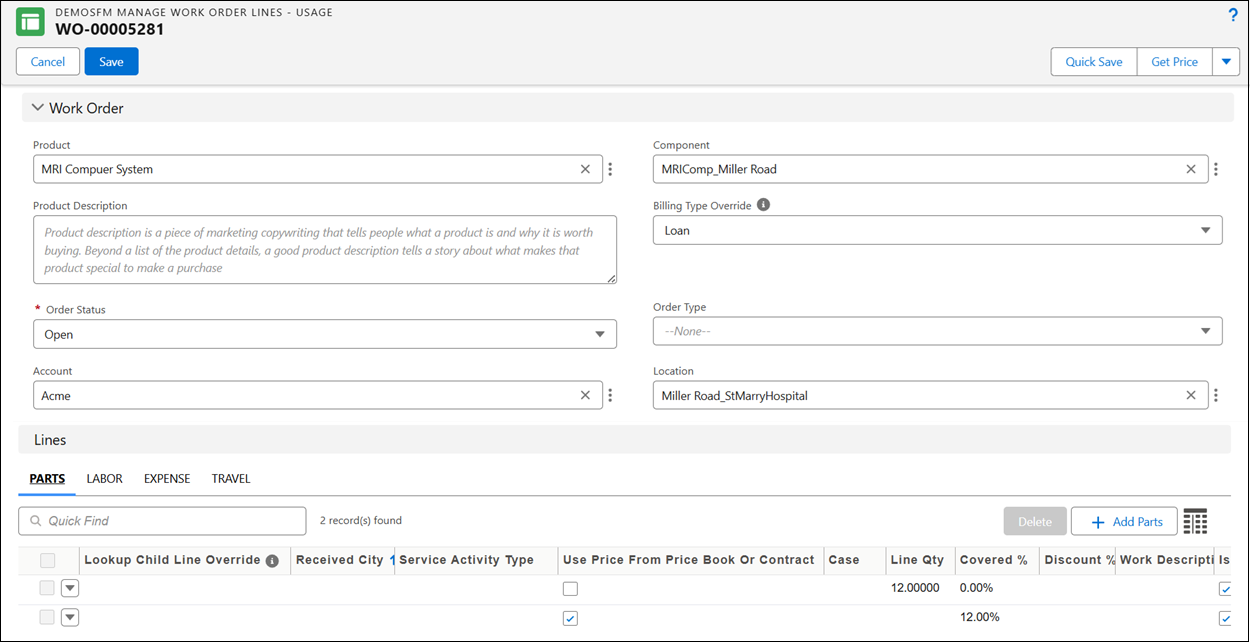
SFM Delivery applies a default placeholder to each field based on whether placeholder text and a custom label are configured.
• By default, SFM Delivery uses the field name as the placeholder for any field that does not have placeholder text configured.
• A field that has a custom label but no placeholder text shows a blank placeholder. This avoids any mismatch between the overridden label and a default placeholder that would otherwise show the original field name.
|
|
Placeholder text and info icon tooltips are available on header fields, in extended edit mode, and in the detail grid.
|
Translation Support
SFM Delivery displays the translated custom label or help text that matches the logged-in user's language whenever a translation is available. Character limit for custom labels and help text is up to 255 characters.
• Translated text beyond 255 characters is truncated.
• If no translation exists for the user's language, SFM Delivery displays the master (default) text.
Use Case
Eliminating dispatch calls about ambiguous field labels
Role: Technician
At Iniscope International, the Work Order header field Billing Type regularly confuses engineers at Life Line, who interrupt repairs to call dispatch and ask which option applies. The Iniscope administrator opens SFM Designer for the Work Order SFM, sets the custom label to Billing Method (T&M / Flat Rate / Covered), adds placeholder text Select how this visit will be billed, and configures an info-icon tooltip with help text Choose Time & Material for ad-hoc jobs, Flat Rate for fixed-price contracts, or Covered when the work falls under an active entitlement. The engineer opens the Soniscape SSI 1000 Work Order in SFM Delivery, sees the descriptive label with the greyed-out hint inside the field, and hovers the info icon for the tooltip. The engineer picks the correct billing method without calling dispatch, and Iniscope's billing reconciliation no longer rejects work orders for ambiguous billing classifications.
Giving global engineers guidance in their own language
Role: Technician
Iniscope International runs field service across multiple regions. An engineer in Munich and an engineer in Denver both open the same Soniscape SSI 800 Work Order in SFM Delivery. Each sees the Billing Type label, placeholder, and info-icon tooltip in the language tied to their logged-in locale, with no English fallback to slow them down. Both engineers act on the same guidance in their own words and pick the correct billing method without pausing to translate or call dispatch. (The Iniscope administrator supplies the translations once for each supported language in SFM Designer.)